In this article 9 sections
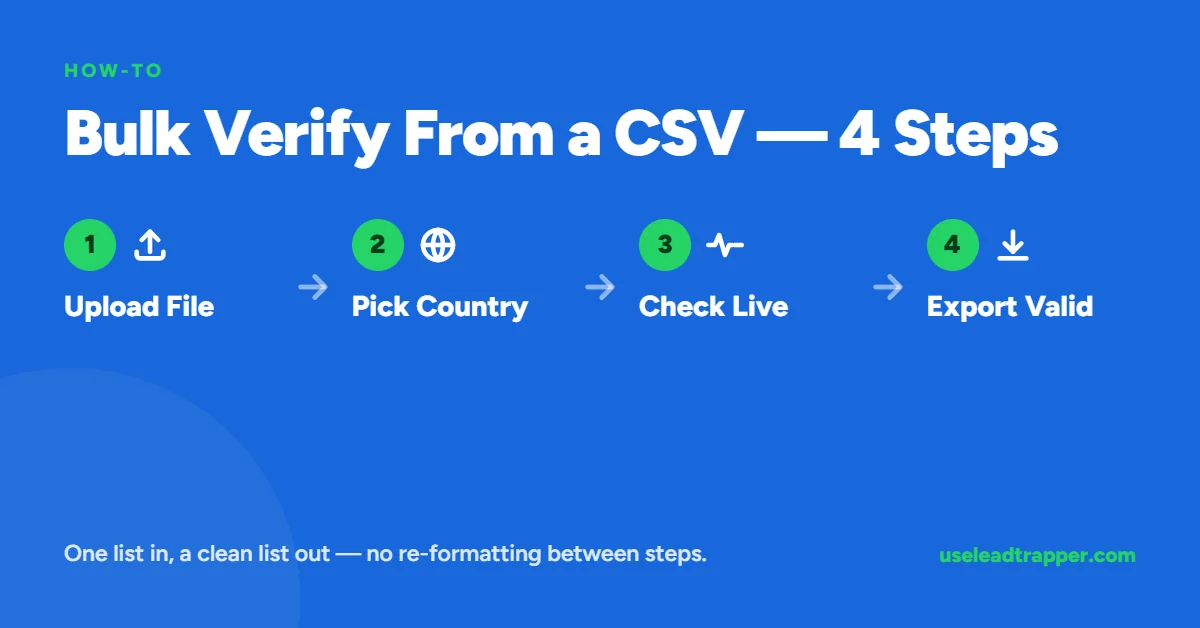
Upload the CSV or Excel file to LeadTrapper's Number Filter, pick a country and click Start. It cleans the numbers, checks each one through your connected WhatsApp account and exports either all results or only the valid numbers. The WhatsApp browser must be open.
- The whole process is upload, pick a country, click Start — there is no separate cleanup pass before the file can be used.
- Both CSV and Excel (.xlsx) files work. The tool reads whichever column looks like it contains phone numbers automatically.
- A batch of any realistic list size runs at a controlled pace by default, so results take minutes, not an instant flood of requests.
- Results export as a spreadsheet — either everything checked, or only the verified valid numbers, ready to load straight into a WhatsApp campaign.
- The check runs through a real connected WhatsApp account, so 'WA Browser must be open' is the one prerequisite before starting.
Checking whether a hundred phone numbers are real WhatsApp accounts by hand means opening each one in a new chat window and watching what happens — a full afternoon for a list that size, and it doesn’t scale past a few hundred. This walks through doing the same check for an entire spreadsheet at once.
What You Need Before Starting
One connected WhatsApp account in LeadTrapper, open and active — the check runs through it the same way WhatsApp’s own app checks a new contact internally. And the file itself: a CSV or Excel export of the numbers to verify, in whatever format it already exists in.
Step 1 — Upload or Paste Your List
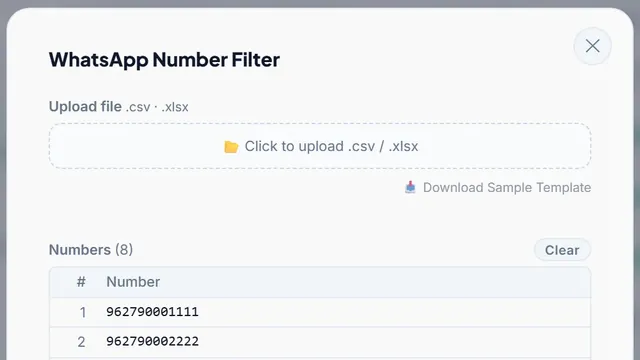
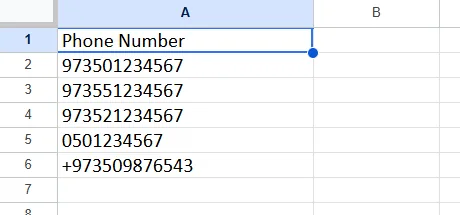
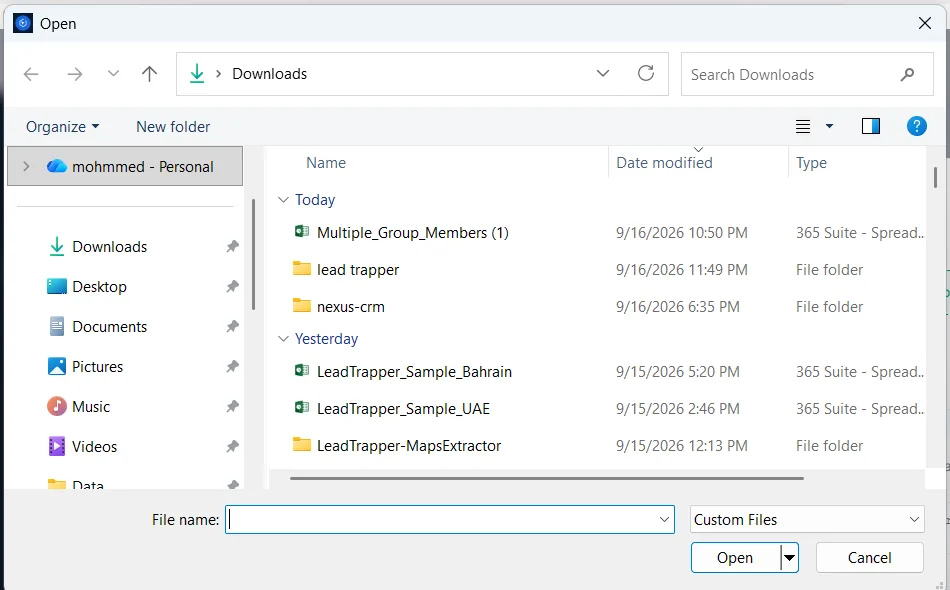
Open the WhatsApp Number Filter and either click to upload a .csv or .xlsx file, or paste numbers directly into the text box, one per line. If uploading a file with a header row, a column named something like “Phone,” “Mobile,” or “Number” is detected automatically. If the file has no clear header, every cell in each row is checked for something that looks like a phone number instead — nothing needs to be reformatted or relabeled first.
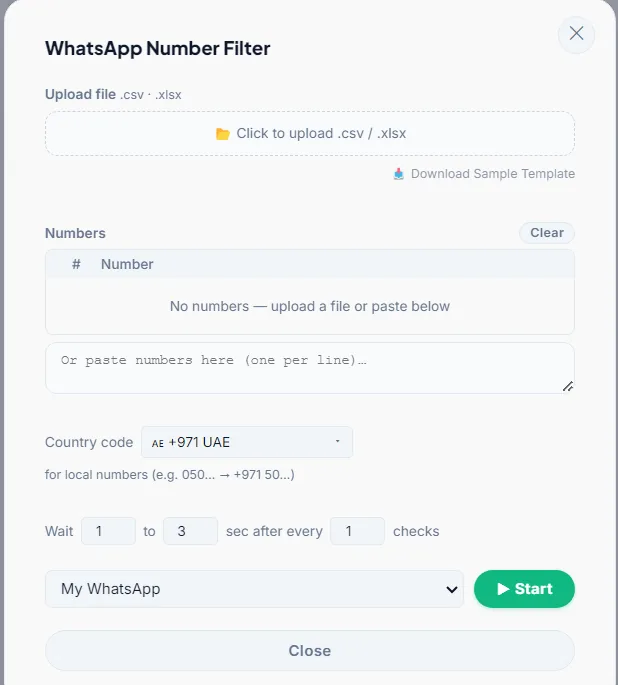
Not sure the file is formatted in a way the tool will read correctly? A “Download Sample Template” link sits right next to the upload button — a blank file with the expected column already in place, useful as a reference before uploading a real list for the first time.
Step 2 — Pick a Country
Select the country the local-format numbers in this batch belong to — UAE, Saudi Arabia, or any other listed country. This only matters for numbers that don’t already include their own country code; anything already written in full international format is read correctly regardless of what’s selected here.
Step 3 — Click Start and Read the Results
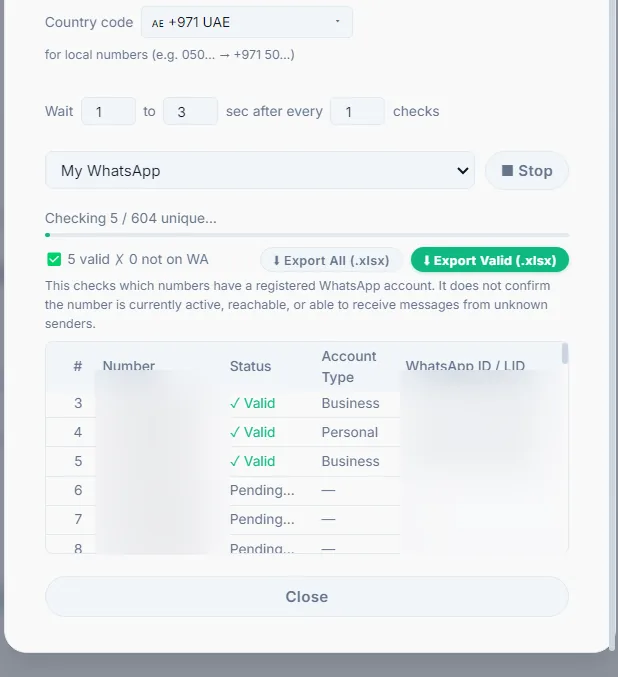
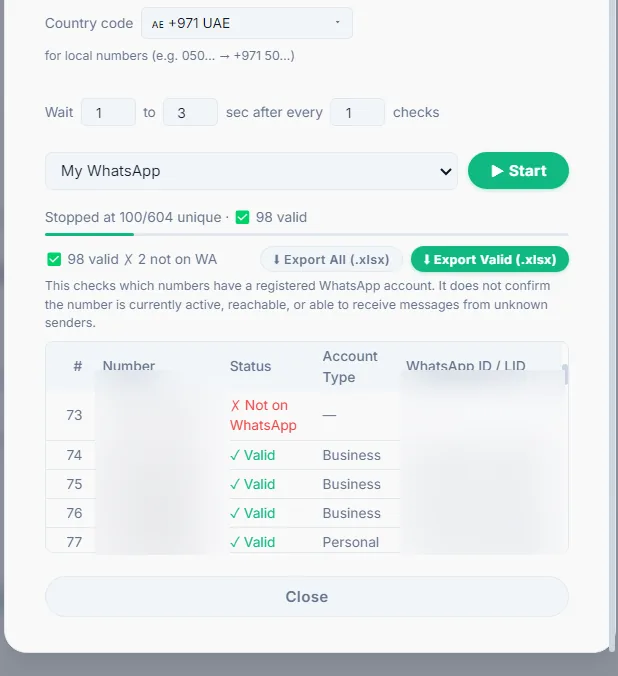
Each number is cleaned, checked, and added to a results table as it completes — status (valid or not), account type (business or personal), and the confirmed WhatsApp identifier for anything that matches. A running count at the top shows how many are valid so far and how many aren’t, updating live as the batch works through the list.
Export What You Need
Two export options cover the two things people actually need afterward: Export All produces a complete spreadsheet including invalid and duplicate entries with the reason each was excluded, useful for auditing where a list came from. Export Valid produces just the confirmed working numbers, ready to load straight into a WhatsApp bulk sending campaign with nothing further to clean.
What a Realistic List Actually Looks Like When It's Done
A list built from a mixed source — part Google Maps scrape, part manually collected — commonly comes back with a meaningful share of invalid entries once actually checked, simply because that’s what an unverified list looks like before anyone has looked closely at it. Landlines picked up during a scrape, numbers that changed hands, entries typed with a mistake — none of that is visible from the spreadsheet alone. It only becomes visible once every number has actually been asked the one question that matters: is this really on WhatsApp.
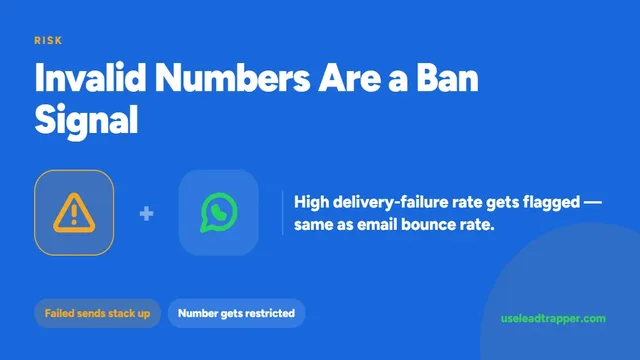
For the reasoning behind why this step is worth doing before a campaign rather than after, see why invalid numbers put an account at risk.
Preparing the CSV or Excel File
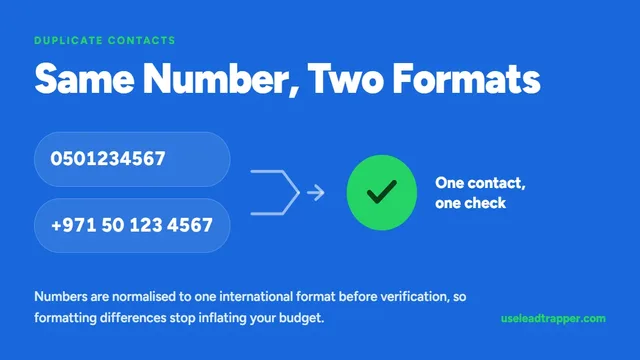
You don’t need to clean the file first. Numbers can be in local format, such as 0501234567, or international, such as +971 50 123 4567, and spaces or dashes are fine. The filter fixes the format, removes duplicates and adds the country code you pick to every local number. A sample template in the app shows the layout it expects.
The one thing to get right is the country. If your list mixes countries, write those numbers in full international format with the + and country code, so the country setting only applies to the local ones.
If the Results Look Wrong
- Almost every number comes back invalid. The country setting is probably wrong, so local numbers got the wrong code.
- Fewer results than rows in the file. Duplicates are removed after cleaning, so
050...and+971 50...count once. - “Safety Pause: 7 checks in a row came back not registered or failed.” The filter waits 15 minutes, then Start resumes from where it stopped. A wrong country code, a run of landlines or a disconnected account are the usual causes.
- Checking stopped. Keep the WhatsApp window open while the filter runs.
After Verifying: Sending to the Valid Numbers
Export only the valid numbers and load them into the WhatsApp Bulk Sender. If the number you’ll send from is new, warm it up first with the Account Warmer, because a fresh account sending to a large list is the pattern WhatsApp watches most closely.
Before you send: warm up new or quiet numbers first with the WhatsApp Account Warmer, which runs in the same app.
Frequently Asked Questions
CSV, .xlsx, and .xls all work. The tool looks for a column with a header like 'phone', 'number', or 'mobile' automatically; if none of the headers match, it scans each row for a cell that looks like a phone number instead.
No. Numbers are cleaned automatically regardless of formatting — dashes, spaces, missing country codes, and stray extra digits are all handled before checking. Upload the file exactly as it exists.
The tool checks numbers in controlled batches with a short pause between each, by default 1 to 3 seconds after every check. A list of a few hundred numbers typically finishes in a few minutes; the pacing is deliberate and protects the connected WhatsApp account rather than being a technical limitation.
Yes. There are two export options — one for the complete results including invalid and duplicate entries, and one that exports only the confirmed valid numbers, ready to use directly in a bulk sending campaign.
The verification runs through the same connected WhatsApp account used for sending, checking each number the same way WhatsApp's own app does internally. That requires the browser session for the connected account to be open during the check — it isn't a separate always-on service.
About LeadTrapper
LeadTrapper is a Windows app for finding business leads and contacting them on WhatsApp. It collects business contacts from Google Maps, Instagram, Facebook, TikTok, LinkedIn and business websites, checks which numbers are on WhatsApp with its Number Filter, and sends personalised campaigns with automatic delays from one or more WhatsApp accounts. It also has a chatbot, a shared inbox for every account, and Store Orders for online shops. It installs from the Microsoft Store, and the full app is free for 14 days, then $50 a year. Free web tools, browser extensions and a Wix app are listed on the Free Tools page.
Verify Your List in Minutes, Not by Hand
Upload a CSV or Excel file, pick a country, click Start. LeadTrapper's WhatsApp Number Filter does the rest. $50/year — all features included.