In this article 8 sections
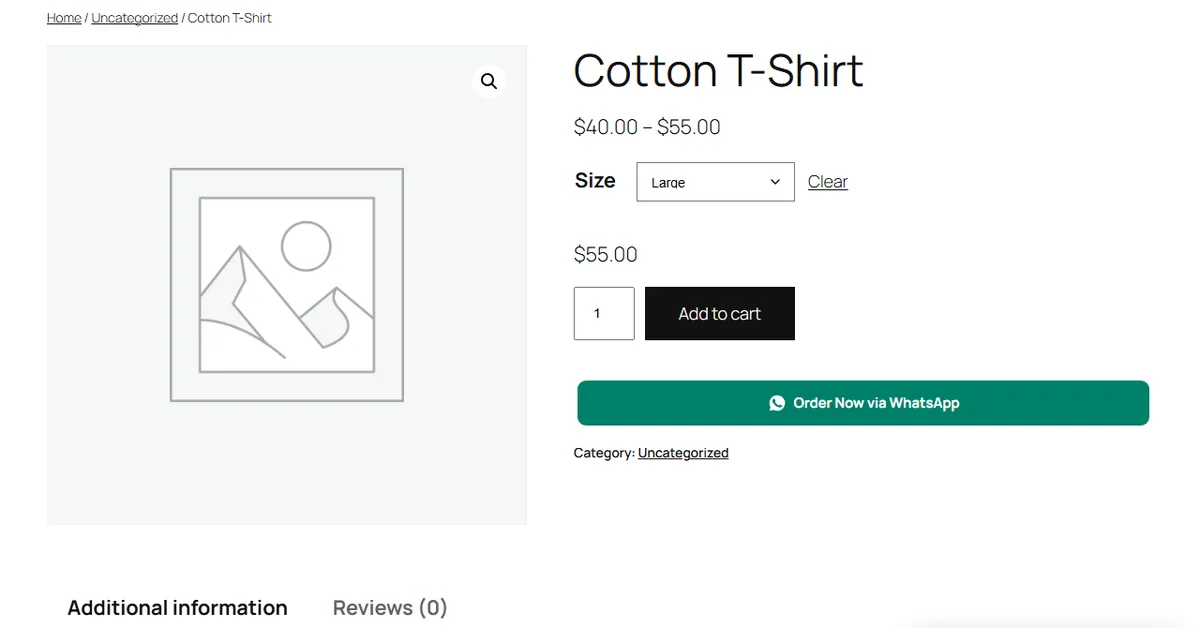
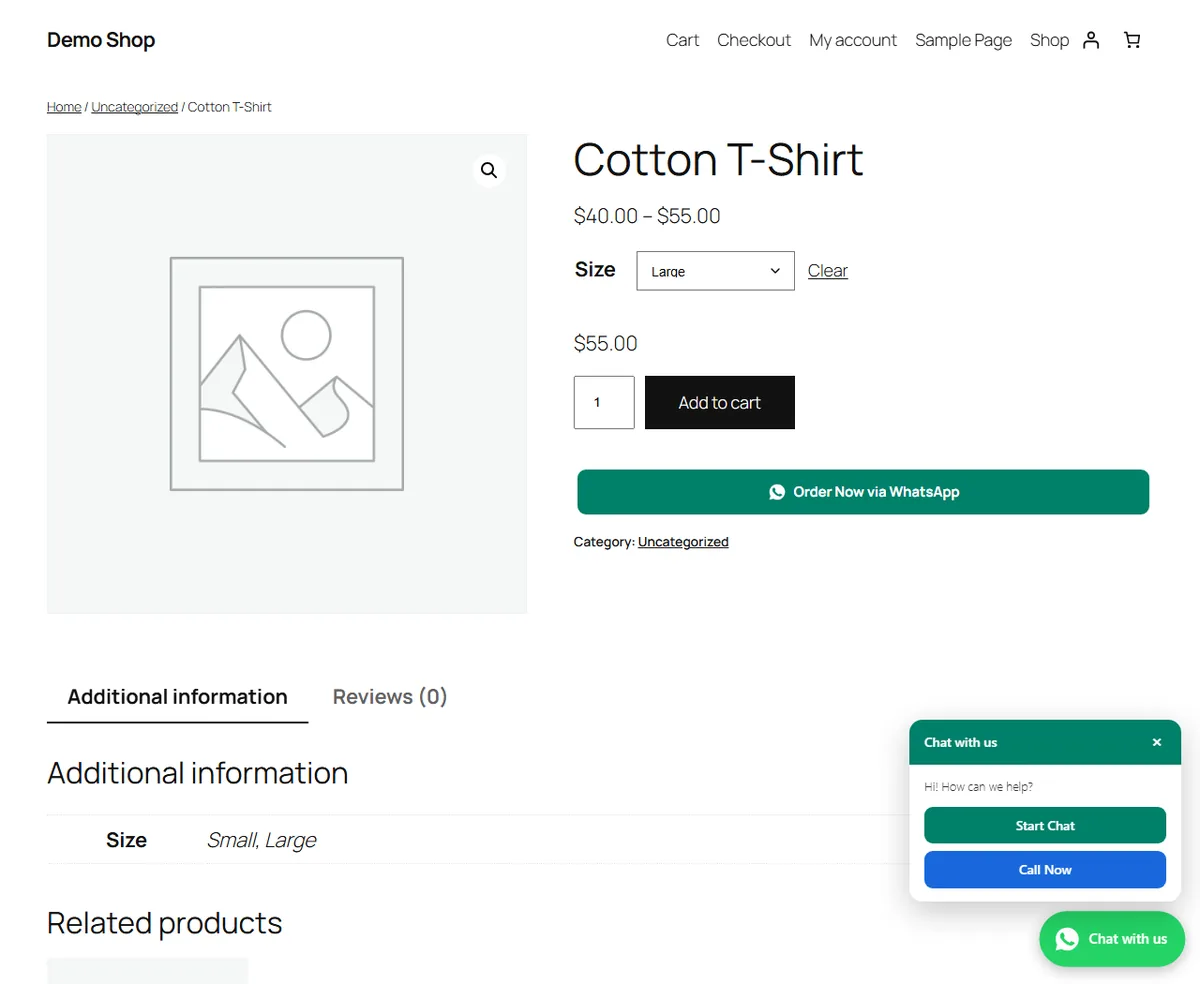
Install the free LeadTrapper Order & Chat Button for WooCommerce from WordPress.org, activate it, then save your WhatsApp number under Order & Chat, Settings. An Order Now via WhatsApp button appears under Add to cart, with the product, options, quantity, price and link already written.

Order button on product pages, whole-cart button, chat and call button, and click counts in WordPress.
- Order via WhatsApp button under Add to cart
- Chosen options, quantity and price in the message
- Floating chat and call button
- A plain wa.me link opens a chat, but it does not know which product the shopper is looking at. An order button sends the product details with the message.
- The free LeadTrapper Order & Chat Button for WooCommerce adds the button under Add to cart. It works with classic and block themes and needs no code.
- If a shopper picks a size or colour, the option goes into the message when they click.
- You choose which products show the button. You can also add a whole-cart button, a floating chat and call button, and a shortcode for other page layouts.
- The buttons need no WhatsApp Business API and no other software. Optional automatic order messages need the LeadTrapper app open on a Windows computer.
To add a WhatsApp order button to WooCommerce, install the free WhatsApp Order & Chat Button for WooCommerce from WordPress.org, activate it, and save your WhatsApp number in its settings. A button then appears under Add to cart. When a shopper clicks it, WhatsApp opens with their order already written, so all they have to do is press send.
What the video shows:
- 0:00 WhatsApp Order Button for WooCommerce
- 0:11 How to Add a WhatsApp Button in WordPress
- 0:23 Order on WhatsApp Button for WooCommerce
- 0:58 WooCommerce Cart to WhatsApp
- 1:10 Floating WhatsApp Button for WordPress
- 1:36 WooCommerce WhatsApp Order Notification Plugin
- 2:17 WooCommerce Cash on Delivery WhatsApp Confirmation
- 2:36 WooCommerce Abandoned Cart WhatsApp Reminder
- 2:56 WhatsApp Button Click Tracking and Orders
- 3:18 Install the WooCommerce WhatsApp Plugin
Order Button or Plain WhatsApp Link?
The simplest option is a normal link to https://wa.me/ followed by your full number. It costs nothing and works, but it opens an empty chat. The shopper has to explain which product they mean, and you have to ask about size, colour and quantity.
An order button starts the chat with those details filled in. If you only want people to be able to contact you, a plain link may be enough. If you take orders on WhatsApp, the button saves that first round of questions on every order.
Install and Set Up the Button
You need WordPress 6.2 or newer and WooCommerce for the order button. Setup needs no code.
1. Install the plugin
Open the plugin page on WordPress.org and download the ZIP file. In WordPress, go to Plugins, Add New, Upload Plugin, choose the file and click Install Now. You can also search for “LeadTrapper Order & Chat Button” on the Add New screen. Then click Activate.
2. Save your WhatsApp number
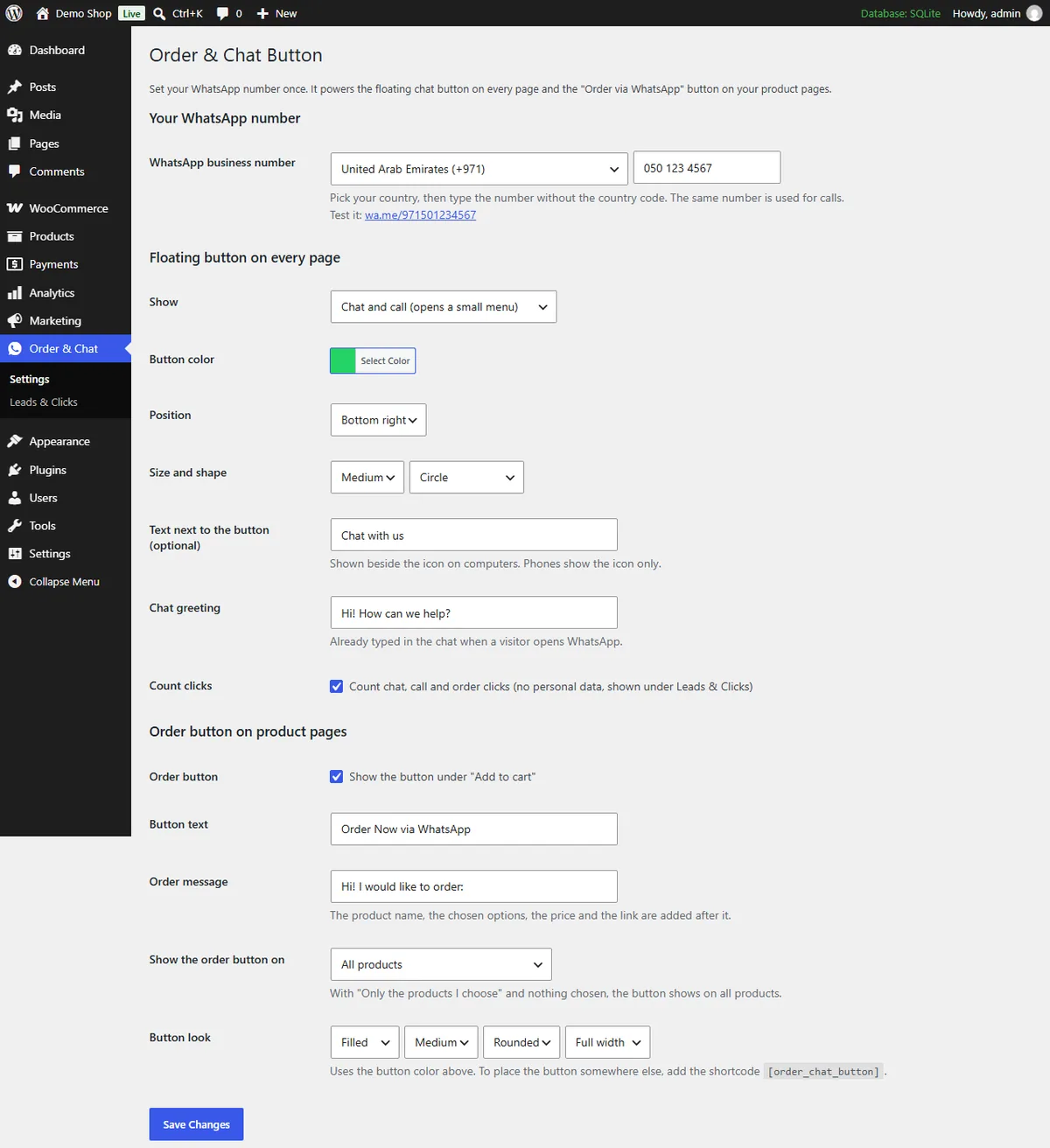
Go to Order & Chat, Settings. Pick your country, type your number without the country code, and click Save Changes. The plugin adds the code for you, and a “Test it” link lets you check the number.
3. Test it on a product page
Open a product page in a private browser window, choose any options and click the button. WhatsApp should open with your number and the order message. It is also worth testing on your phone, since that is where many shoppers will click it.
What the Shopper Sends You
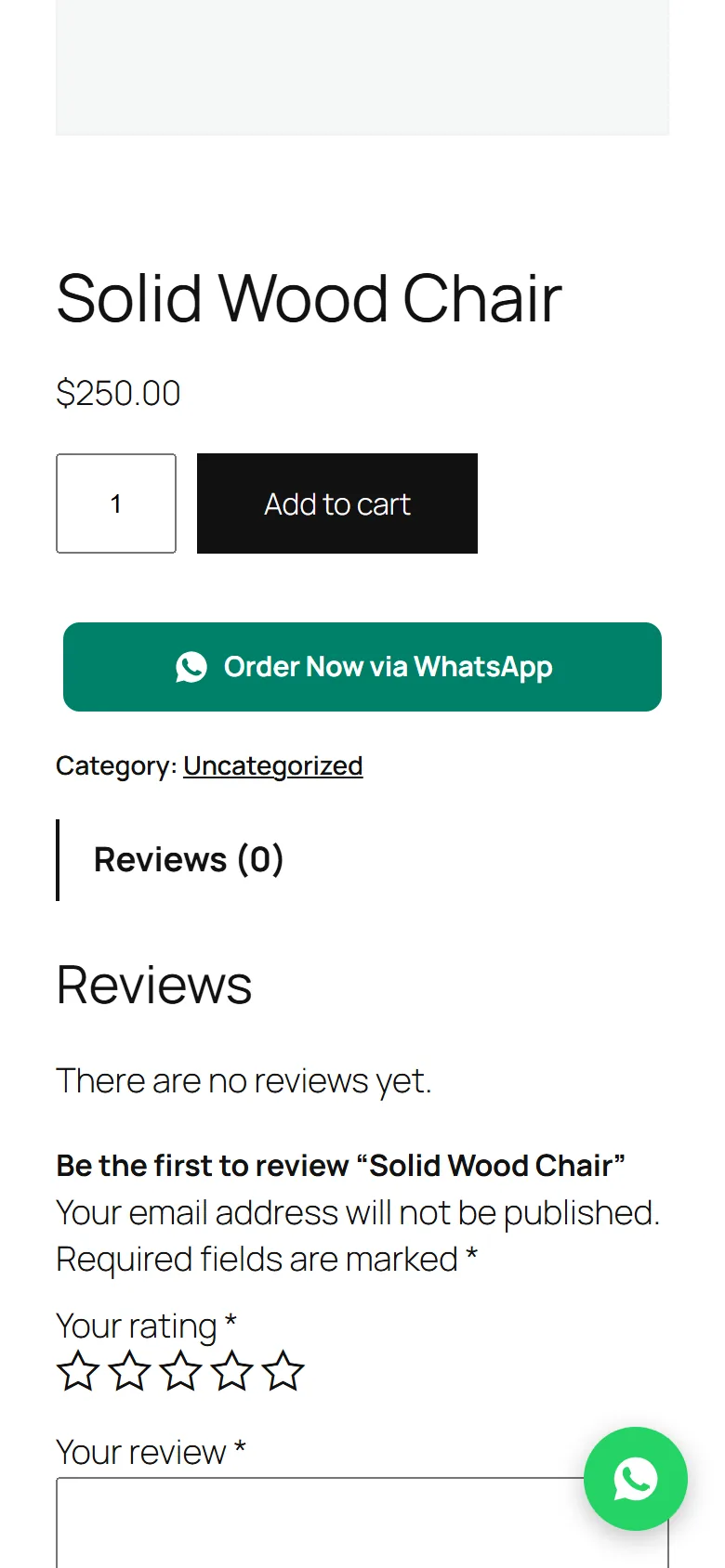
The message starts with your opening line, followed by the product details and the page link. For two large T-shirts, it looks like this:
Hi! I would like to order: 2 x Cotton T-Shirt - Large ($55.00) - https://yourshop.com/product/cotton-t-shirt/
The plugin reads the chosen options, price and quantity at the moment of the click, so a shopper who changes the size sends the new size and its price. You can rewrite the opening line in Settings, in any language. The shopper can still edit the message before sending it.
Choose Products and Change the Look
Under Show the order button on, choose all products, only the products you pick, or all products except the ones you pick. A search box finds the products for you. The button also shows on out-of-stock products, so you can still take those orders by chat.
Under Button look, choose filled, outline or soft, three sizes, three corner styles, and full or fitted width. The button uses the colour you set for your floating button, and you can change its text from “Order Now via WhatsApp” to your own wording.
To place the button somewhere else, add the [order_chat_button] shortcode to the page. For a specific product, use [order_chat_button product="123"].
Add a Cart and Floating Button
Whole-cart button. Turn on the “Order my cart via WhatsApp” button on the cart page, and the message lists every product with its options, quantity and price, plus the cart total. This helps when a shopper is buying several items.
Floating chat and call button. This stays in the corner of your pages and can open a chat, start a call, or show a small menu with both. You choose the colour, corner, size and shape, the text next to it on computers, and the greeting already typed in the chat. It works on any WordPress site, even without WooCommerce.
You can show it on phones only, computers only or both, and limit it to your opening hours. It stays off the checkout page by default, so shoppers can finish paying without distraction.
If the Button Does Not Show
- No number saved. Both buttons need a number, so check Order & Chat, Settings first.
- Wrong kind of page. The order button only shows on WooCommerce product pages.
- Order button switched off or limited. Check that Show the button under “Add to cart” is ticked, and that this product is included.
- A custom theme layout. If your theme moves the add-to-cart area, add the
[order_chat_button]shortcode where you want the button. - Shop in Coming soon mode. New WooCommerce shops can start in this mode, which hides the pages from visitors. Check Site visibility under WooCommerce, Settings.
See Clicks and Orders
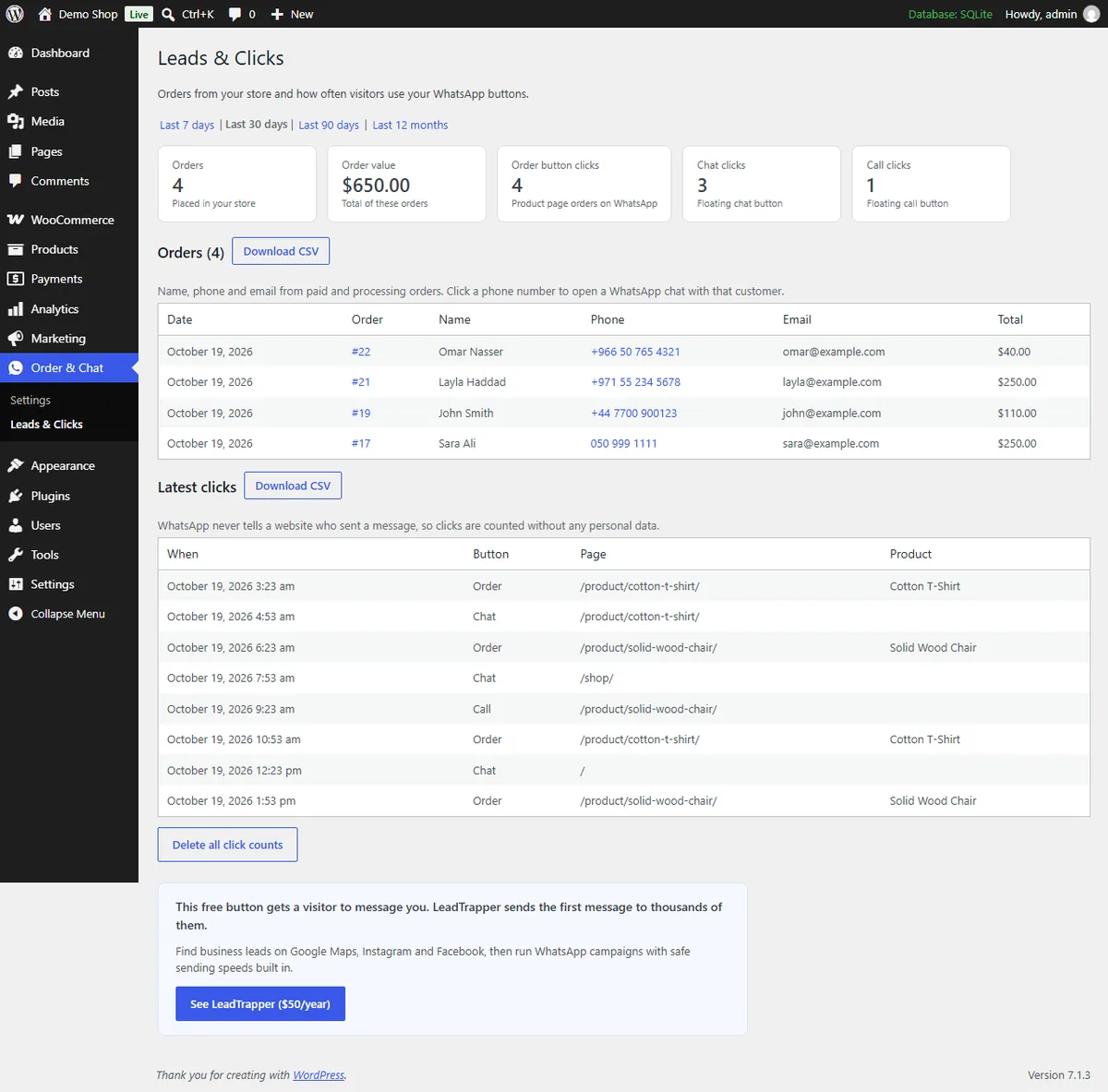
The Leads & Clicks page counts order, chat and call clicks for the last 7, 30 or 90 days or 12 months. It also lists your WooCommerce orders with name, phone and email, and clicking a phone number opens a WhatsApp chat with that customer. You can download orders and clicks as CSV files.
WhatsApp never tells a website who sent a message, so a click is not the same as an order. Click counts hold only the button type, the page and the product name, with no names, IP addresses or cookies.
Optional Automatic Order Messages
Everything above works on its own. If you also want your shop to message customers automatically, the plugin can connect to Store Orders in LeadTrapper for Windows, which needs no paid licence for order messages.
While the app is open on a Windows computer, it can send order, payment and shipping updates from your own WhatsApp number, ask cash-on-delivery customers to confirm, and send one abandoned cart reminder. If the computer is off, messages wait for up to 7 days. The WhatsApp COD order confirmation guide explains the confirmation step, and the order confirmation message templates give you wording to start from.
This stays off until you generate a connection code in the plugin. Customer details leave your site only after that, and the privacy policy lists what is sent.
Frequently Asked Questions
Install and activate a WhatsApp order plugin. With the free LeadTrapper Order & Chat Button for WooCommerce, go to Order & Chat, Settings, pick your country, type your WhatsApp number and save. The button then appears under Add to cart on your product pages.
Yes. The LeadTrapper Order & Chat Button for WooCommerce is free on WordPress.org and has no paid plan. The order button, the cart button, the floating chat and call button and the Leads & Clicks page are all included.
No. The buttons use standard wa.me links, which work with a normal WhatsApp or WhatsApp Business number. There is no API, no approval and no monthly fee.
Yes. On products with options, the chosen options and the price of that option are added when the shopper clicks. If the quantity is more than one, it is added too.
Yes. Under Show the order button on, choose only the products you pick or all products except the ones you pick, then search for the products.
Check that a number is saved in the plugin's settings and that you are looking at a WooCommerce product page. If your theme moves the add-to-cart area, add the [order_chat_button] shortcode where you want the button. A new shop in Coming soon mode also hides its pages from visitors.
About LeadTrapper
LeadTrapper is a Windows app for finding business leads and contacting them on WhatsApp. It collects business contacts from Google Maps, Instagram, Facebook, TikTok, LinkedIn and business websites, checks which numbers are on WhatsApp with its Number Filter, and sends personalised campaigns with automatic delays from one or more WhatsApp accounts. It also has a chatbot, a shared inbox for every account, and Store Orders for online shops. It installs from the Microsoft Store, and the full app is free for 14 days, then $50 a year. Free web tools, browser extensions and a Wix app are listed on the Free Tools page.
Add the Free WhatsApp Order Button to WooCommerce
An order button under Add to cart, a chat and call button and click counts in WordPress. Install it from WordPress.org.