In this article 7 sections
WhatsApp already gives you a QR code: open Settings and tap the QR icon next to your name. It lets people add you as a contact. For a code that opens a chat with your number and a ready message, turn a wa.me link into a QR code with a free generator, as a PNG or SVG.
- WhatsApp has its own QR code under Settings, next to your name. Someone who scans it can add you as a contact. Resetting it makes the old code stop working.
- In the WhatsApp Business app the code sits under Tools, then Short link, and WhatsApp says it does not expire unless you reset it or delete the account.
- A QR code made from a wa.me link opens a chat with your number, with a message already typed if you add one. It keeps working as long as the number has WhatsApp.
- People should scan a wa.me QR code with the phone's normal camera. WhatsApp's own scanner only reads official WhatsApp QR codes.
- The free LeadTrapper generator makes the link and the code in your browser, as a PNG or an SVG, with your colours and a logo if you want them.
A WhatsApp QR code lets someone start talking to you by pointing a phone camera at a square, with no number to type. There are two kinds, and they do different jobs. This guide shows where to find the one WhatsApp makes for you, and how to make one that opens a chat with your number and a message already typed, free, with the WhatsApp link and QR code generator on this site.
Two Kinds of WhatsApp QR Code
The first is WhatsApp’s own code. Every account has one, and it shares your contact. The second is an ordinary QR code that holds a wa.me link, the same link described in the guide to creating a WhatsApp link. Scanning it opens a chat with your number.
| Compared | WhatsApp’s own code | A wa.me link QR code |
|---|---|---|
| Where you get it | In the app, under Settings | From a link generator |
| What scanning does | Lets the person add you as a contact | Opens a chat with your number |
| Message already typed | No | Yes, if you add one |
| Your colours and logo | No | Yes |
| When it stops working | When you reset it | Only if the number leaves WhatsApp |
| How people scan it | WhatsApp’s scanner or a phone camera | A phone camera |
Use WhatsApp’s code when you want people to save you as a contact. Use a wa.me code on anything printed for customers, such as a menu, a flyer or a shop window, where you want a chat to start with one scan and you may want to know what the message is about.
Use the QR Code WhatsApp Already Gives You
In the regular WhatsApp app, open Settings and tap the QR code icon next to your name. WhatsApp’s help page, How to share your WhatsApp QR code, describes the same steps and the share button that sends the code to a contact or another app.
Two points from that page are worth knowing. Anyone you send the code to can forward it, and whoever scans it can add you, so share it only with people you trust. And you can reset the code at any time: a new code is made and the old one stops working, which is the fix if a code ended up in the wrong hands.
The WhatsApp Business app keeps its code with the short link. Go to Tools, then Short link, and choose View QR code. WhatsApp’s page About QR code for WhatsApp Business says the code does not expire unless you reset it or delete the Business account. The same page adds a detail that catches people out: the camera inside WhatsApp can only scan official WhatsApp QR codes. A code made from a wa.me link is scanned with the phone’s normal camera, which every recent phone does without an extra app.
Make a QR Code That Opens a Chat With a Message
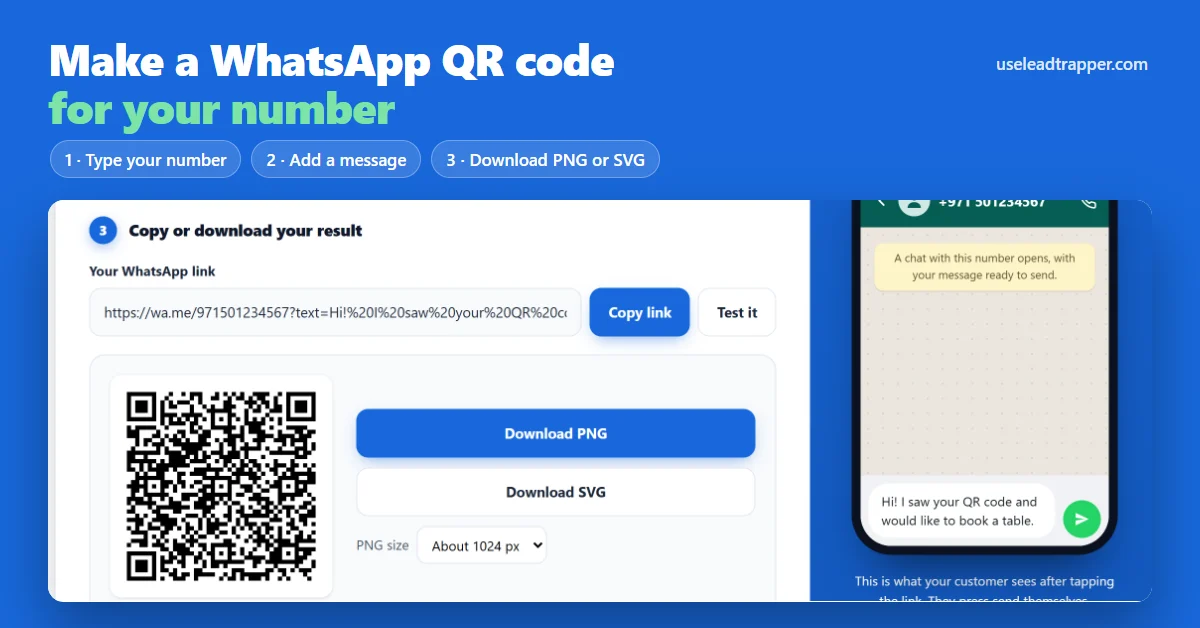
The free generator makes the link and the QR code together:
- Pick your country. The list has 245 of them.
- Type your WhatsApp number the way you dial it locally, for example 050 123 4567 in the UAE. Just below, the tool shows the number it will use: "We will use +971 501234567. Removed the leading 0 and added +971." Check that line, because a wrong digit makes a working code for somebody else's chat.
- Add a message if you want one, such as "Hi! I saw your QR code and would like to book a table." It appears already typed when the chat opens, and the person still presses send.
- The QR code appears next to the finished link. Choose Download PNG or Download SVG.
The phone on the right of the tool is a live preview of what your customer sees after scanning: a chat with your number and your message waiting in the box. Everything runs in your browser, so the number and the message are not sent anywhere, and there is no login.
A different message on each code is a simple way to see where people found you. One code on the menu can say “Hi, I’m at table 4”, another on a flyer can say “Hi, I saw your flyer”. The message tells you which code someone scanned before you even reply.
Colours, a Logo and the Right File
Open Customize under the QR code to pick the colours and add a logo from your computer. The logo stays in your browser. Because a logo covers part of the code, the tool switches to the highest error correction, the setting that lets a QR code still scan with part of it hidden.
Colour is where printed codes most often fail. A dark code on a light background scans best. Light on dark, or two colours close in brightness, may not scan at all, and the tool warns you when the contrast is low.
Pick the file by where the code will go:
- PNG for screens, posts and documents. Choose the size from the PNG size list; about 1024 px is plenty for most uses.
- SVG for anything a printer or designer handles. It stays sharp at any size, from a business card to a banner.
Test It Before You Print
Scan the downloaded file with a phone camera before it goes on anything printed. Check three things: the chat opens with the right number, the message is there, and the code scans from the distance people will actually stand at. A code on a table can be small. A code in a window or on a poster needs to be much bigger, and the guide to WhatsApp QR codes for restaurants and business cards gives real print sizes for tables and cards.
If the wrong chat opens, the problem is almost always the number: a leading 0 left in, or a missing country code. The WhatsApp number format guide shows the right format for 17 countries.
Where to Put Your QR Code
Anywhere a customer is holding a phone and might want to ask you something:
- Restaurant tables, menus and takeaway bags.
- Business cards, flyers, brochures and price lists.
- A shop window or the counter, for people who pass when you are closed.
- Delivery boxes and receipts, for reorders and questions.
- Slides and printed event material.
On a website or social profile a tappable link works better than a code, because people are already on their phone. The guide to adding a WhatsApp link to Instagram and your website covers that, and the Google Business Profile guide shows how to add WhatsApp to your listing on Google Maps. If you would rather have a code one click away while you browse, the WhatsApp link and QR generator extension for Chrome and Firefox makes the same codes from the toolbar.
Codes for a Whole List of Numbers
The generator’s Bulk links tab turns up to 5,000 numbers into wa.me links at once, which you can copy or download as a CSV file. That suits a team where every salesperson needs a link and code of their own.
A QR code waits for customers to come to you. When the job runs the other way, and you have a list of contacts who agreed to hear from you, the LeadTrapper Windows app does the sending. Its WhatsApp Number Filter checks which numbers on the list are on WhatsApp, and the WhatsApp bulk sender sends each person a message with their own name in it, with safe waits between messages. It costs $50 a year with a 14-day free trial, and you can download it here.
Frequently Asked Questions
Make a wa.me link for your number and turn it into a QR code. In the free LeadTrapper generator you pick the country, type the number the way you dial it and add a message if you like, and it shows the QR code straight away. Download it as a PNG or an SVG and scan it with a phone camera before you share it.
Open WhatsApp, go to Settings and tap the QR code icon next to your name. You can show it or share it from there. In the WhatsApp Business app, go to Tools, then Short link, and choose View QR code.
WhatsApp's own code keeps working until you reset it. Resetting creates a new code and the old one stops working. WhatsApp says a Business QR code does not expire unless you reset it or delete the Business account. A QR code made from a wa.me link has no expiry, because it is only the link: it works as long as the number has an active WhatsApp account.
Yes, if you make it from a wa.me link. Add the message when you make the link, and it appears already typed when the chat opens. The person still presses send. WhatsApp's own QR code in Settings has no message.
Yes. In the free generator, open Customize, pick your colours and add a logo from your computer. A logo covers part of the code, so the tool switches to the highest error correction. Keep a dark code on a light background, and scan the result with a phone before you print it.
Yes. The LeadTrapper link and QR generator is free, needs no login and runs in your browser, so the number and message you type are not sent anywhere. WhatsApp's own QR code in the app is free too.
About LeadTrapper
LeadTrapper is a Windows app for finding business leads and contacting them on WhatsApp. It collects business contacts from Google Maps, Instagram, Facebook, TikTok, LinkedIn and business websites, checks which numbers are on WhatsApp with its Number Filter, and sends personalised campaigns with automatic delays from one or more WhatsApp accounts. It also has a chatbot, a shared inbox for every account, and Store Orders for online shops. It installs from the Microsoft Store, and the full app is free for 14 days, then $50 a year. Free web tools, browser extensions and a Wix app are listed on the Free Tools page.
From One QR Code to a Whole Customer List
LeadTrapper for Windows: Google Maps scraper, Number Filter and WhatsApp bulk sender in one app. $50/year, 14-day free trial.