In this article 7 sections
Waiting for this message on WhatsApp means your phone received a message it couldn't decrypt yet. WhatsApp says it happens when delivery failed or when you or the sender recently reinstalled WhatsApp. Ask the sender to open WhatsApp with internet on, update the app on both sides, and if it doesn't appear, ask them to resend it.
- The notice replaces a message your phone received but couldn't decrypt yet; WhatsApp's end-to-end encryption needs the right keys on both sides.
- WhatsApp names two causes: the message failed to deliver, or you or the sender recently reinstalled WhatsApp.
- The usual fix is on the sender's side: open WhatsApp with internet on, so the message can be sent again.
- Updating WhatsApp on both phones and asking for a resend solves most of the rest.
- Some messages never appear; if it's still there after a day, ask the sender to resend.
You open a chat and instead of a message there’s a grey line in italics: Waiting for this message. This may take a while. It feels like a bug, and it’s frustrating when the message is something you need. It isn’t a bug, and in most cases it can be fixed in a minute. Here’s what it means and what to do, whether you received it or sent it.
What the Notice Means
Every WhatsApp message is end-to-end encrypted: it’s locked on the sender’s phone and can only be unlocked by the keys on the receiver’s devices. “Waiting for this message” is what WhatsApp shows when your phone received a message but doesn’t yet have what it needs to unlock it. The message isn’t lost; it’s waiting for the keys to line up.
Why It Happens
WhatsApp’s Help Center names two causes:
- The message failed to deliver properly. For example, the connection dropped on one side while it was being sent.
- You or the sender recently reinstalled WhatsApp. A reinstall, a new phone or a restored backup creates new encryption keys, and messages sent to the old keys can't be read.
Support guides add a few related triggers: the sender closed WhatsApp before the message finished sending, or one side is running a very old version of the app.
Fixes If You Received It
- Keep WhatsApp open and online for a minute or two. Many messages appear on their own.
- Ask the sender to open WhatsApp on their phone with working internet. This is the fix that works most often, because the sender's phone has to send the message again with the right keys.
- Update WhatsApp on your phone, and ask the sender to update theirs.
- Ask for a resend. If it's still there after a day, the original may never decrypt. A new copy will arrive normally.
Don’t reinstall WhatsApp to fix it. A reinstall creates new keys and can make it happen to more messages.
Fixes If You Sent It
If someone tells you they see “Waiting for this message” for something you sent:
- Open WhatsApp on your phone with a good connection and leave it open for a minute.
- Update WhatsApp if an update is waiting.
- Send the message again. Copy it, or forward it to the same chat.
If you recently moved to a new phone or reinstalled WhatsApp, expect this for a day or so with people you message often.
In Groups and on WhatsApp Web
- Groups: the same cause, but for one member only. Ask the person who sent it to open WhatsApp; others in the group may see it fine.
- WhatsApp Web and Desktop: a linked computer has its own keys. If only the computer shows the notice, open WhatsApp on your phone, then reload WhatsApp Web. If the computer keeps having problems, the WhatsApp Web logging out guide covers the linked-device rules.
If Customers See It After a Campaign
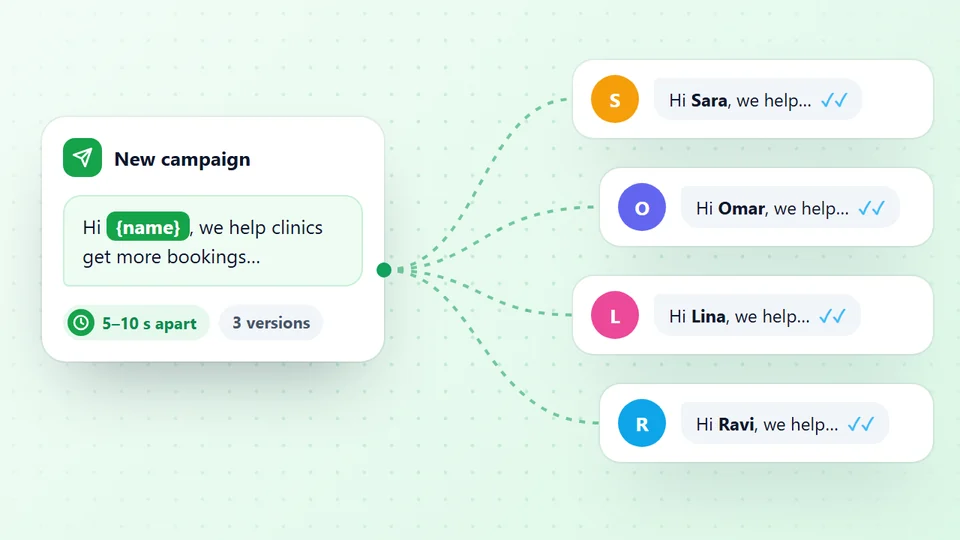
If you send offers or reminders to many customers from a computer, a few might occasionally tell you they see “Waiting for this message”. The fix is the same as for any sender: open WhatsApp on the sending phone with internet on, keep the app updated, and resend to anyone who asks.
- Open the sending phone regularly. Linked devices, including desktop sending tools, depend on the main phone's account staying active.
- Send to numbers that are on WhatsApp. Messages to dead numbers never arrive at all. LeadTrapper's number checker for WhatsApp removes them before you send.
- Check the results. After a campaign, LeadTrapper's results file lists every message and its status, so you can see who it reached.
Send your next campaign free for 14 days
Not the same problem? A message stuck on one grey tick is a different story: it hasn’t reached the other phone at all. See the one tick guide. And if a broadcast never shows up for some people, the guide to broadcasts not received explains the saved-contact rule.
Sources
- WhatsApp Help Center. About "Waiting for this message. This may take a while."
- Help Desk Geek. How to fix the "Waiting for this message" error on WhatsApp.
LeadTrapper is a Windows app for bulk WhatsApp sending from your own number, $50 a year with a 14-day free trial. LeadTrapper is not affiliated with or endorsed by WhatsApp.
Before you send: warm up new or quiet numbers first with the WhatsApp warmer (LeadTrapper's Account Warmer), which runs in the same app.
Frequently Asked Questions
It means your phone received a message but couldn't decrypt it yet, so WhatsApp shows a placeholder instead. WhatsApp's Help Center says this happens when the message failed to deliver or when you or the sender recently reinstalled WhatsApp.
Ask the sender to open WhatsApp on their phone with a working internet connection, and keep your own WhatsApp open and online. Update WhatsApp on both phones. If the message still doesn't appear, ask the sender to send it again.
No. WhatsApp's own explanation mentions failed delivery and reinstalls, not blocking. If you were blocked, your messages to that person would stay on one grey tick instead.
A new phone or a reinstall creates new encryption keys. Messages sent to your old keys can't be decrypted until the sender's WhatsApp catches up, which happens when they open the app online. Restoring a backup doesn't bring those messages back; ask for a resend.
About LeadTrapper
LeadTrapper is a Windows app for finding business leads and contacting them on WhatsApp. It collects business contacts from Google Maps, Instagram, Facebook, TikTok, LinkedIn and business websites, checks which numbers are on WhatsApp with its Number Filter, and sends personalised campaigns with automatic delays from one or more WhatsApp accounts. It also has a chatbot, a shared inbox for every account, and Store Orders for online shops. It installs from the Microsoft Store, and the full app is free for 14 days, then $50 a year. Free web tools, browser extensions and a Wix app are listed on the Free Tools page.
Send to Customers from a Number That Stays Healthy
LeadTrapper for Windows sends WhatsApp messages from your own number at a safe pace, checks which numbers are on WhatsApp first, and reports every message's status. $50/year, 14-day free trial.