In this article 7 sections
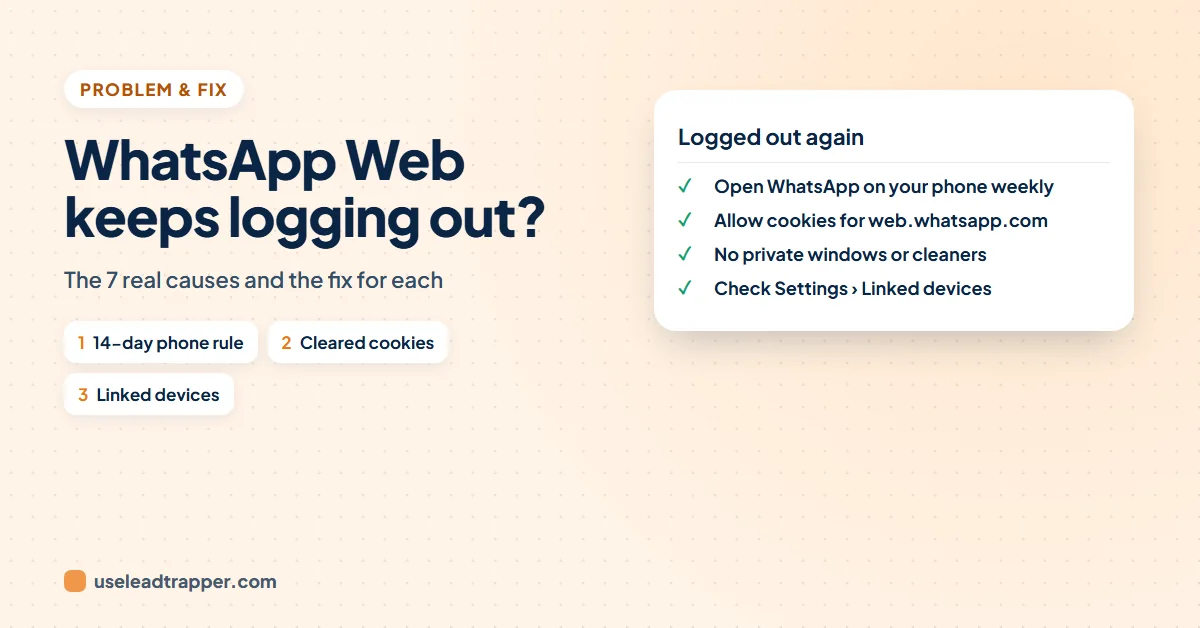
WhatsApp Web usually logs out because your phone hasn't opened WhatsApp for 14 days, the browser cleared its site data, you used a private window, or the device was removed under Linked devices. Open WhatsApp on your phone regularly, allow cookies for web.whatsapp.com, avoid cleaner tools and private windows, and check Linked devices.
- WhatsApp says you must open WhatsApp on your main phone at least every 14 days to keep linked devices, including WhatsApp Web, connected.
- Clearing cookies and site data, browser cleaner tools and private windows all delete the session, so WhatsApp Web asks for the QR code again.
- Anyone with your phone can remove a device under Linked devices; check the list if you are logged out without a reason.
- Reinstalling WhatsApp, moving to a new phone or changing your number logs out every linked device.
- Business tools that use WhatsApp Web follow the same rules; in LeadTrapper, a logged-out number shows Needs QR scan.
You open WhatsApp Web, and instead of your chats there’s a QR code again. Once is a nuisance; every day is a real problem, especially if you answer customers from a computer. The good news is that WhatsApp Web doesn’t log out at random. There are a handful of causes, and each has a simple fix.
The 7 Causes at a Glance
| Cause | Fix |
|---|---|
| Phone hasn’t opened WhatsApp in 14 days | Open WhatsApp on the phone regularly |
| Browser clears cookies and site data | Allow cookies for web.whatsapp.com |
| Cleaner tool or privacy extension | Add WhatsApp Web to its exceptions |
| Private or incognito window | Use a normal browser window |
| Removed under Linked devices | Check the list on your phone; relink |
| WhatsApp reinstalled, new phone or new number | Relink once after the change |
| Account restricted or banned | Request a review |
Your Phone Hasn't Opened WhatsApp in 14 Days
Linked devices work without your phone being online, but not forever. WhatsApp’s Help Center says you need to open WhatsApp on your main phone every 14 days to keep linked devices connected. A business phone in a drawer, or a SIM-only number used just for WhatsApp Web, is the classic case.
Fix: open WhatsApp on the phone at least once a week. If the phone stays in the office, put a weekly reminder in your calendar.
The Browser Cleared Its Data
WhatsApp Web keeps your session in the browser’s storage for web.whatsapp.com. Anything that clears it logs you out:
- "Clear cookies and site data when you close all windows." In Chrome and Edge this setting is under Privacy. Turn it off, or add
web.whatsapp.comto the sites that may always use cookies. - Cleaner tools. PC cleaners and some antivirus "privacy" features wipe browser data on a schedule. Add WhatsApp Web to their exceptions.
- Privacy extensions. Some clear site data automatically. Turn them off for WhatsApp Web to test.
- Private or incognito windows. These forget everything when closed, by design. Use a normal window.
Removed Under Linked Devices
On your phone, open WhatsApp, then Settings (or the ⋮ menu), then Linked devices. Every computer and browser linked to your account is listed with when it was last active. Anyone with your phone can remove a device here, and so can you by mistake.
If you’re logged out and none of the other causes fit, check this list and remove any device you don’t recognise. An unknown device means someone else had access to your account. Then turn on two-step verification in WhatsApp’s settings.
Reinstalls, New Phones and Bans
- Reinstalled WhatsApp or moved to a new phone. Linked devices are logged out and need to be linked again once.
- Changed your number. The same: relink every computer.
- Account restricted or banned. If the phone itself shows a ban notice, every linked device goes too. The guide for when WhatsApp bans your number explains how to request a review.
Business Numbers on Bulk Tools
Tools that send or answer messages from your own number, such as LeadTrapper, connect through WhatsApp Web as a linked device, so the same rules apply. In LeadTrapper:
- Each number has its own saved session, kept separate from the others, so restarting the app or the computer doesn't log a number out. The guide to running several WhatsApp accounts explains how they stay apart.
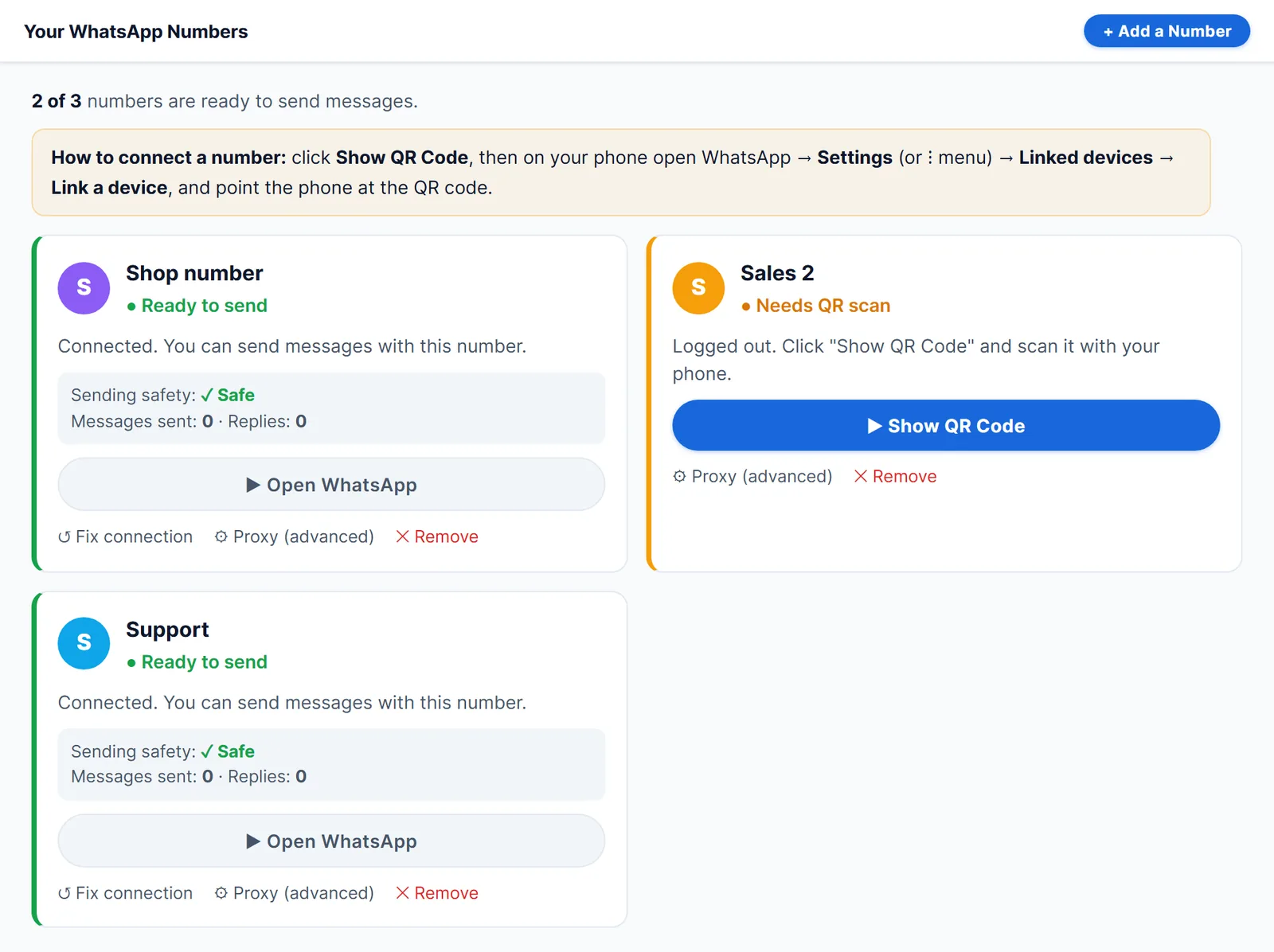
- The Your WhatsApp Numbers screen shows each number as Ready to send or Needs QR scan. Needs QR scan means WhatsApp logged that number out, usually for one of the reasons above.
- To relink, press Show QR Code, then on the phone open WhatsApp, Settings, Linked devices, Link a device.
- If a ready number gets stuck sending or reading messages, Fix connection resets it without a new scan.
Connect your business numbers free for 14 days
For business numbers, the 14-day rule is the one that catches people out: a sending number whose phone sits unused in a drawer will drop off. Open WhatsApp on each phone once a week. A new number that only ever sends bulk messages also looks unusual to WhatsApp; the warm-up schedule shows how to build normal use first, and the guide to account safety in LeadTrapper shows how sending slows down when replies fall behind.
Sources
- Notebookcheck. WhatsApp's linked devices (quoting the Help Center's 14-day rule).
- Engadget. WhatsApp now lets you use your account on multiple phones.
LeadTrapper is a Windows app for sending WhatsApp messages in bulk from your own numbers, $50 a year with a 14-day free trial. LeadTrapper is not affiliated with or endorsed by WhatsApp.
Before you send: warm up new or quiet numbers first with the WhatsApp warmer (LeadTrapper's Account Warmer), which runs in the same app.
Frequently Asked Questions
The most common reasons are: your phone hasn't opened WhatsApp in 14 days; your browser deleted cookies and site data, often through a cleaner tool or privacy setting; you used a private or incognito window; or the device was removed under Linked devices on your phone. Reinstalling WhatsApp or changing phones also logs out linked devices.
As long as the browser keeps its data and you open WhatsApp on your main phone at least once every 14 days. There is no fixed time limit beyond that.
Usually because Chrome is set to clear cookies and site data when you close it, an extension or cleaner tool clears them, or you open WhatsApp Web in an incognito window. Allow cookies for web.whatsapp.com in Chrome's settings and use a normal window.
Yes. Anyone with access to your phone can remove a device under Settings, Linked devices. If you're logged out with no other explanation, check that list and remove any device you don't recognise.
About LeadTrapper
LeadTrapper is a Windows app for finding business leads and contacting them on WhatsApp. It collects business contacts from Google Maps, Instagram, Facebook, TikTok, LinkedIn and business websites, checks which numbers are on WhatsApp with its Number Filter, and sends personalised campaigns with automatic delays from one or more WhatsApp accounts. It also has a chatbot, a shared inbox for every account, and Store Orders for online shops. It installs from the Microsoft Store, and the full app is free for 14 days, then $50 a year. Free web tools, browser extensions and a Wix app are listed on the Free Tools page.
Keep Every Business Number Connected and Ready
LeadTrapper for Windows shows which of your WhatsApp numbers are ready and which need a QR scan, and keeps each one in its own saved session. $50/year, 14-day free trial.