In this article 6 sections
WhatsApp messages not transferred to a new phone usually means the restore didn't match: a different phone number or Google Account, no recent backup, not enough space, or the restore step was skipped. Keep the old phone untouched, then use WhatsApp's QR-code transfer or a fresh backup and restore.
- Don't reset, wipe or uninstall WhatsApp on the old phone until the new one shows your chats; WhatsApp says the data stays there if a transfer fails.
- A Google Drive restore needs the same phone number and the same Google Account as the backup, and a recent successful backup.
- WhatsApp's QR-code transfer moves chats phone to phone without a cloud backup: same number, both phones plugged in and close together.
- Each new backup overwrites the last one on the same account, so an older backup can't be brought back.
- Media often keeps restoring after the chats appear. Missing photos minutes after a restore usually just need time on Wi-Fi.
New phone, WhatsApp installed, number verified, and the chats aren’t there. Or only some are, or the photos are grey. This is one of the most-searched WhatsApp problems, and most of the time the chats aren’t lost: the restore just didn’t line up. This guide uses WhatsApp’s help pages for the rules and the experience of users on Samsung, Apple and Android forums for the fixes that work when the official steps don’t.
Before Anything Else: Protect the Old Phone
If you still have the old phone, it is your best copy. Don’t reset it, don’t sell it and don’t uninstall WhatsApp on it until the new phone shows everything. WhatsApp’s help page on transferring chat history makes the same point: the data stays on the old phone if a transfer fails.
Also don’t press “Back up” again on a different phone or account in a panic. Each new backup on the same Google Account replaces the previous one.
Why the Transfer Failed
These are the causes WhatsApp lists, plus the ones users report most:
| Cause | How to tell |
|---|---|
| A different phone number | You verified a new number, or the old backup was made under another number |
| A different Google Account (Android) or Apple ID (iPhone) | The new phone is signed into another account than the one with the backup |
| No recent successful backup | Backups were off, or the last one failed or is very old |
| The restore step was skipped | You tapped Skip when WhatsApp offered to restore |
| Not enough space | The phone, Google Drive or iCloud is nearly full; users often report this |
| WhatsApp vs WhatsApp Business | The backup was made in the other app; each app keeps its own chats |
| Media still downloading | Chats are there but photos and videos are grey or missing |
WhatsApp’s help page on restoring chat history confirms the key rules: a Google Drive restore needs the same phone number and Google Account as the backup, you can only restore if a backup was enabled and recently successful, and media can keep restoring after the chats appear.
Quick checks before you try again
- iPhone: Settings, your name, iCloud: make sure WhatsApp is switched on and iCloud has free space (Manage Storage).
- Android: the new phone is signed in to the same Google Account that holds the backup.
- Both: update the phone’s system and WhatsApp on both phones, so neither runs an old version.
- Both: restart both phones if a backup sits on “Preparing backup” or stops at 99%, a common report on phone-maker forums.
Fix 1: Transfer Phone to Phone with a QR Code
If the old phone still works, skip the cloud entirely. WhatsApp’s QR-code transfer copies chats straight from one phone to the other.
- On the new phone, install WhatsApp and verify the same number.
- Choose the option to transfer from your old phone.
- On the old phone, open Settings, Chats, Transfer chats, and scan the QR code shown on the new phone.
- Keep both phones close together, plugged in and with Wi-Fi on until it finishes.
WhatsApp says the phones don’t need to be on the same network for the transfer itself. Moving between iPhone and Android uses WhatsApp’s own transfer during setup too, but chats from the two phones can’t be merged: what you transfer replaces what’s on the new phone.
Fix 2: A Fresh Backup and Restore
- On the old phone, open Settings, Chats, Chat backup and run a backup now, with the Google Account (Android) or iCloud (iPhone) you’ll use on the new phone. Wait until it finishes.
- On the new phone, sign in to the same Google Account or Apple ID.
- Delete and reinstall WhatsApp on the new phone, verify the same number, and tap Restore when offered.
- Leave the phone on Wi-Fi and charging with WhatsApp open while the media finishes.
If the backup fails because the cloud is full, users report that freeing space, or backing up to a Google Account with more room, solves it.
Fix 3: When the Official Steps Don't Work
Forums are full of cases where the official steps fail. These are the tricks people use, with their risks:
- Copy the local backup on Android. Android keeps local backup files in WhatsApp’s folder on the phone’s storage, commonly under Android, media, com.whatsapp. Users copy the Databases and Media folders from the old phone to the same place on the new phone before installing and verifying, so WhatsApp finds a local backup. It’s not an official route, so try it only after Fixes 1 and 2, and keep the originals.
- Give it a day. Some users who moved from iPhone to Android report only group chats at first, with one-to-one chats appearing as contacts wrote again. It’s anecdotal, but it’s worth waiting before starting over and overwriting anything.
- Export the chats you can’t lose. If a restore keeps failing and the old phone still works, open each important chat on the old phone and use Export chat, choosing to include media. You get a readable copy, even if it can’t go back into WhatsApp.
- Local backup tips (Android). Users who copy backup files report that it works best when WhatsApp is opened once on the new phone first, then force-stopped before copying, and when only the newest backup file is left in the Databases folder.
- Ask WhatsApp with the exact error. Settings, Help, Contact us, with the exact words of the error you see, gets a faster useful answer.
- Don’t delete your only backup. Some guides suggest deleting an iCloud or Drive backup and making a new one. If the new one fails, nothing is left. Make a new backup first, then remove old ones.
- Be careful with paid transfer tools. They need full access to both phones and all your chats. If you use one, choose a well-known company and keep your own exports first.
Never Lose Chats Again
- Turn on daily backup in Settings, Chats, Chat backup, on the account you’ll keep using.
- Use the QR-code transfer whenever you change phones, before you wipe the old one.
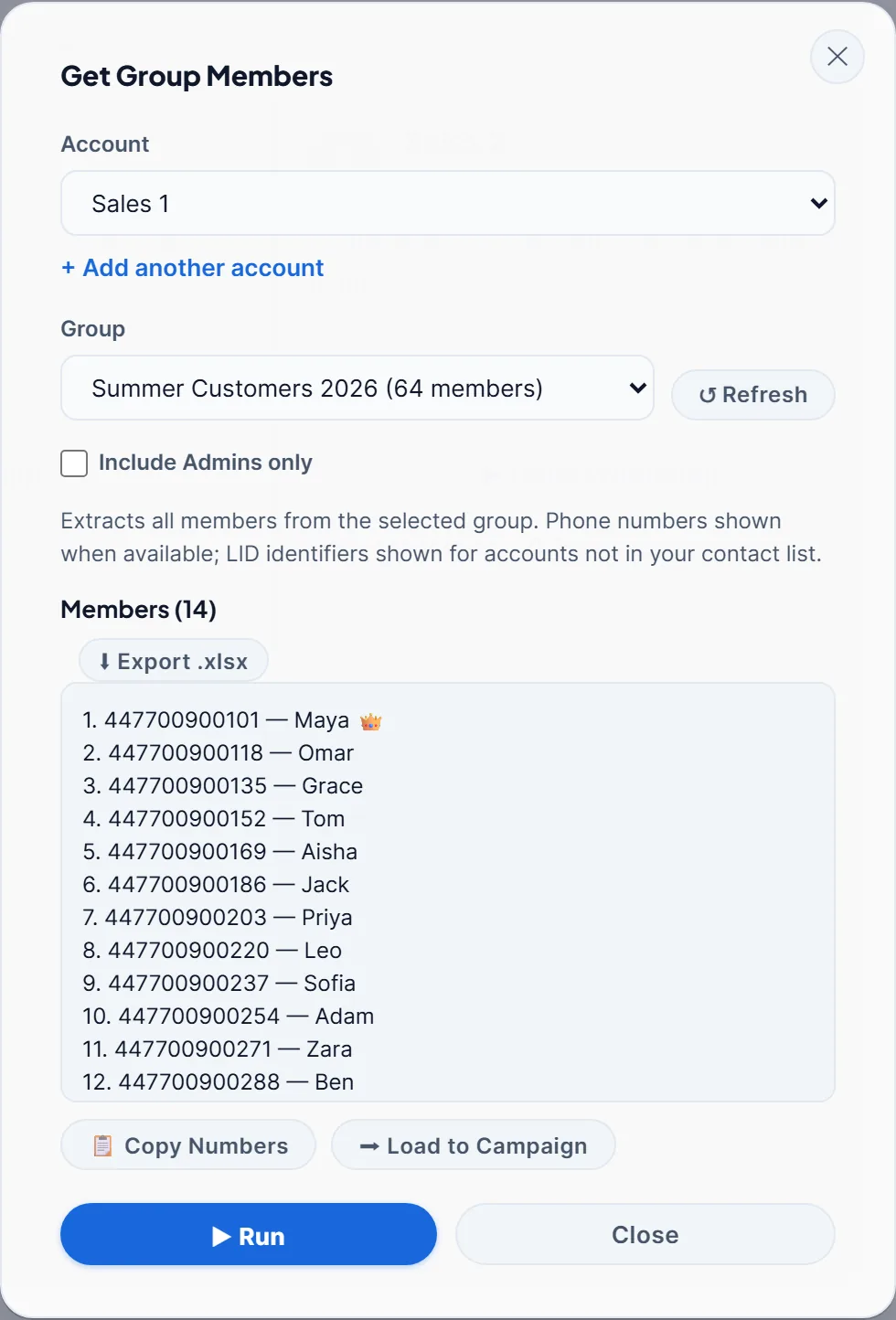
- Keep business contacts outside WhatsApp too. If your customers are in WhatsApp groups you run, export the members to Excel every month; the guide to exporting WhatsApp group contacts shows how with LeadTrapper. A lost phone, a failed restore or a ban then never costs you the list.
- Protect the account itself. Two-step verification stops someone else moving your number to their phone; see WhatsApp hacked: how to get your account back. If you run business numbers on a PC with LeadTrapper, the Account Safety Telemetry overview covers how each connected account is kept separate and watched.
If the new phone also makes WhatsApp Web ask for the QR code again, that’s expected: changing phones logs out every linked device, as the guide to WhatsApp Web logging out explains.
Frequently Asked Questions
Usually the restore didn't match the backup: a different phone number or Google Account or Apple ID, no recent successful backup, not enough free space, or the restore option was skipped during setup. Keep the old phone as it is and try WhatsApp's QR-code transfer or a fresh backup.
The restore is offered when you verify your number. If you skipped it, the usual fix is to make sure the backup is still there, then reinstall WhatsApp or re-verify the number so the restore is offered again. Don't create a new backup on the same account first, because it would replace the old one.
Use WhatsApp's QR-code transfer. On the old phone open Settings, Chats, Transfer chats; on the new phone choose to transfer from the old phone during setup, and scan the QR code. Both phones need the same number, should be close together and plugged in, with Wi-Fi on.
WhatsApp's help page says media can keep restoring after your chats appear. Keep the phone on Wi-Fi and charging with WhatsApp open, and give it time before assuming photos are lost.
Yes, with WhatsApp's own transfer during setup on the new phone. WhatsApp's help page notes that chats from two phones can't be merged: the chats you transfer replace what's on the new phone.
About LeadTrapper
LeadTrapper is a Windows app for finding business leads and contacting them on WhatsApp. It collects business contacts from Google Maps, Instagram, Facebook, TikTok, LinkedIn and business websites, checks which numbers are on WhatsApp with its Number Filter, and sends personalised campaigns with automatic delays from one or more WhatsApp accounts. It also has a chatbot, a shared inbox for every account, and Store Orders for online shops. It installs from the Microsoft Store, and the full app is free for 14 days, then $50 a year. Free web tools, browser extensions and a Wix app are listed on the Free Tools page.
Keep Your Customer List Outside WhatsApp
LeadTrapper exports the members of your own WhatsApp groups to Excel and sends to your list from your PC. $50/year after a 14-day free trial.