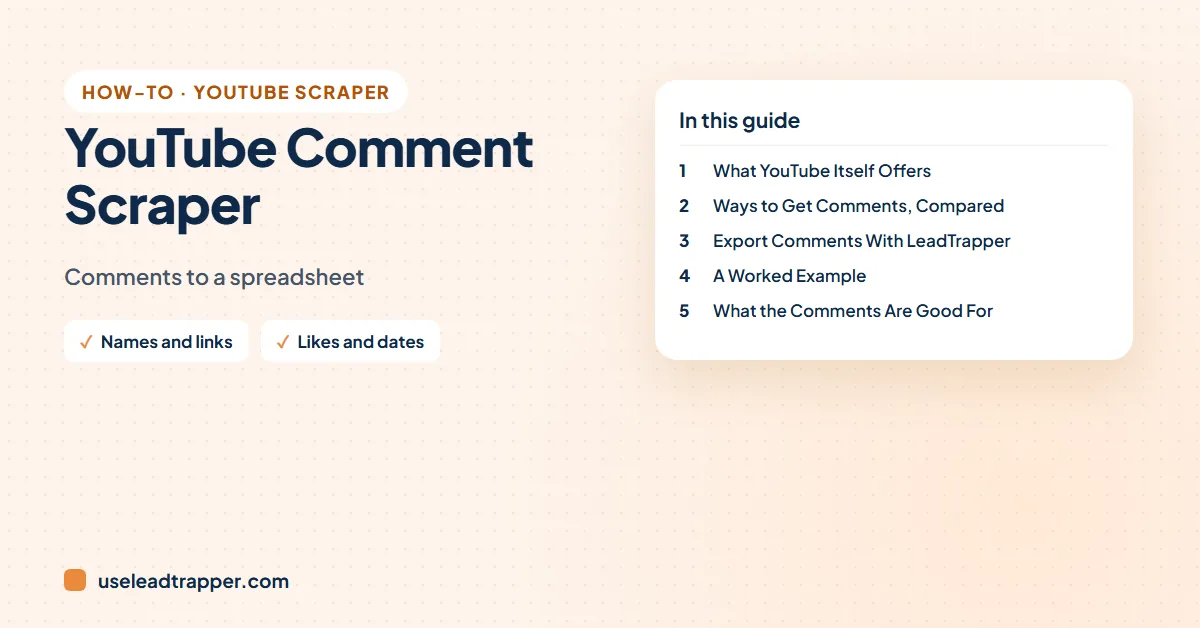
In this article 6 sections
Paste one YouTube video link into LeadTrapper's People Who Commented tool, set how many comments you want (1 to 500), and export a CSV or Excel file with author, author link, comment text, likes, reply flag and date. YouTube's terms ban automated collection, so the risk is yours.
- The official route is the YouTube Data API: a free key, 1 quota unit per commentThreads call and 10,000 units a day by default, but it needs a Google Cloud project and some code.
- Without code, a desktop tool or browser extension reads the comments from the video page and exports a spreadsheet. YouTube's terms ban automated access, so check them first.
- LeadTrapper's People Who Commented tool exports author, author link, comment text, likes, a reply flag and a date for up to 500 comments per run. It collects no emails or phone numbers.
- Comments are public posts by real people. Use them to learn what viewers ask and want; do not bulk-message the authors or republish their names.
Comments under a YouTube video are the most honest market research you can get for free: viewers say what they want, what confuses them and what they would pay for. The trouble is reading 2,000 of them on a screen. This guide shows the ways to get them into a spreadsheet, what each one costs in time and risk, and where YouTube’s own rules draw the line. We make LeadTrapper, which has a comment tool, and we say so where it appears.
What YouTube Itself Offers
YouTube’s official way to read comments is the YouTube Data API, a free service for developers. Its commentThreads endpoint returns a video’s top-level comments, and a separate comments endpoint returns replies. You need a Google Cloud project and an API key, and you write or borrow a small script.
LeadTrapper’s People Who Commented tool exports a video’s comments with the author, likes, whether it is a reply and the date, ready for Excel. Download LeadTrapper free for 14 days to try it on your own videos.
The limits are published. According to Google’s quota cost table, read on 23 November 2026, a commentThreads.list call costs 1 unit, and the default quota is 10,000 units a day for all endpoints except search and video upload, which have their own limits. The quota resets at midnight Pacific Time. Google’s getting started guide says you can ask for more quota with its extension request form if you hit the limit.
The API is the safest route for a developer. For everyone else it means setting up a project, handling page tokens and flattening nested data into columns. That is why most people use a tool instead.
Whatever tool you pick, read YouTube’s Terms of Service. Under “Permissions and Restrictions” they say you may not access the service “using any automated means (such as robots, botnets or scrapers)”, with two exceptions: public search engines that follow YouTube’s robots.txt, and cases where YouTube has given prior written permission. LeadTrapper is not a search engine and YouTube has not given us written permission, so the same applies to our tool. The risk is yours.
Ways to Get Comments, Compared
You can get comments through the official API, an open-source downloader, a browser extension, a paid cloud scraper or a desktop tool, and they differ mostly in setup effort and in how much YouTube’s terms allow. The notes on other tools below come from their own pages and from guides such as ScrapingBee’s guide to scraping YouTube comments and Decodo’s; they are theirs, not ours or Google’s.
| Method | Setup | Cost | Good for | Watch out for |
|---|---|---|---|---|
| YouTube Data API | Google Cloud project, API key, code | Free within quota | Developers, repeat jobs, replies | 10,000 units a day by default; deeply nested data to flatten |
| yt-dlp (open source) | Install Python, run a command with --write-comments |
Free | One-off bulk pulls with no API key | Command line; breaks when YouTube changes and needs updating (their guides say so) |
| Browser extensions | Install from the Chrome Web Store | Free to one-time or monthly | Single videos, some replies | Few reviews on many of them; they run inside your browser and need permission to read pages |
| Cloud scrapers (Apify and similar) | Account and run settings | Pay per 1,000 results (listings show from about $3.50 to $10) | Large or scheduled jobs | Prices change; you rely on a third party |
| LeadTrapper People Who Commented | Install the Windows app | $50 a year, 14-day free trial | No-code export on your own PC | Up to 500 comments per run; no replies in practice; no emails |
Their guides also agree on a few habits: pause between requests, never target private or unlisted videos, and treat usernames with care.
Export Comments With LeadTrapper
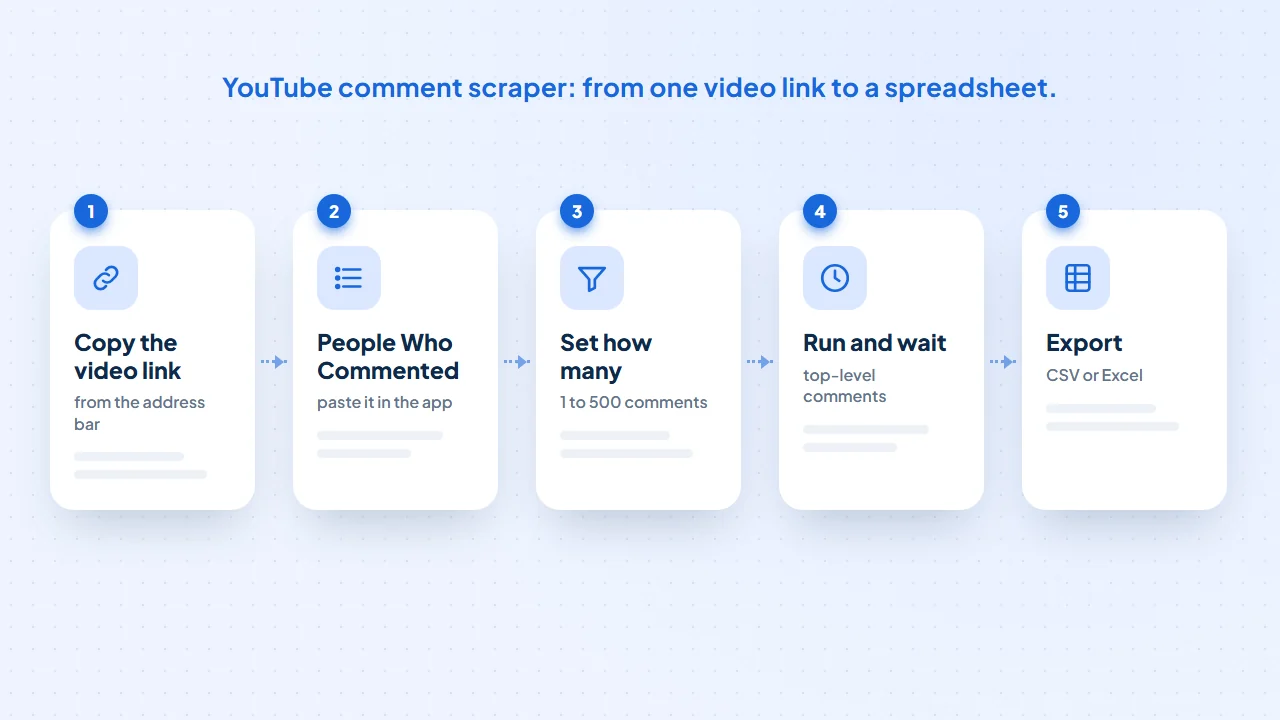
LeadTrapper’s YouTube section has a People Who Commented tool: you paste a video link, it lists the comments, and you export them. It runs on your Windows PC and needs no YouTube login.
- Open YouTube in the left menu and choose People Who Commented.
- Paste the video address, such as
https://www.youtube.com/watch?v=...or ayoutu.belink. The tool rejects other addresses. - Set Max Results. The box accepts 1 to 500 and starts at 50.
- Press Start. The app warns that popular videos can take 1 to 3 minutes, and it shows a live preview while it works. Stop ends the run early.
- Press CSV or Excel to save the file.
Each row has six columns: author (the display name), author_url (a link to that person’s channel), text (the full comment), likes, is_reply and date. On screen the comment text is cut at 200 characters, but the export holds the whole comment. The date column is a Unix timestamp, the number of seconds since 1 January 1970, which sorts correctly as it is. To read it as a date in Excel, use =F2/86400+DATE(1970,1,1) and format the cell as a date. Treat it as approximate: YouTube shows comment times as “3 weeks ago”, and the date is worked out from that.
Be clear about the limits. The tool does not collect emails, phone numbers or any contact detail, because YouTube does not show them for commenters. The settings the app hands to its downloader ask for no replies, so the reply column is there but you should expect top-level comments. And it reads one video at a time. For a channel’s whole back catalogue, run it per video; for finding the videos first, see our guide to finding a YouTube channel’s email.
Export your first YouTube comments free for 14 days
A Worked Example
Say you sell dental whitening kits and want to know what buyers worry about. The numbers below are invented to show the steps, not a test result.
You pick a popular video, “Teeth whitening at home: does it work?”, with 1,840 comments. You paste its link, set Max Results to 500 and press Start. After about two minutes you have 500 rows and press Excel.
In the spreadsheet you sort by the likes column. The top 20 comments hold most of the likes, and they are the questions many viewers share: “does it hurt sensitive teeth”, “how long does it last”. Then you filter the text column for “price”, “how much” and “where to buy”, which leaves 37 rows. Those are people ready to buy, and the author_url link opens each one’s channel. You write the 6 questions that came up most into your product page and one short video answering them. You do not message the 37 authors from a comment tool: the next section explains why.
What the Comments Are Good For
Comments are best used for research, and for finding creators and customers who are already talking about your topic. The table shows what each goal needs from the export.
| Goal | Columns to use | What to do |
|---|---|---|
| Find what viewers ask | text, likes | Sort by likes, group repeated questions |
| Find buying signals | text | Filter for “price”, “where to buy”, “recommend” |
| Spot your best fans | author, likes | Count authors who comment on several videos (run several videos) |
| Find small creators in a niche | author_url | Open the channel, read its About page; see finding YouTubers in your niche |
| Moderate a channel you own | text, date | Search for spam links and repeated posts |
| Compare competitors | text, likes | Export the same number of comments from two rival videos |
The same method works on other platforms: our guide to scraping TikTok comments covers TikTok, where LeadTrapper also reads any email or phone number a profile publishes.
To read a few hundred comments at once with an AI assistant, see our guide to a YouTube scraper for Claude.
Rules and Risks
Scraping comments is a terms-of-service risk and a privacy question, so keep the use small and honest. YouTube’s terms ban automated access as quoted above, and it can slow or block a computer that sends many requests, so keep runs modest and spaced out.
Comments also contain names and links to personal channels. In the UK and EU a name is personal data, and sending marketing to individuals has its own rules. Our guide on whether email scraping is legal explains the main ones. A safe pattern is to analyse the text, count the questions, and leave the authors alone. If you do contact a creator, use the business email on their About page, never a reply under their comment that spams.
If you want more tools in one place, LeadTrapper’s lead scraper features list the Google Maps, Instagram, TikTok and Facebook tools too.
Where LeadTrapper Finds Leads
LeadTrapper collects leads from each of these sources in one Windows app, then checks the numbers and sends the WhatsApp messages from the same place.
- Google Maps Scraper: Business leads from any city.
- Facebook Scraper: Advertisers, pages and group members.
- Instagram Scraper: Leads from profiles and hashtags.
- TikTok Scraper: Creators, hashtags and commenters.
- LinkedIn Scraper: Profiles by role and city.
- Email Finder: Emails from business websites.
Frequently Asked Questions
Copy the video link, paste it into a comment scraper such as LeadTrapper's People Who Commented tool, set the number of comments, start the run and press Excel. You get one row per comment. Without a tool you can call the YouTube Data API's commentThreads endpoint and save the result to CSV.
Comments are public, but YouTube's Terms of Service forbid accessing the service with automated means such as robots or scrapers, except with its written permission. Breaking the terms can get your account or IP blocked. Comments also carry names, which are personal data in many countries. This is not legal advice.
With the official API, each call returns a page of comments and costs 1 unit of a 10,000-unit daily quota, so quota is rarely the first limit. LeadTrapper's tool takes 1 to 500 comments per run, 50 by default. Popular videos can take one to three minutes.
Yes with the official API, which has a separate comments endpoint for replies. LeadTrapper's export has a reply column, but the settings the app passes to its downloader ask for no replies, so expect top-level comments. Check a sample before you rely on replies.
No. YouTube does not show a commenter's email, and no comment tool should claim to. A comment gives you a display name and a link to the author's channel. A business email appears only if that channel's About page or linked website publishes one.
The video may have comments turned off, be private or age-restricted, or YouTube may have changed its page so the tool needs an update. Try another public video first, then retry a few minutes later. The API returns a commentsDisabled error for videos with comments off.
About LeadTrapper
LeadTrapper is a Windows app for finding business leads and contacting them on WhatsApp. It collects business contacts from Google Maps, Instagram, Facebook, TikTok, LinkedIn and business websites, checks which numbers are on WhatsApp with its Number Filter, and sends personalised campaigns with automatic delays from one or more WhatsApp accounts. It also has a chatbot, a shared inbox for every account, and Store Orders for online shops. It installs from the Microsoft Store, and the full app is free for 14 days, then $50 a year. Free web tools, browser extensions and a Wix app are listed on the Free Tools page.
Export the Comments Under Any Video
The YouTube, TikTok, Instagram and Facebook tools, Email Finder and WhatsApp sender all come with LeadTrapper. $50/year, all features included.