In this article 6 sections
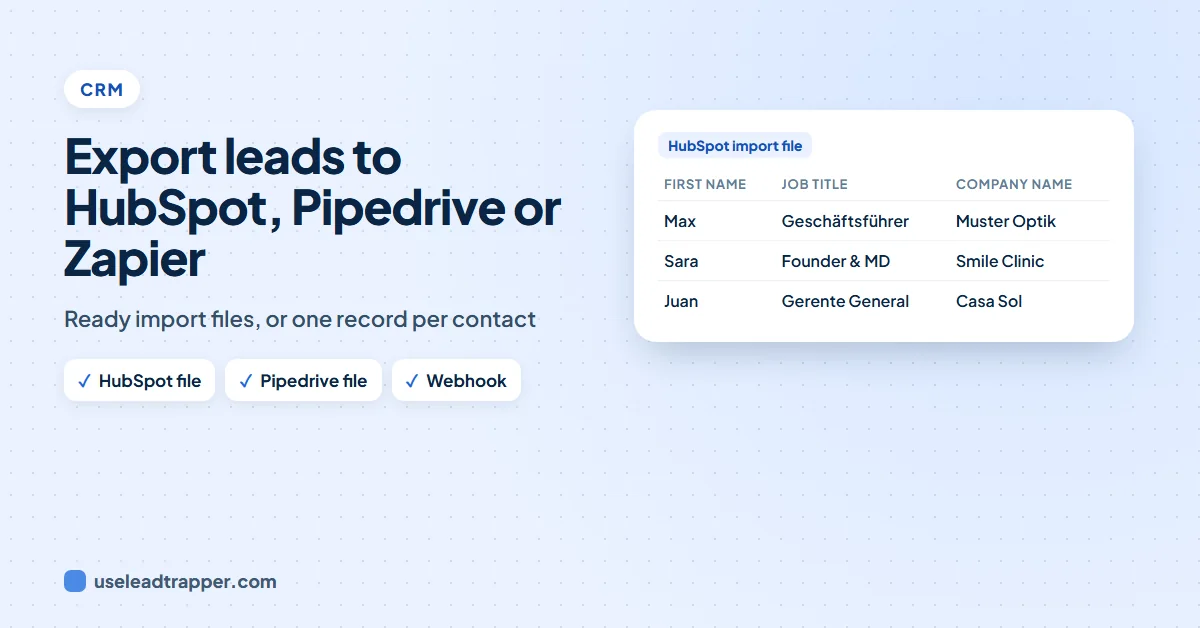
To export leads to HubSpot, save them as a CSV whose columns use HubSpot's own names (First Name, Last Name, Email, Job Title, Company Name), then use Contacts, Import, File from computer. The LeadTrapper app writes that file, a Pipedrive file too, and can send each contact to Zapier or Make through your own webhook.
- HubSpot and Pipedrive both import CSV files; the import goes smoothly when the column names match their own fields, so nothing has to be mapped by hand.
- The LeadTrapper app writes a HubSpot file and a Pipedrive file with those names, one row per person or inbox, with the business's best phone added when a person has none.
- Emails that will bounce, typing mistakes, throwaway inboxes and contacts no longer on the website are left out of both files.
- For any other CRM, Send to Zapier, Make or any CRM sends each contact as one record to your own webhook, up to 500 per click. Nothing leaves your computer until you press Send.
- Filter to decision makers or the best contact per business first, so the CRM gets the people worth writing to.
A list of leads in a spreadsheet only becomes pipeline once it is in your CRM, with each person, their company and their phone in the right field. Copying rows by hand is slow and loses the details. This guide shows how to get scraped business leads into HubSpot and Pipedrive with a ready import file, and into any other CRM through Zapier or Make.
Why the Column Names Matter
Both HubSpot and Pipedrive import CSV files. During the import each column has to be matched to a field in the CRM. When the column is already called what the CRM calls the field, it matches by itself; when it is called something else, you match every column by hand, and a wrong match puts phone numbers in the company field.
So the file should split names into first and last name, keep the job title in its own column, and carry the company and website on every row. The email finder in the LeadTrapper Windows app writes both files that way:
| Compared | HubSpot file | Pipedrive file |
|---|---|---|
| Person | First Name, Last Name | Person - Name |
| Person - Email | ||
| Phone | Phone Number, Mobile Phone Number | Person - Phone |
| Role | Job Title | Person - Job title |
| Company | Company Name, Website URL, Country/Region | Organization - Name, Organization - Website, Organization - Address |
Each row is one person or one inbox. When a person on the website has no phone of their own, the business’s best phone is added, so every row can be called. Emails that will bounce, typing mistakes, throwaway inboxes and contacts the website no longer shows are left out.
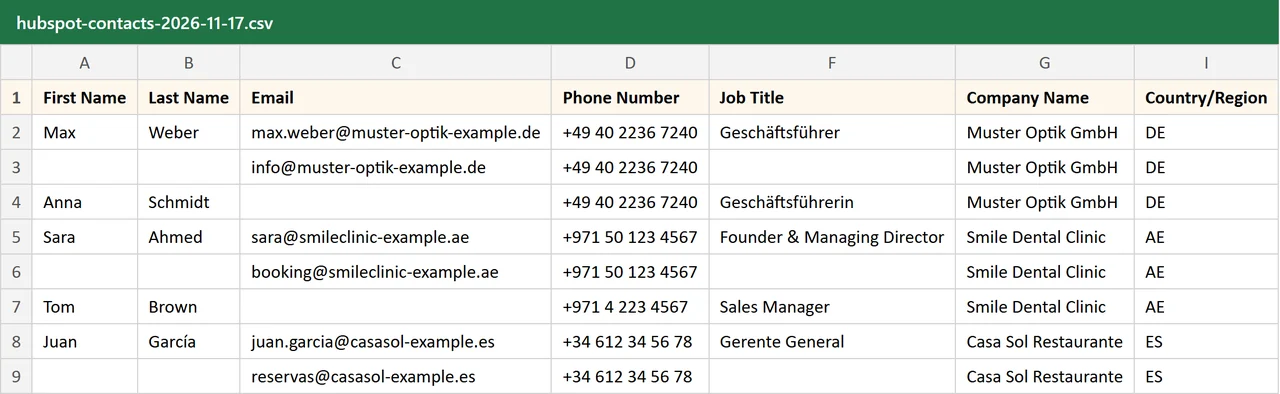
Into HubSpot
- In LeadTrapper, open My contacts in the Website Contact Finder and filter the list to the rows you want (see Choose What to Send).
- Press ⬇ HubSpot file. A CSV file is saved to your computer.
- In HubSpot, go to Contacts, then Import, Start an import, File from computer, and choose the file.
- Choose to import contacts (and companies, if you want HubSpot to create them from Company Name and Website URL).
- Check the column matches HubSpot shows. With this file they match by themselves; finish the import.
If your HubSpot account has its privacy settings on, the import also asks for the legal basis for processing these contacts; choose the one that fits how you will use them.
Into Pipedrive
- Filter My contacts the same way and press ⬇ Pipedrive file.
- In Pipedrive, go to Settings, Import data, From a spreadsheet, and upload the file.
- Pipedrive matches the Person and Organization columns to people and organizations. Skip any column your account does not use, then finish the import.
People are linked to their organization, so each business appears once with its people under it.
Into Any CRM Through Zapier or Make
For Salesforce, Zoho, a Google Sheet, Airtable or your own system, send the contacts to a webhook and let Zapier, Make or n8n pass them on.
- Create the webhook. In Zapier, start a Zap with Webhooks by Zapier and Catch Hook. In Make, start a scenario with Webhooks and Custom webhook. Copy the address it gives you. Check that your Zapier plan includes Webhooks by Zapier.
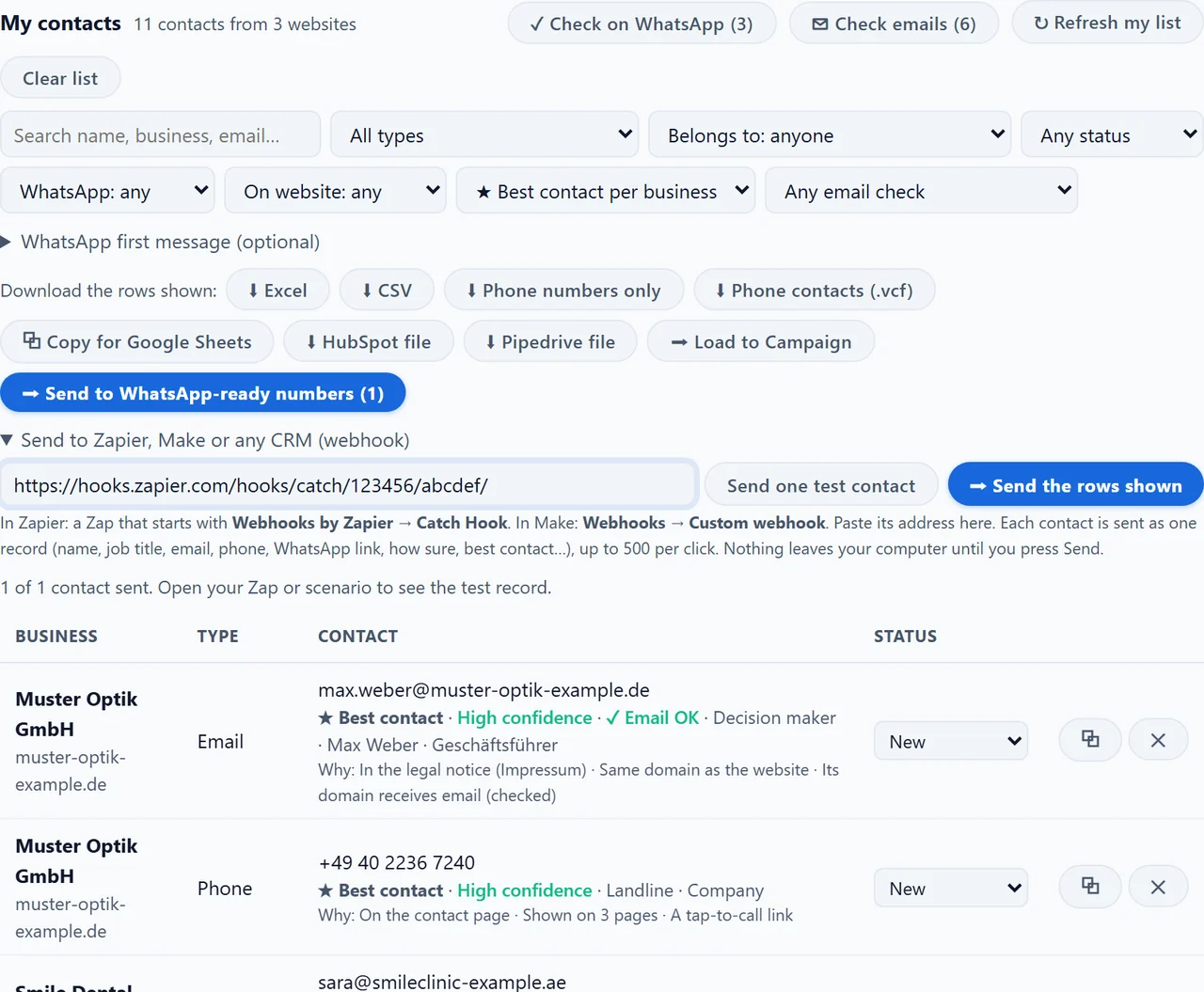
- Paste it into LeadTrapper, in the Send to Zapier, Make or any CRM (webhook) box under My contacts. The app remembers it.
- Press Send one test contact. Open your Zap or scenario and you will see one record with every field: business, website, email, phone, WhatsApp link, name, first and last name, job title, decision maker, how sure, best contact, status and more.
- Map the fields to your CRM in Zapier or Make, then turn the Zap or scenario on.
- Press ➡ Send the rows shown. Each contact goes as its own record, up to 500 per click. The app tells you how many were accepted.
Only https addresses on the public internet are accepted, and nothing leaves your computer until you press Send. To land each contact in a spreadsheet instead, see sending leads to Google Sheets.
Choose What to Send
A CRM full of info@ addresses and duplicate phones is hard to work. Filter first, because both files and the webhook send only the rows you see:
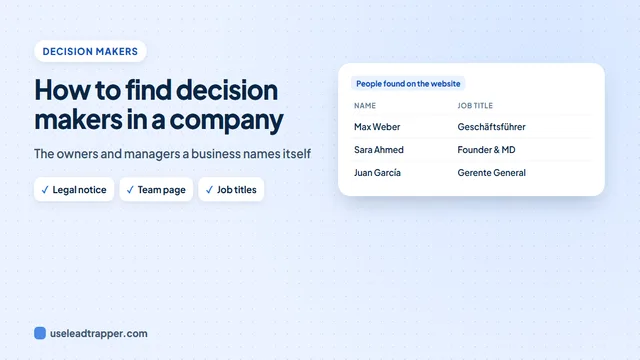
- Belongs to: Decision makers (owner, director…) keeps the owners, founders, managing directors and general managers each business names on its own website, with their job titles. Our guide to finding the decision makers in a company explains where those names come from.
- How sure: ★ Best contact per business keeps one email and one phone per company: the one the app is surest of, preferring a decision maker’s own address.
- Emails that work keeps only addresses whose domain can receive mail.
- Status keeps the contacts you have not written to yet, so you never import the same lead twice.
Every email and phone also carries how sure the app is, High, Medium or Low, with the reasons, which arrive in the CRM as their own fields through the webhook.
Before You Email Them
The contacts come from what each business publishes on its own website, so they are business contact details, but the rules for writing to them still apply. In the EU and UK you need a lawful basis such as legitimate interest for business-to-business email, every message needs a clear way to opt out, and in Germany unsolicited advertising email needs prior consent even between businesses. Our guide to extracting emails from a list of websites covers using them responsibly, and the business email guide covers where they come from.
Many small businesses answer WhatsApp faster than email. The app can mark which of the phone numbers are on WhatsApp and load those into the WhatsApp bulk sender, so the same list reaches people by email through your CRM and by WhatsApp from your own number.
Frequently Asked Questions
In HubSpot go to Contacts, then Import, Start an import, File from computer, and choose a CSV file. When the column names match HubSpot's properties, such as First Name, Email and Company Name, HubSpot maps them by itself. The LeadTrapper app's HubSpot file uses those names.
In Pipedrive go to Settings, Import data, From a spreadsheet, and upload the CSV file. Columns named like Person - Name, Person - Email and Organization - Name map to people and organizations. The LeadTrapper app's Pipedrive file uses those names; skip any column your account does not use.
Yes. In Zapier, start a Zap with Webhooks by Zapier and Catch Hook; in Make, start a scenario with Webhooks and Custom webhook. Paste the address into LeadTrapper's Send to Zapier, Make or any CRM box, send one test contact, then send the rows you see. Each contact arrives as one record. Check that your Zapier plan includes Webhooks by Zapier.
Each record carries the business, website, contact type, email, phone, WhatsApp link, whether the number is on WhatsApp, the person's name, first and last name, job title, whether they are a decision maker, who the contact belongs to, branch, country, the page it was found on, how sure the app is and why, whether it is the best contact, its status and the date it was added.
The data stays on your computer until you import it or press Send, and goes only to the CRM or webhook you choose. Whether you may email the contacts depends on the law where they are; in the EU and UK you need a lawful basis such as legitimate interest for business contacts, and every message needs a clear way to opt out.
About LeadTrapper
LeadTrapper is a Windows app for finding business leads and contacting them on WhatsApp. It collects business contacts from Google Maps, Instagram, Facebook, TikTok, LinkedIn and business websites, checks which numbers are on WhatsApp with its Number Filter, and sends personalised campaigns with automatic delays from one or more WhatsApp accounts. It also has a chatbot, a shared inbox for every account, and Store Orders for online shops. It installs from the Microsoft Store, and the full app is free for 14 days, then $50 a year. Free web tools, browser extensions and a Wix app are listed on the Free Tools page.
From Websites to Your CRM
LeadTrapper for Windows reads business websites for emails, phones, WhatsApp numbers and decision makers, and hands them to HubSpot, Pipedrive, Zapier or Make. $50/year, 14-day free trial.