In this article 5 sections
There are three ways to get leads into Google Sheets: copy and paste them into cell A1, import an Excel or CSV file, or send each new lead automatically through a webhook in Make or Zapier with a Google Sheets add-row step. The LeadTrapper app supports all three: Copy for Google Sheets, Excel and CSV downloads, and its own webhook.
- Copy and paste is fastest for a one-off list: copy the rows, click cell A1 in a new sheet, paste.
- Importing an Excel or CSV file (File, Import) keeps the columns and suits larger lists.
- For leads that keep coming, a webhook in Make or Zapier adds each one as a new row by itself.
- LeadTrapper has all three: Copy for Google Sheets, Excel and CSV downloads, and Send to Zapier, Make or any CRM (webhook).
- Filter to the rows you need first; every option sends only the rows you see.
Google Sheets is where many small teams keep their leads: everyone can see it, sort it and mark who called whom. Getting a list of scraped leads into it should take seconds, not an afternoon of copying cells. There are three ways, depending on how often new leads arrive.
Three Ways In
| Way | Best for | Needs |
|---|---|---|
| Copy and paste | A one-off list, now | Nothing else |
| Import an Excel or CSV file | A larger list, or several sheets | Nothing else |
| A webhook through Make or Zapier | Leads that keep coming in | A Make or Zapier account |
Copy and Paste
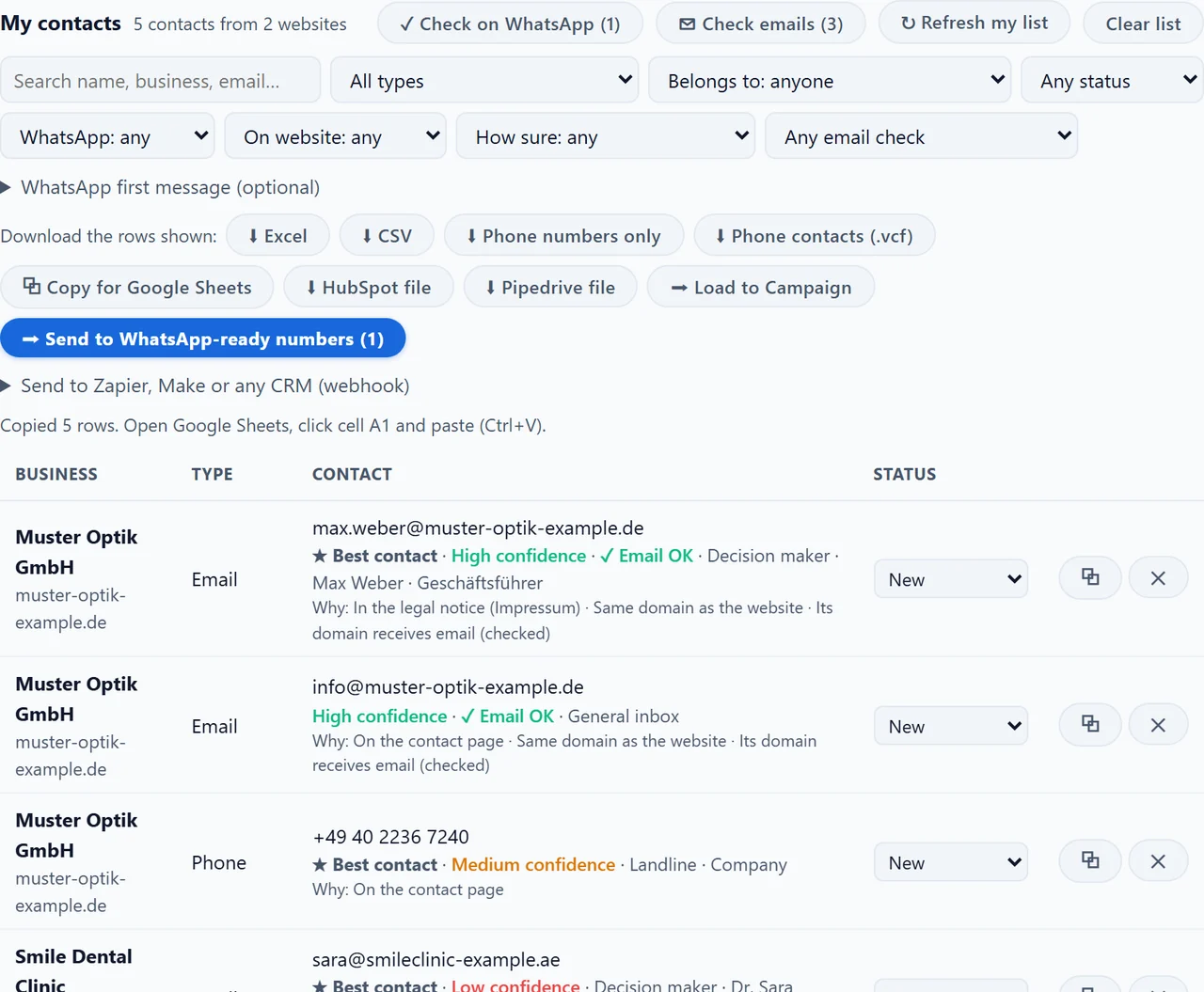
- In the email finder in the LeadTrapper Windows app, open My contacts and filter to the rows you want.
- Press Copy for Google Sheets. The app says “Copied 5 rows. Open Google Sheets, click cell A1 and paste (Ctrl+V).”
- Open a new sheet, click cell A1 and press Ctrl+V. Each column lands in its own column, with the headings in row 1.
The rows are copied as tab-separated text, which is what Google Sheets turns into columns when you paste.

Import a File
- In My contacts, press ⬇ Excel or ⬇ CSV.
- In Google Sheets, choose File, Import, Upload, and pick the file.
- Choose Insert new sheet or Replace current sheet, then Import data.
The Excel file opens with a header row and every column, including the WhatsApp link for each number.
Add Each Lead Automatically
When you run searches every week, let each contact go straight into the sheet.
In Make:
- Create a scenario that starts with Webhooks, Custom webhook, and copy its address.
- Add a Google Sheets, Add a Row step, choose your sheet, and map the fields to columns.
In Zapier:
- Create a Zap that starts with Webhooks by Zapier, Catch Hook, and copy its address.
- Add a Google Sheets, Create Spreadsheet Row step and map the fields. Check that your Zapier plan includes Webhooks by Zapier.
In LeadTrapper: paste the address into Send to Zapier, Make or any CRM (webhook) under My contacts, press Send one test contact, map the test record’s fields in Make or Zapier, then press Send the rows shown. Each contact arrives as its own row, up to 500 per click, and nothing leaves your computer until you press Send. The fields and steps are the same as in our guide to exporting leads to HubSpot, Pipedrive or Zapier.
Choose What Goes In
Every option sends only the rows you see, so filter first:
- Belongs to: Decision makers for the owners and managers each business names; see finding the decision makers in a company.
- How sure: ★ Best contact per business for one email and one phone per company.
- On website: Still on the website to leave out contacts that have gone; see keeping a lead list up to date.
Once the leads are in a sheet, you can also message them on WhatsApp from it; see sending WhatsApp messages from Google Sheets.
Frequently Asked Questions
Copy the rows and paste them into cell A1 of a new sheet, or import an Excel or CSV file with File, Import, Upload. To add leads automatically, send them to a webhook in Make or Zapier and add a Google Sheets step that adds a row for each one.
In Make, start a scenario with Webhooks, Custom webhook, then add Google Sheets, Add a Row, and map each field to a column. In Zapier, start with Webhooks by Zapier, Catch Hook, then Google Sheets, Create Spreadsheet Row. Paste the webhook address into the tool that sends the leads.
It has three ways in. Copy for Google Sheets copies the rows you see so you can paste them at cell A1. The Excel and CSV downloads import with File, Import. And Send to Zapier, Make or any CRM sends each contact to your own webhook, which Make or Zapier can add to a sheet.
Business, website, type, contact, who it belongs to, name, job title, how sure and why, best contact, branch, phone type, country, a WhatsApp link, the page it was found on, the WhatsApp and email checks, the website platform, status and dates.
Webhooks by Zapier is a premium app in Zapier, so check that your plan includes it. Make offers webhooks on its free plan with a limit on operations per month. Copy and paste and file import need no other tool at all.
About LeadTrapper
LeadTrapper is a Windows app for finding business leads and contacting them on WhatsApp. It collects business contacts from Google Maps, Instagram, Facebook, TikTok, LinkedIn and business websites, checks which numbers are on WhatsApp with its Number Filter, and sends personalised campaigns with automatic delays from one or more WhatsApp accounts. It also has a chatbot, a shared inbox for every account, and Store Orders for online shops. It installs from the Microsoft Store, and the full app is free for 14 days, then $50 a year. Free web tools, browser extensions and a Wix app are listed on the Free Tools page.
From Websites to Your Sheet
LeadTrapper for Windows collects emails, phones, WhatsApp numbers and decision makers from business websites and hands them to Google Sheets, Make or Zapier. $50/year, 14-day free trial.