In this article 6 sections
Google Sheets cannot send WhatsApp messages by itself. For a few rows, a formula can build a wa.me link per row that opens a ready chat. For a whole list, download the sheet as an Excel file and load it into LeadTrapper's Send Bulk Messages: every column heading becomes a code such as {{name}} or {{company}}.
- Google Sheets has no WhatsApp button. The no-code routes are a wa.me link per row, or downloading the sheet and sending it with a bulk sender.
- A HYPERLINK formula with ENCODEURL builds a click-to-chat link per row, with the person's name in the text. Each click opens one chat and you press send yourself.
- For a whole list, choose File, Download, Microsoft Excel in Google Sheets and load the file in LeadTrapper. Every column heading becomes a code: Name gives {{name}}, Company gives {{company}}.
- Download the file rather than copying cells: pasted cells arrive separated by tabs, and the paste box in Send Bulk Messages expects Name,number lines.
- Keep the phone column as plain text with the country code, so Sheets does not drop a leading zero or turn long numbers into 9.71E+11.
Lots of small businesses keep their customer list in Google Sheets: shared with the team, updated from a form, always at hand. Sooner or later someone asks how to send everyone on it a WhatsApp message. Sheets has no button for that. This guide shows the two no-code routes that work, a link per row for a handful of people and a full campaign for the whole sheet, and how to set the sheet up so the numbers survive the trip.
Two No-Code Routes
- A wa.me link per row. Free and built into Sheets. Each click opens one chat with the message typed in, and you press send. Good for 10 or 20 people.
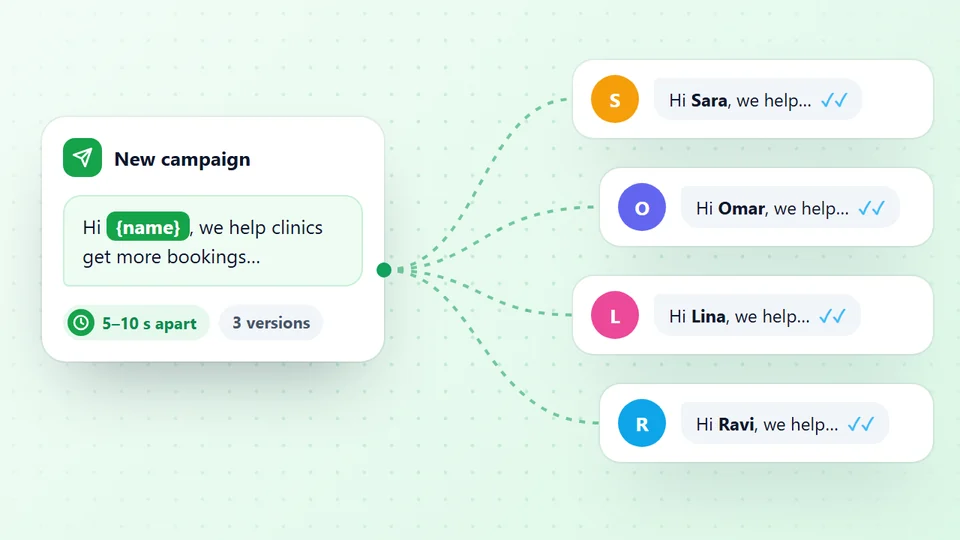
- The whole sheet as a campaign. Download the sheet and load it into a WhatsApp bulk sender such as LeadTrapper, which sends to every row from your own number, with each person's details filled in. Good for a whole list.
Prepare the Sheet
Use one row per person and a heading in the first row:
| Name | Phone | Company | City |
|---|---|---|---|
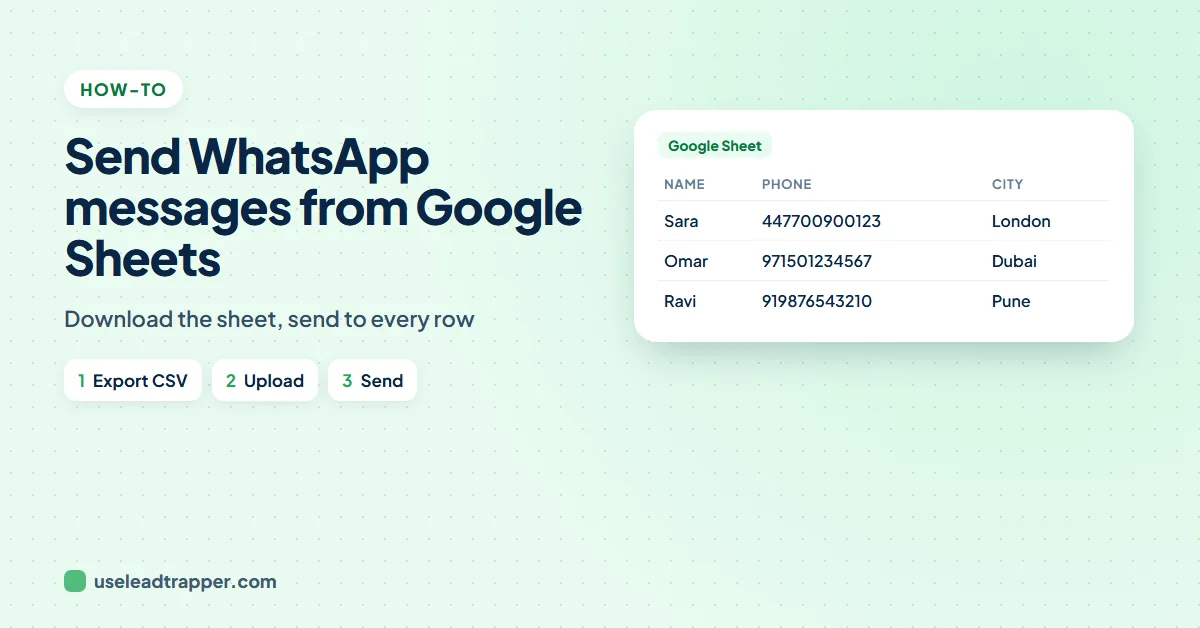
| Sara | 447700900123 | Smile Dental | London |
| Omar | 447700900456 | Bright Smile | Leeds |
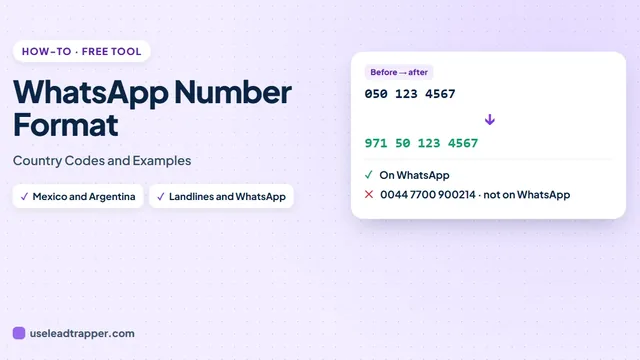
- Phone with the country code, digits only, such as 447700900123 for a UK mobile. Format the column as plain text (Format, Number, Plain text) before typing, so Sheets keeps leading digits and does not show long numbers as 4.47701E+11.
- Short first names in the Name column, because they will appear as "Hi Sara".
- Any extra column you want in the message, with a one- or two-word heading.
If your numbers are written the local way, such as 07700 900123, the free WhatsApp number formatter adds the country code to a pasted column, and the guide to the WhatsApp number format explains the rules.
Route 1: A WhatsApp Link Per Row
WhatsApp’s click to chat links open a chat with any number, and can carry a ready message. In a new column, put this formula in row 2 and fill it down:
=HYPERLINK("https://wa.me/"&B2&"?text="&ENCODEURL("Hi "&A2&", your order is ready to collect."),"Open chat")Clicking Open chat opens WhatsApp with the message to that person already typed; you check it and press send. ENCODEURL makes spaces and symbols safe in the link. The free WhatsApp link generator makes the same kind of link for one number, and the guide on how to create a WhatsApp link covers the details. It is a good route for a few people, and slow for a few hundred.
Route 2: Send the Whole Sheet as a Campaign
- In Google Sheets choose File, Download, Microsoft Excel (.xlsx). A CSV file works too.
- In LeadTrapper, open Send Bulk Messages and choose your WhatsApp number in step 1.
- In step 2, click to upload the file. LeadTrapper finds the Phone and Name columns by their headings and shows each number with its name.
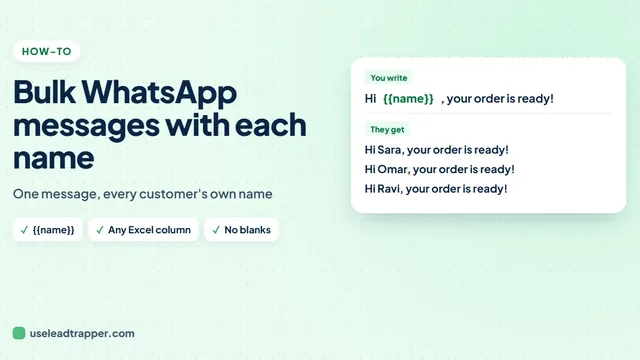
- Write the message in step 3, with {{name}} and any other codes.
- Choose a speed in step 4 and press Start Sending.
Download the file rather than copying cells: cells pasted from a sheet are separated by tabs, and the paste box in Send Bulk Messages expects one Name,number per line, so names would be lost. Before sending, every number is checked on WhatsApp and numbers without it are skipped.
Send your sheet as a campaign free
Use Every Column in the Message
From LeadTrapper 2.1.120, every column with a heading becomes a code: Company gives {{company}}, City gives {{city}}, and a two-word heading such as Company Name gives {{company_name}}. Under the message box the app lists the codes your file has, and it warns you if your message uses a code the sheet does not have.
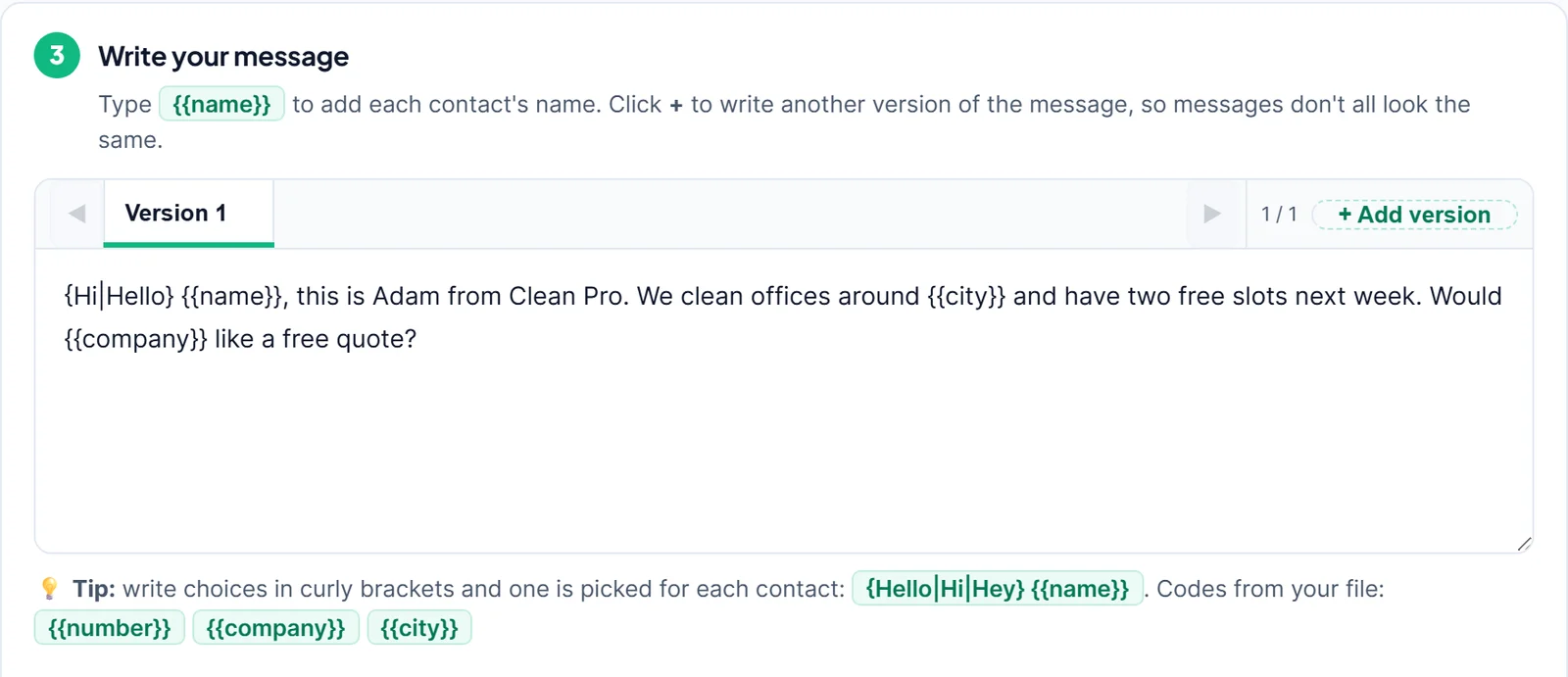
The guide to sending a bulk WhatsApp message with each name covers what happens when a cell is empty, and the WhatsApp spintax guide shows how to vary the wording.
What About Apps Script and the API?
Developers sometimes connect Sheets to WhatsApp with Apps Script. That route sends through the official WhatsApp Business API: it needs a Meta business account, a phone number registered for the API, approved message templates and per-message charges. The guide to WhatsApp Business API cost explains the pricing. It suits companies with a developer; the two routes above need neither.
LeadTrapper costs $50 a year with a 14-day free trial. WhatsApp’s rules apply to any tool that sends messages, and LeadTrapper is not affiliated with or endorsed by WhatsApp or Google.
Before you send: warm up new or quiet numbers first with the WhatsApp warmer (LeadTrapper's Account Warmer), which runs in the same app.
Frequently Asked Questions
Not on its own. Sheets has no WhatsApp feature. Without code, you can build a click-to-chat link per row with a formula, or download the sheet and send the whole list from a bulk sender such as LeadTrapper. With code, Apps Script can call the WhatsApp Business API, which needs a Meta business setup and approved templates.
Use HYPERLINK around a wa.me address: the address is https://wa.me/ followed by the number from the phone column, then ?text= and the message wrapped in ENCODEURL, with the name cell joined into the text. The full formula is in the guide above. The number must include the country code, with no plus sign or spaces.
In Google Sheets choose File, Download, Microsoft Excel (.xlsx). In LeadTrapper, open Send Bulk Messages and upload the file in step 2, write the message with {{name}} in step 3, choose a speed and start. Each row gets its own message from your WhatsApp number.
Yes, from LeadTrapper 2.1.120. Every column with a heading becomes a code in lower case: Company gives {{company}}, City gives {{city}}. The message step lists the codes your file has.
No. You download the sheet as an Excel or CSV file and load it. If the sheet changes, download it again before the next campaign.
About LeadTrapper
LeadTrapper is a Windows app for finding business leads and contacting them on WhatsApp. It collects business contacts from Google Maps, Instagram, Facebook, TikTok, LinkedIn and business websites, checks which numbers are on WhatsApp with its Number Filter, and sends personalised campaigns with automatic delays from one or more WhatsApp accounts. It also has a chatbot, a shared inbox for every account, and Store Orders for online shops. It installs from the Microsoft Store, and the full app is free for 14 days, then $50 a year. Free web tools, browser extensions and a Wix app are listed on the Free Tools page.
Turn Your Google Sheet Into a WhatsApp Campaign
LeadTrapper for Windows sends your downloaded sheet to every contact, with each column as a code in the message. $50/year, 14-day free trial.