In this article 8 sections
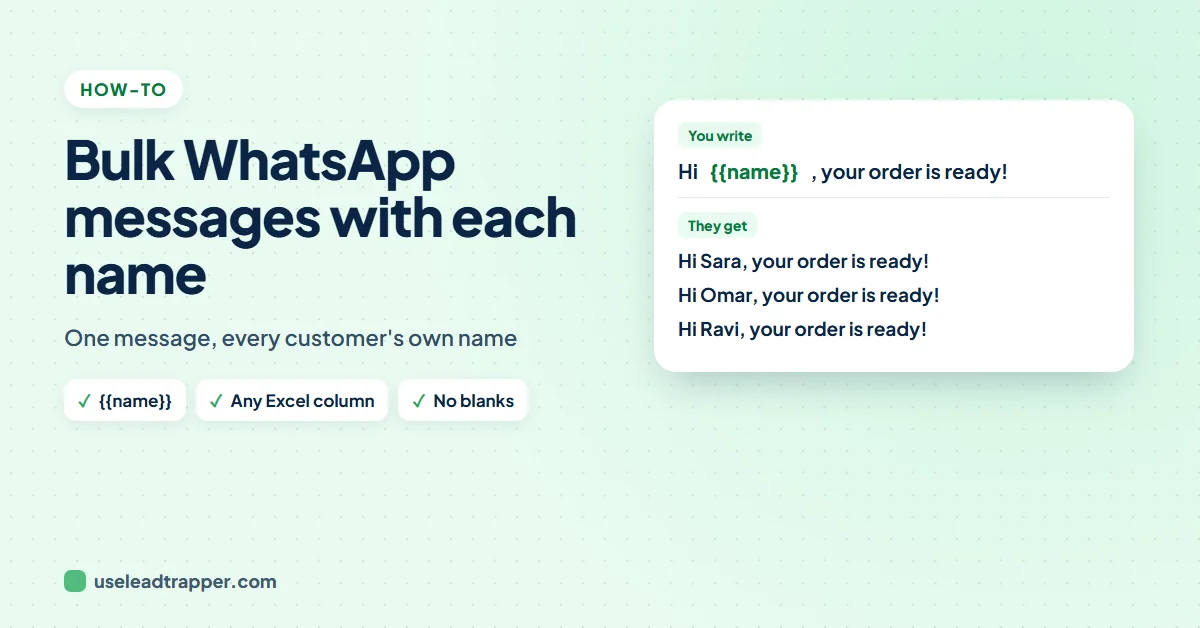
Put each person's name next to their number in Excel, load the file into LeadTrapper's Send Bulk Messages screen, and type {{name}} in the message where the name should go. Every contact then gets the message with their own name, such as Hi Sara. WhatsApp's own broadcast lists cannot do this.
- WhatsApp's own broadcast lists send the same text to everyone. To put a different name in each message you need a sender that reads names from your list.
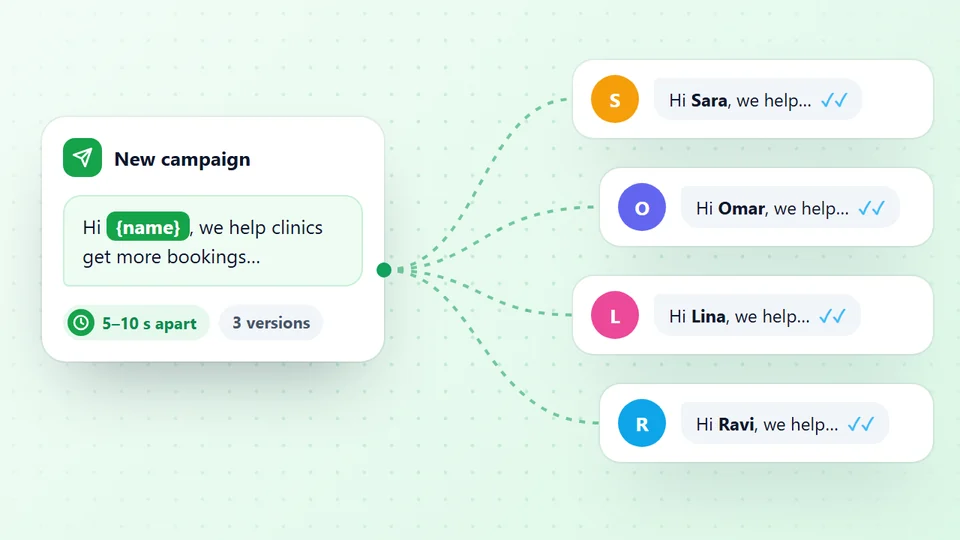
- In LeadTrapper, type {{name}} in the message. It is replaced with each contact's name from your Excel file or pasted list, so Sara reads Hi Sara and Omar reads Hi Omar.
- The Excel file needs a number column and a name column. With headers such as Phone and Name, LeadTrapper finds the columns itself; without headers it reads the number from the first column and the name from the second.
- A contact with no name gets a blank where {{name}} was, so Hi {{name}}, becomes Hi , for them. Fill empty names in Excel before you load the file.
- Names and several message versions together make every message look different, which is what you want when you send to many people.
“Hi Sara” gets read. “Dear customer” gets skipped. Putting each person’s name at the start of a message is the simplest way to make a bulk WhatsApp message feel like a normal chat, and it takes one extra column in your spreadsheet. This guide shows how to set up that column, how the {{name}} code works in LeadTrapper’s Send Bulk Messages screen, and the one mistake that turns “Hi Sara,” into “Hi ,”.
Why WhatsApp Broadcast Lists Cannot Add Names
WhatsApp’s own broadcast lists send one text to everyone on the list. WhatsApp’s help page, How to use broadcast lists, explains how to create a list and send to it, and it has no option to insert each person’s name. Every recipient receives the identical message.
Putting a different name into each message is what people often call a mail merge: one template, one list, and the name filled in row by row. For WhatsApp that needs a sender that reads your list, and that is what the WhatsApp bulk sender in LeadTrapper does. It runs on Windows and sends from your own WhatsApp account, one message at a time, with the name filled in for each person.
Set Up the Excel File
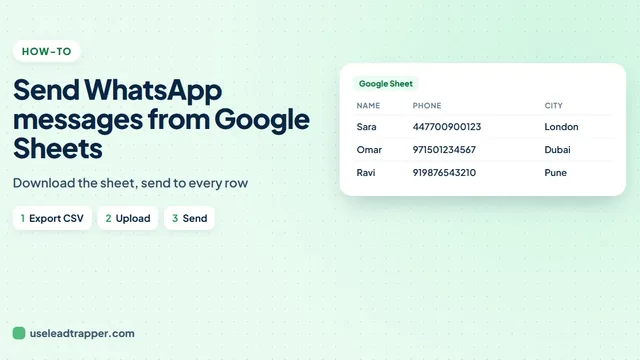
You need one row per person, with a number column and a name column. A heading row helps, because LeadTrapper uses it to find the right columns. A list kept online works too: send WhatsApp messages from Google Sheets by downloading the sheet first.
| Phone | Name |
|---|---|
| 447700900123 | Sara |
| 447700900456 | Omar |
| 447700900789 | Lina |
- With headings: a column whose heading contains Phone, Number or Mobile is read as the number, and a column whose heading contains Name or Contact is read as the name. The order of the columns does not matter.
- Without headings: the number is read from the first column and the name from the second.
- The name cell is used as written. If you want "Hi Sara", write Sara, not SARA KHAN. A short first name reads more naturally in a chat.
In this screen, numbers must already include the country code, such as 447700900123 for a UK mobile. Spaces, dashes and a plus sign are removed for you. If your list has local numbers like 07700 900123, see local numbers without a country code below.
Load the Contacts with Their Names
Open Send Bulk Messages, choose the WhatsApp number to send from in step 1, then in step 2 click to upload your Excel or CSV file. The list shows each number with its name next to it, so you can check that the names came through before you write anything.
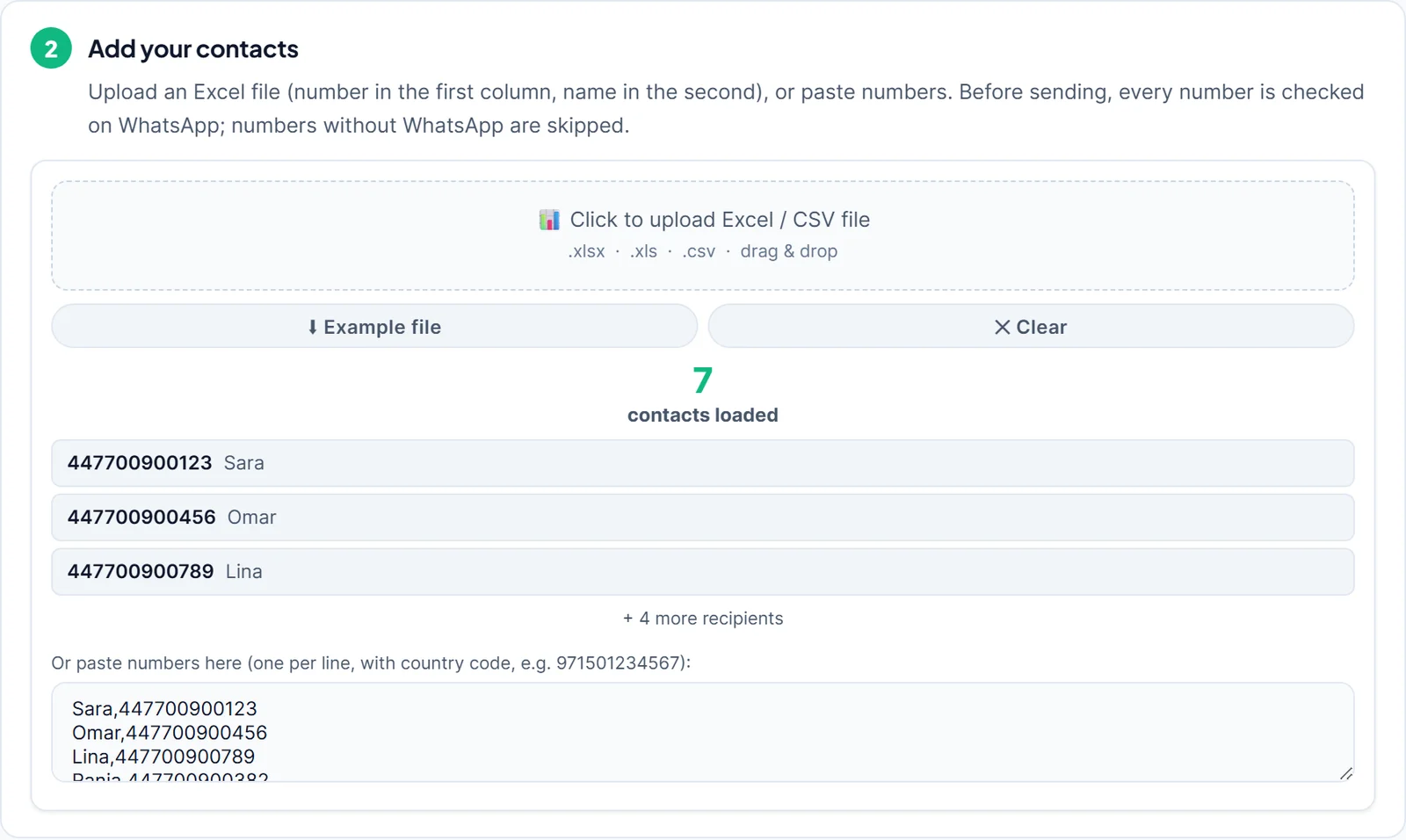
You can also paste the list into the box under the upload area, one person per line, with the name first and a comma: Sara,447700900123. A line with only a number is loaded too, just without a name.
Write the Message with {{name}}
In step 3, type your message and put {{name}} exactly where the name should go, with two curly brackets on each side:
Hi {{name}}, our best prices of the year are on this week. Shall I send you the list?
When the campaign runs, Sara receives “Hi Sara, our best prices…”, Omar receives “Hi Omar, our best prices…”, and so on down the list. You can use {{name}} more than once, and {{number}} works the same way if you ever want the person’s own number in the text.
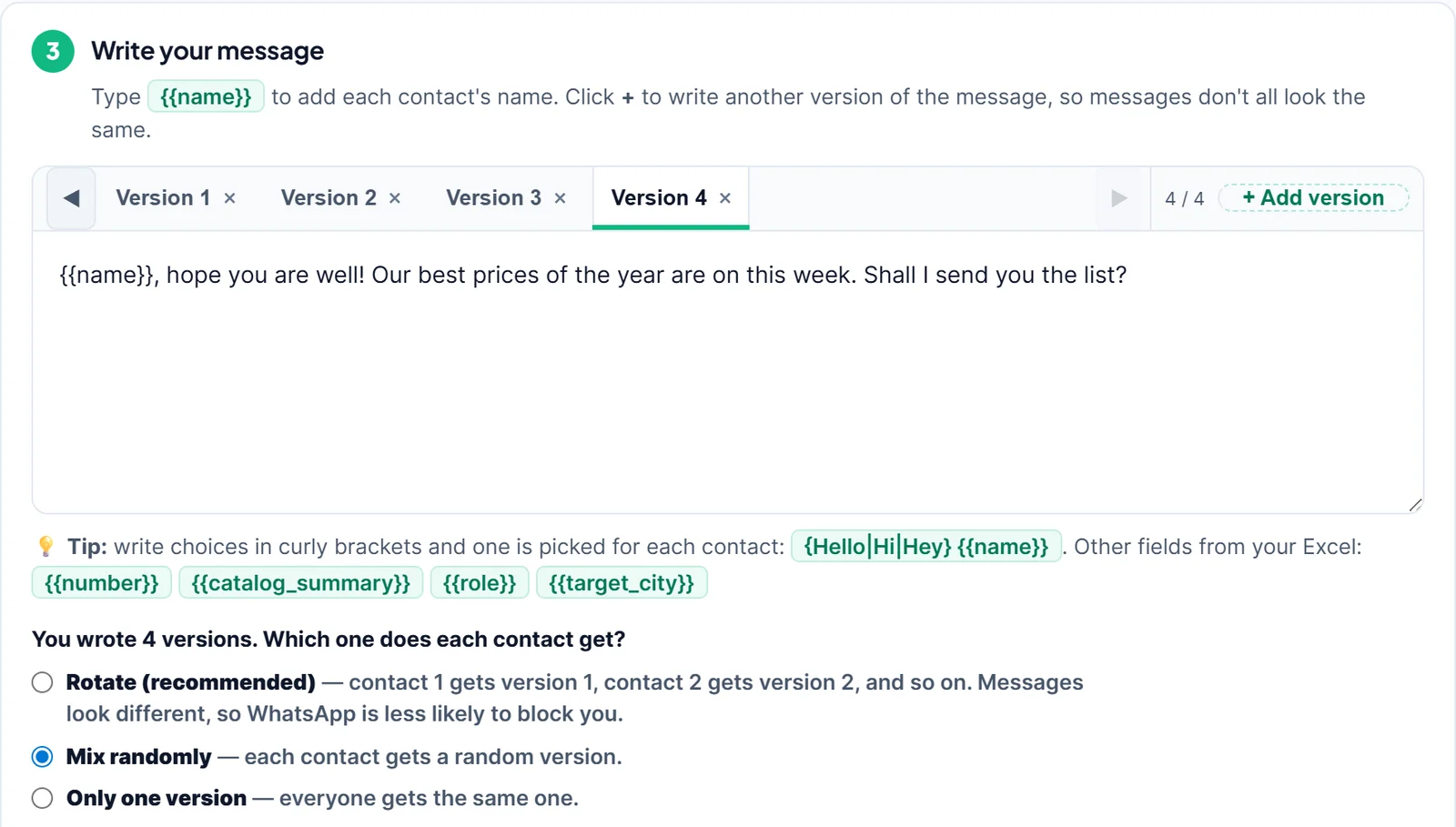
From version 2.1.120, every other column in your Excel file becomes a code too. A column headed Company gives {{company}}, City gives {{city}}, and a heading of two words such as Company Name gives {{company_name}}. Under the message box the app lists the codes your file has, and it warns you while you write if the message uses a code your list does not have, so nobody receives a blank. If you built the list with the Google Maps scraper, export the results and load the file: its Name column fills {{name}} with each business name. A clinic’s appointment sheet works the same way: Patient, Date and Time columns become {{patient}}, {{date}} and {{time}}, as the guide to WhatsApp appointment reminders shows. A school’s fee sheet does the same with {{amount}} and {{due_date}}, as in the guide to fee reminder messages to parents.
Send personal messages free for 14 days
When a Name Is Missing
If a row has no name, LeadTrapper puts nothing where {{name}} was. “Hi {{name}}, our best prices…” becomes “Hi , our best prices…” for that person, which looks like a mistake and gives away that the message was sent in bulk.
Two easy fixes, both done before you load the file:
- Fill the blanks in Excel. Filter the name column for empty cells and type a word that still reads well, such as there, so the message becomes "Hi there,".
- Split the list. Send the {{name}} message to rows with names, and a version without {{name}} to the rest.
Look at the contact list in step 2 before you send: a number with nothing next to it has no name.
Local Numbers Without a Country Code
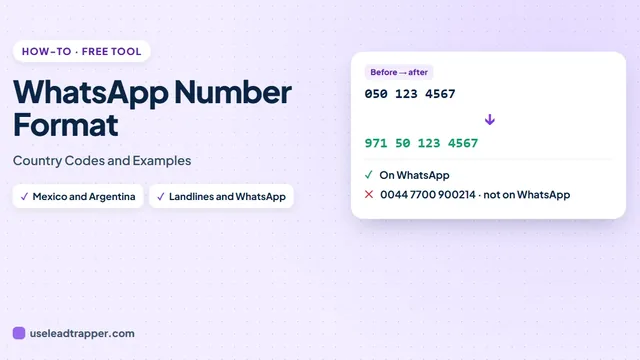
Customer lists often hold numbers the way people write them at home, such as 07700 900123 or 050 123 4567. WhatsApp needs the full international number. If you load those into Send Bulk Messages as they are, the country code is missing.
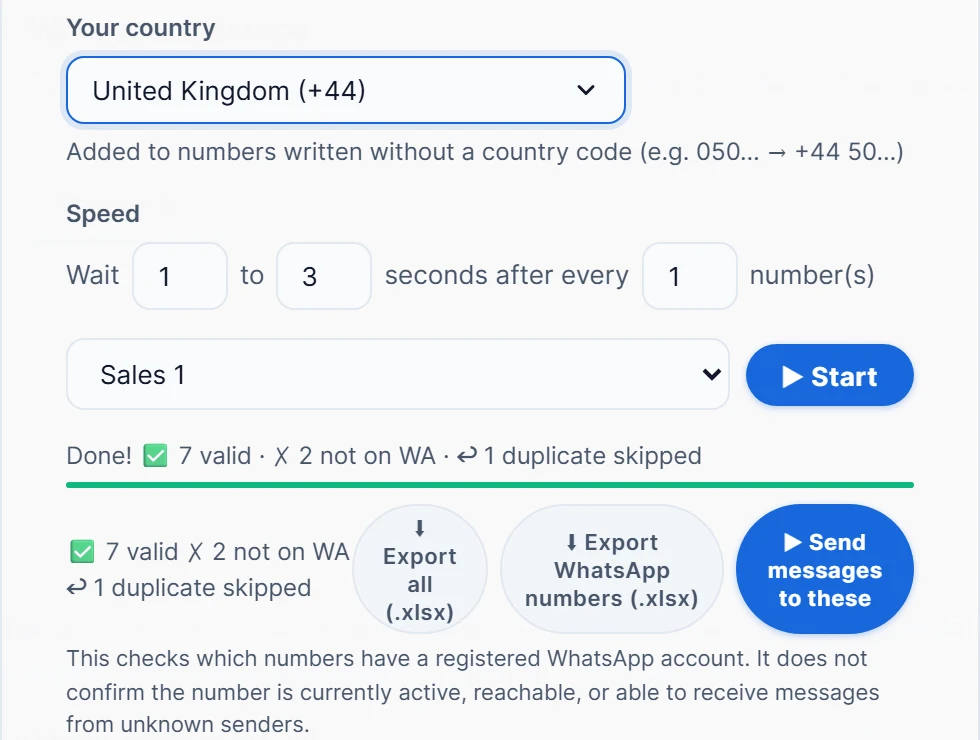
The fastest route is LeadTrapper’s WhatsApp Number Filter, called Check Numbers in the app. Upload the same Excel file, pick your country under Your country, and press Start. It adds the country code to every local number, checks which numbers are on WhatsApp, and skips duplicates. From version 2.1.119 it also keeps each person’s name from your file, so when you press Send messages to these, the numbers on WhatsApp arrive in Send Bulk Messages with their names, ready for {{name}}.
If you only want to fix the numbers, the free WhatsApp number formatter does it in your browser, and the guide to the WhatsApp number format explains the rules and the Excel formulas.
Write Several Versions as Well
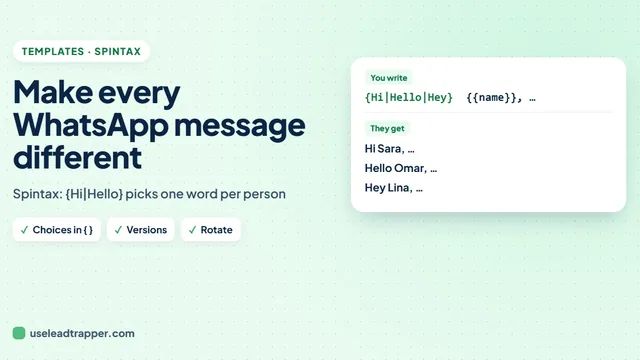
A name makes each message a little different. Several versions of the message make them much more different. Click + Add version in step 3 and write the same offer in other words, each with {{name}}. Then pick how they are shared out: Rotate gives contact 1 version 1, contact 2 version 2 and so on, and Mix randomly picks a version for each person.
You can also write choices in curly brackets with a straight line between them, such as {Hello|Hi|Hey} {{name}}, and one of the words is picked for each contact. With four versions, three greetings and a different name in each, very few people on your list get exactly the same text.
Send at a Safe Speed
Personal messages still need a sensible pace, and a good opening line helps too: the WhatsApp promotional message templates all start with {{name}}. If the best time to send is tomorrow morning, you can schedule the WhatsApp message instead of sending it now. In step 4 the Safe speed waits 20 to 40 seconds between messages and rests 3 to 6 minutes after every 10, and before sending, every number is checked on WhatsApp so numbers without it are skipped. The WhatsApp delay calculator guide shows how to work out a pace for a bigger list.
Send to people who expect to hear from you, such as customers and contacts who gave you their number. WhatsApp’s terms of service name bulk messaging and auto-messaging among the uses they do not allow, and its rules apply to any tool that sends messages. LeadTrapper is not affiliated with or endorsed by WhatsApp. If people on your list have not saved your number, the guide to sending a broadcast without saving contacts compares the options.
LeadTrapper costs $50 a year and comes with a 14-day free trial, so you can load your own list and see each name in place before anything is sent.
Before you send: warm up new or quiet numbers first with the WhatsApp warmer (LeadTrapper's Account Warmer), which runs in the same app.
Frequently Asked Questions
Keep each person's number and name on one row in Excel, load the file in LeadTrapper's Send Bulk Messages screen, and type {{name}} in your message where the name should appear. When the campaign runs, {{name}} is replaced with each contact's own name, so every person gets a message that starts with their name.
No. A WhatsApp broadcast list sends the exact same message to everyone on it, and WhatsApp's help page on broadcast lists describes no way to insert names. Each recipient sees it as a normal chat from you, but the text is identical for all of them.
LeadTrapper replaces {{name}} with an empty space for that contact, so Hi {{name}}, becomes Hi , in their message. The simple fix is to fill every empty name cell in Excel before you load the file, for example with a word like there, so the message reads Hi there,.
If your first row has headings such as Phone and Name, LeadTrapper finds the number and name columns by their headings. If there is no heading row, it reads the number from the first column and the name from the second. Numbers must already include the country code in that screen.
Yes, from version 2.1.120. Every column with a heading becomes a code: Company gives {{company}} and City gives {{city}}. The message step lists the codes your file has and warns you if your message uses one your list does not have. A pasted list carries only the name and the number.
About LeadTrapper
LeadTrapper is a Windows app for finding business leads and contacting them on WhatsApp. It collects business contacts from Google Maps, Instagram, Facebook, TikTok, LinkedIn and business websites, checks which numbers are on WhatsApp with its Number Filter, and sends personalised campaigns with automatic delays from one or more WhatsApp accounts. It also has a chatbot, a shared inbox for every account, and Store Orders for online shops. It installs from the Microsoft Store, and the full app is free for 14 days, then $50 a year. Free web tools, browser extensions and a Wix app are listed on the Free Tools page.
Send Messages That Start With Each Person's Name
LeadTrapper for Windows reads names from your Excel file, fills them into every message and sends from your own WhatsApp. $50/year, 14-day free trial.