In this article 5 sections
To schedule a WhatsApp message to many people, set up the campaign in LeadTrapper's Send Bulk Messages screen, press Send Later (Schedule), pick the date and time and save. At that time LeadTrapper sends to the list from your own number at the speed you chose, as long as the app is open.
- Send Later in LeadTrapper turns a finished campaign into a schedule: you pick the date and time and it sends to the whole list then.
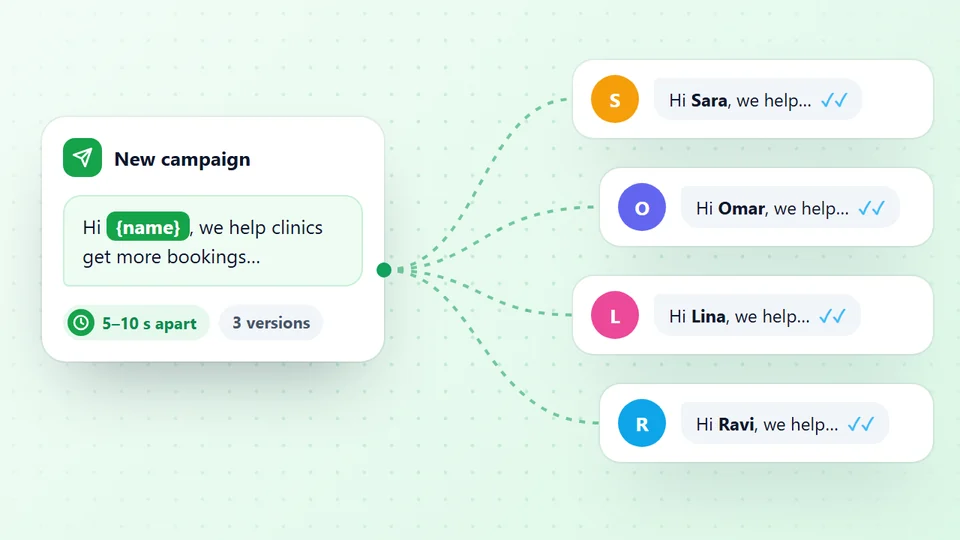
- The schedule copies your contacts with their names, your message, the speed, the sending number and any attached file.
- Choices such as {Hi|Hello} and codes such as {{name}} still change per contact. From version 2.1.122 a schedule sends all your message versions, the same way Start Sending does.
- The app has to be open with your WhatsApp number connected. If the computer was off at that time, the campaign starts as soon as you open the app again.
- Scheduled campaigns use the same pacing as manual ones: Safe waits 20 to 40 seconds between messages and rests 3 to 6 minutes after every 10.
You finish writing an offer late in the evening, but your customers read WhatsApp at 9:30 in the morning. Sending it now means it lands while they sleep; waiting means remembering to press Start tomorrow. A schedule solves that. This guide shows how to schedule a WhatsApp message to a whole contact list with LeadTrapper, what the schedule keeps from your campaign, and what has to be true at sending time.
Why Schedule a Bulk Message
- Send when people read. A message that arrives during working hours, or just before lunch, gets seen while it is fresh.
- Prepare in one sitting. Write the offer, load the list and check everything once, then let it run on its own.
- Different time zones. Customers in another country can get the message at a sensible local time.
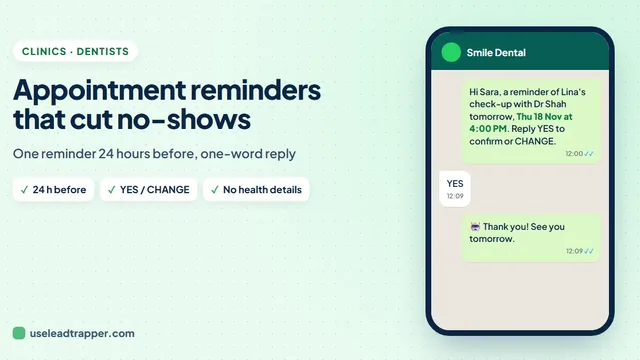
- Reminders the day before. A clinic can load tomorrow's appointments each morning and schedule the reminders for noon, as the guide to WhatsApp appointment reminders shows.
- Payment deadlines. A school can schedule its fee reminders for the morning a week before the due date, as in the guide to fee reminder messages to parents.
Scheduling works for a whole list in the WhatsApp bulk sender in LeadTrapper, which sends from your own number on your Windows computer.
Schedule a Campaign, Step by Step
- Open Send Bulk Messages, choose your number in step 1 and load your contacts in step 2.
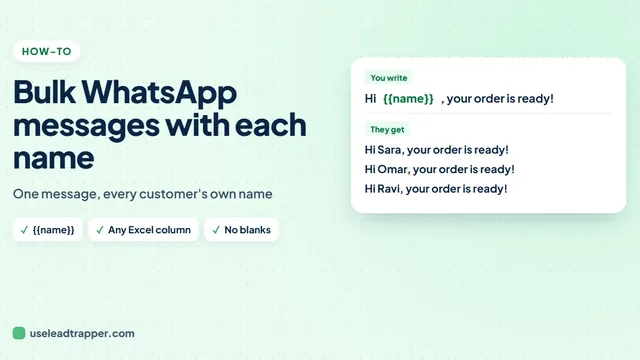
- Write the message in step 3, with {{name}} if you want each person's name. Attach a picture or PDF if you need one.
- In step 4, choose the speed, then press Send Later (Schedule) under Start Sending.
- In the Send Later window, type a name for the schedule (only you see it) and pick the date and time under When to send.
- Check the number it will send from, the contacts, the message and the speed, then press Save Schedule.
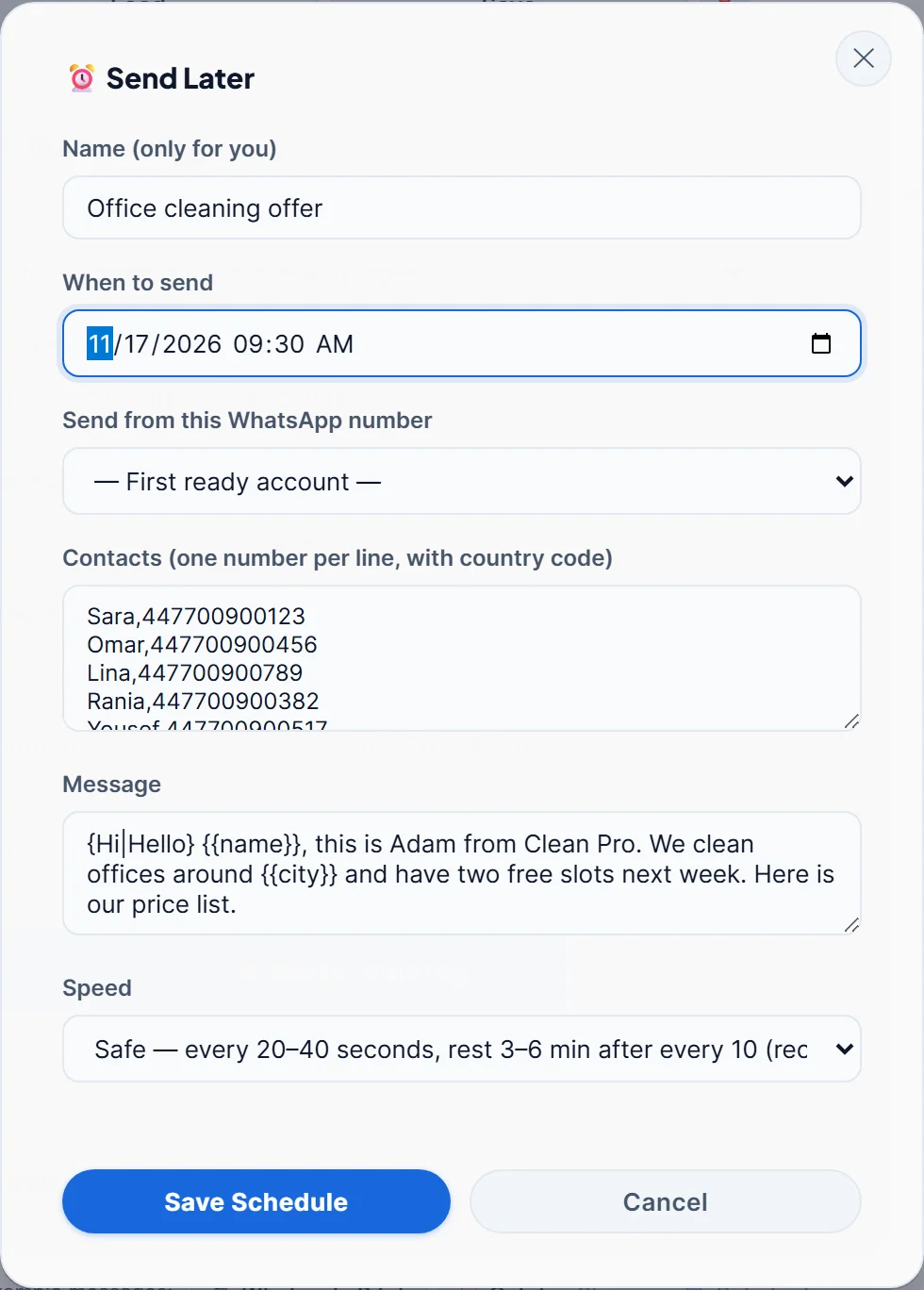
You can also start from scratch: open Scheduled Sends and press New Schedule, then paste the contacts one per line as Name,number with the country code.
Schedule your first campaign free
What the Schedule Keeps
Send Later copies the campaign as it is on screen:
- The contacts and their names, so {{name}} is filled in. From version 2.1.121 the other Excel columns are kept too, such as {{company}}.
- Your message versions. From version 2.1.122, if you wrote several versions, the schedule sends all of them, the same way Start Sending does. Older versions send only the one showing when you press Send Later. Choices in curly brackets, such as {Hi|Hello}, still change for each person, as the WhatsApp spintax guide explains.
- The attached file, sent with your message as the caption. The guide to sending a bulk WhatsApp message with an image covers attachments.
- The speed and the advanced limits, such as the most messages per minute and your pause hours.
The speeds are the same as for a manual campaign. Safe waits 20 to 40 seconds between messages and rests 3 to 6 minutes after every 10. Normal waits 10 to 20 seconds and rests 2 to 4 minutes after every 15. Fast waits 5 to 10 seconds and rests 1 to 2 minutes after every 20, and is only for old, well-used numbers.
What the App Needs at Sending Time
LeadTrapper sends from your own WhatsApp number on your own computer, not from a server. So at the scheduled time:
- The app must be open and the computer awake. It checks the schedules every minute.
- The WhatsApp number must be connected. If it is not ready, the schedule waits instead of failing.
- If the computer was off, the campaign starts as soon as you open LeadTrapper again, so check the time before you reopen the app the next day.
Before sending, every number is checked on WhatsApp and numbers without WhatsApp are skipped, exactly as in a manual campaign. Numbers on your do-not-send list are skipped too, which the guide to WhatsApp opt-out messages explains.
Pick a Good Time
There is no single best hour, but a few rules hold for most businesses. Send in the recipient’s working hours, avoid late evenings and prayer or family times in your market, and give a long list room to finish: at the Safe speed, 200 contacts from one number take a few hours. The WhatsApp delay calculator guide shows how to work out how long a list will take, and adding more numbers shares the list out, as the guide to sending bulk WhatsApp from multiple numbers shows. For the busiest weeks of the year, the Black Friday send plan and the December plan for Christmas messages show what to schedule and when.
LeadTrapper costs $50 a year with a 14-day free trial. WhatsApp’s rules apply to any tool that sends messages, and LeadTrapper is not affiliated with or endorsed by WhatsApp.
Before you send: warm up new or quiet numbers first with the WhatsApp warmer (LeadTrapper's Account Warmer), which runs in the same app.
Frequently Asked Questions
Set up the campaign in LeadTrapper's Send Bulk Messages screen, then press Send Later (Schedule) in step 4. Give the schedule a name, pick the date and time, check the contacts, message and speed, and press Save Schedule. LeadTrapper sends it at that time from the number you chose.
Yes. LeadTrapper sends from your own WhatsApp number on your computer, so the app must be open and the number connected. If the computer was off at the scheduled time, the campaign starts when you next open LeadTrapper.
Yes. The schedule keeps each contact's name, so {{name}} is filled in, and from version 2.1.121 it also keeps the other columns from your Excel file, such as {{company}}.
Yes. If you attached a file in step 3 before pressing Send Later, the schedule sends the same file with your message as the caption.
Open Scheduled Sends in LeadTrapper. It lists every schedule with its time, you can delete one you no longer want, and you can add a new one with New Schedule.
About LeadTrapper
LeadTrapper is a Windows app for finding business leads and contacting them on WhatsApp. It collects business contacts from Google Maps, Instagram, Facebook, TikTok, LinkedIn and business websites, checks which numbers are on WhatsApp with its Number Filter, and sends personalised campaigns with automatic delays from one or more WhatsApp accounts. It also has a chatbot, a shared inbox for every account, and Store Orders for online shops. It installs from the Microsoft Store, and the full app is free for 14 days, then $50 a year. Free web tools, browser extensions and a Wix app are listed on the Free Tools page.
Write It Today, Send It Monday Morning
LeadTrapper for Windows schedules bulk WhatsApp campaigns with names, pictures and safe pacing, from your own number. $50/year, 14-day free trial.