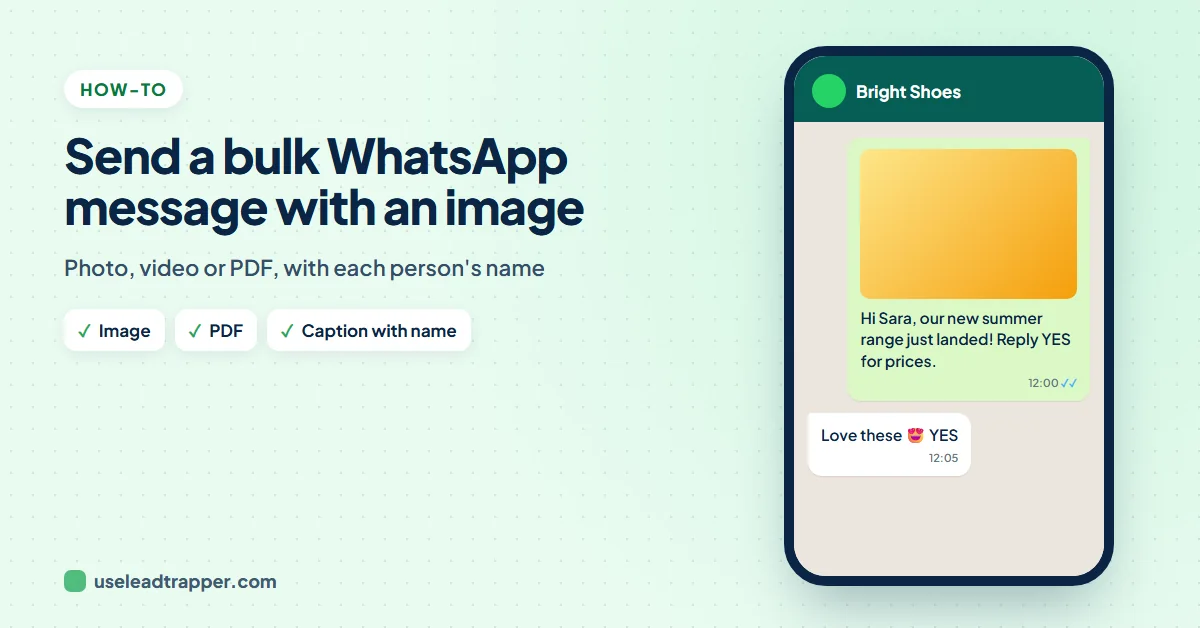
In this article 6 sections
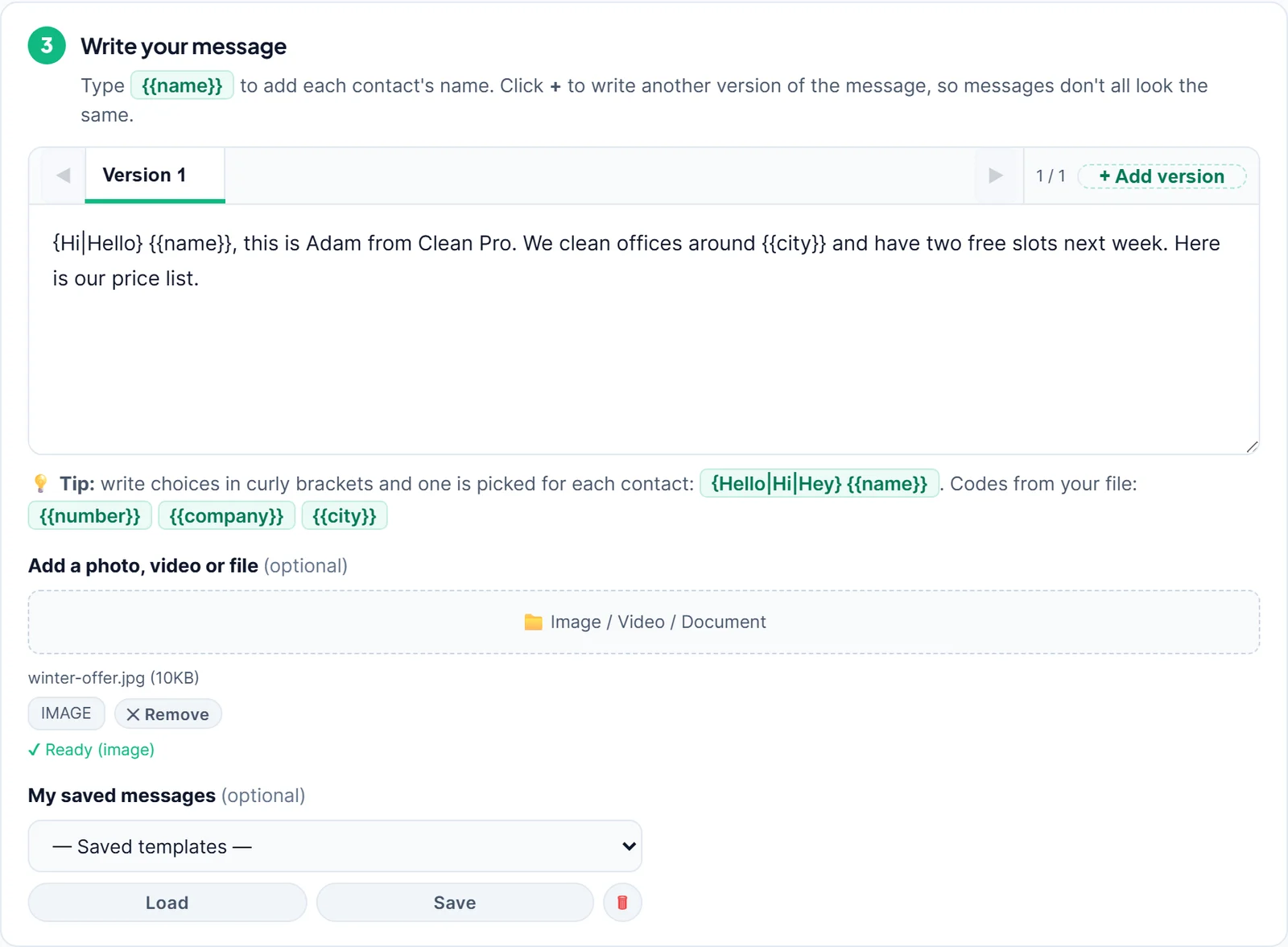
In LeadTrapper's Send Bulk Messages screen, write your message in step 3, then click Image / Video / Document under Add a photo, video or file and choose the file. Every contact receives the file with your message as its caption, including their own name if you typed {{name}}.
- In LeadTrapper you attach one file per campaign: a photo, a video or a document such as a PDF, Word or Excel file.
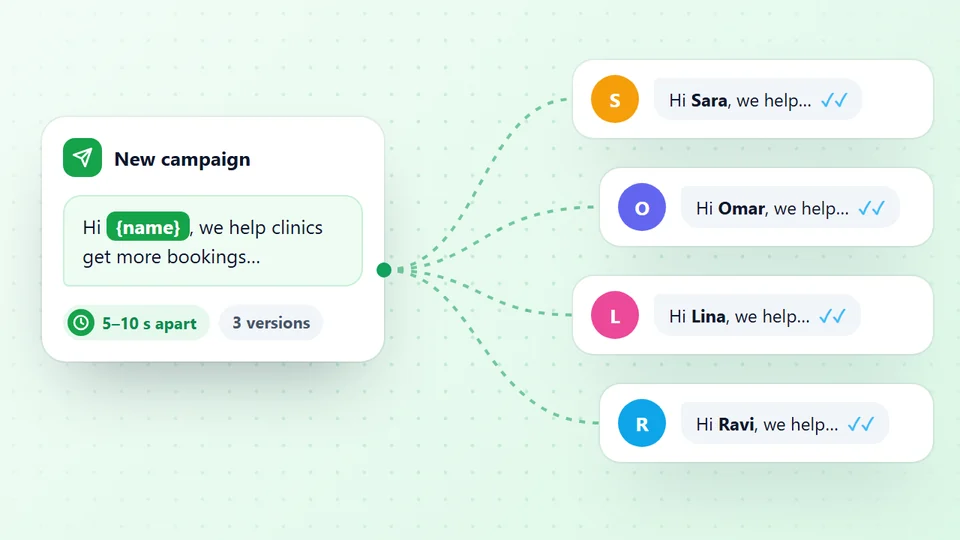
- Your written message becomes the caption under the file, and codes such as {{name}} are filled in for each contact.
- The app recognises the type of file itself and shows IMAGE, VIDEO or DOCUMENT with a Ready mark once it is loaded.
- If the file cannot be sent to one contact, LeadTrapper sends that person the text on its own, so nobody on the list is skipped without a message.
- Send Later keeps the attachment, so a scheduled campaign goes out with the same file.
A picture of the offer, a short video or the price list as a PDF usually says more than a paragraph of text. On a phone you can forward a file to a few chats by hand, but not to a list of 300 customers with a personal line for each. This guide shows how to attach one file to a whole bulk campaign in LeadTrapper, how the caption works, and what happens when a file cannot be delivered.
What You Can Attach
Step 3 of Send Bulk Messages has a box called Add a photo, video or file. It takes:
- Images such as JPG and PNG, sent as a photo.
- Videos, sent as a video.
- Documents: PDF, Word, Excel, PowerPoint, text, ZIP and RAR files, sent as a file.
You attach one file per campaign. LeadTrapper works out which kind it is and shows a label, IMAGE, VIDEO or DOCUMENT, next to the file name. The WhatsApp bulk sender then sends it from your own WhatsApp number to each contact in turn, at the speed you choose.
Attach the File, Step by Step
- Open Send Bulk Messages and choose the WhatsApp number to send from in step 1.
- Load your list in step 2 by uploading an Excel or CSV file, with a number column and a name column.
- Write the message in step 3.
- Click Image / Video / Document under Add a photo, video or file, and choose the file on your computer.
- Wait for Ready under the file name. If you picked the wrong file, click Remove and choose again.
- Choose a speed in step 4 and press Start Sending.
Send your offer picture free for 14 days
Write the Caption
The text you write in step 3 is sent as the caption under the file. Everything that works in a plain message works here too:
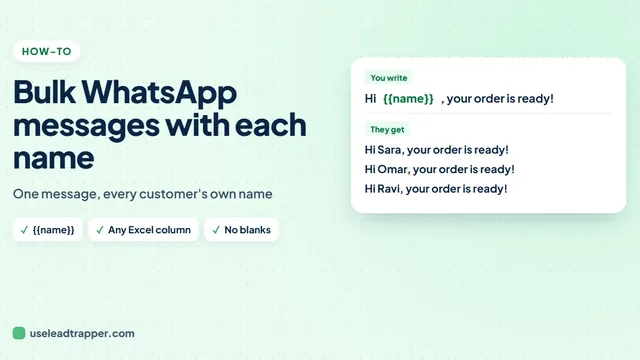
- {{name}} puts each person's name in the caption. The guide to sending a bulk WhatsApp message with each name explains the setup.
- Other columns in your Excel file become codes as well, such as {{company}} or {{city}}.
- Choices in curly brackets, such as {Hi|Hello}, pick a different word for each contact, and you can write several versions of the caption. The WhatsApp spintax guide shows how.
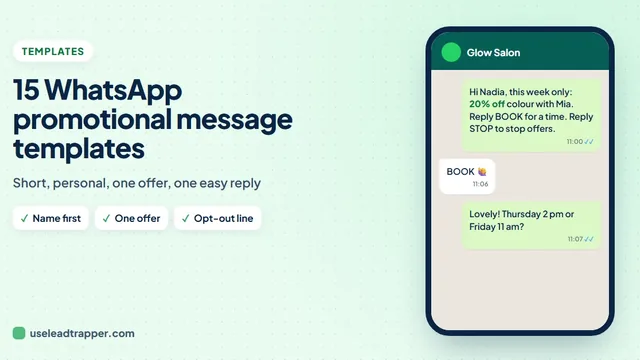
Keep the caption short. The picture does the talking, and one line that tells people what to do next, such as “Reply YES and I’ll send the prices”, works better than a long description.
If a File Cannot Be Sent
Sometimes a file does not go through to one contact. In that case LeadTrapper sends the same person your text on its own, so they still receive your message and the campaign carries on. The log shows a line for each contact who got the text only. A campaign with an attachment also keeps every safety step of a normal one: each number is checked on WhatsApp before sending, numbers without WhatsApp are skipped, and the waits and rests in step 4 apply.
Tips for Pictures and PDFs That Get Opened
- One clear picture beats a collage. On a phone screen a single product or a single price reads instantly.
- Put the key fact in the caption too. Some people read the notification without opening the picture.
- Name the PDF for the reader. "Price list November.pdf" tells them what it is before they tap it.
- Send to people who know you. A file from an unknown number is less likely to be opened, and WhatsApp's rules on bulk messaging apply to any tool. The cold outreach policy guide explains where the lines are.
- Use a calm pace. The Safe speed waits 20 to 40 seconds between messages. The WhatsApp delay calculator guide shows how to plan a bigger list.
Send It Later
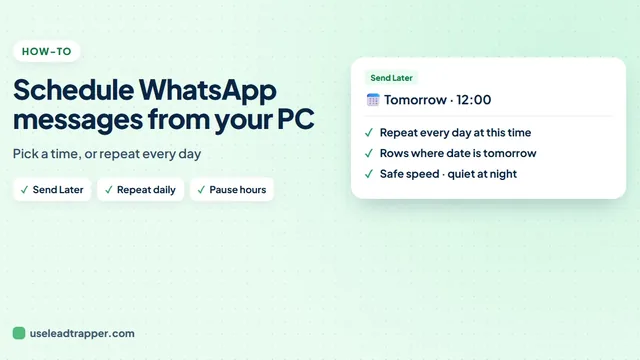
The Send Later (Schedule) button in step 4 copies your contacts, message and attachment into a schedule, so the picture goes out at the time you pick. The guide to scheduling WhatsApp messages covers it step by step.
LeadTrapper costs $50 a year with a 14-day free trial. WhatsApp’s rules apply to any tool that sends messages, and LeadTrapper is not affiliated with or endorsed by WhatsApp.
Before you send: warm up new or quiet numbers first with the WhatsApp warmer (LeadTrapper's Account Warmer), which runs in the same app.
Frequently Asked Questions
Open Send Bulk Messages in LeadTrapper, choose your number and load your contacts, write the message in step 3, then click Image / Video / Document under Add a photo, video or file and pick the image. When it shows Ready, press Start Sending. Each contact gets the image with your message as the caption.
Yes. Attach the PDF the same way as an image. LeadTrapper marks it as a DOCUMENT and sends it to every contact on your list with your message as the caption. Word, Excel, PowerPoint, text and ZIP files work the same way.
No. A campaign carries one file. To send two files, run two campaigns, or put the pictures together in one PDF, which also keeps the chat tidy for the person receiving it.
Yes. The message you write is the caption, and {{name}} and the other codes from your Excel file are filled in for each contact before the file is sent.
LeadTrapper then sends that contact your text message without the file, so they still receive your words. The log shows which contacts got the text only.
About LeadTrapper
LeadTrapper is a Windows app for finding business leads and contacting them on WhatsApp. It collects business contacts from Google Maps, Instagram, Facebook, TikTok, LinkedIn and business websites, checks which numbers are on WhatsApp with its Number Filter, and sends personalised campaigns with automatic delays from one or more WhatsApp accounts. It also has a chatbot, a shared inbox for every account, and Store Orders for online shops. It installs from the Microsoft Store, and the full app is free for 14 days, then $50 a year. Free web tools, browser extensions and a Wix app are listed on the Free Tools page.
Send Your Offer Picture to the Whole List
LeadTrapper for Windows attaches a photo, video or PDF to every message, with each person's name in the caption. $50/year, 14-day free trial.