In this article 5 sections
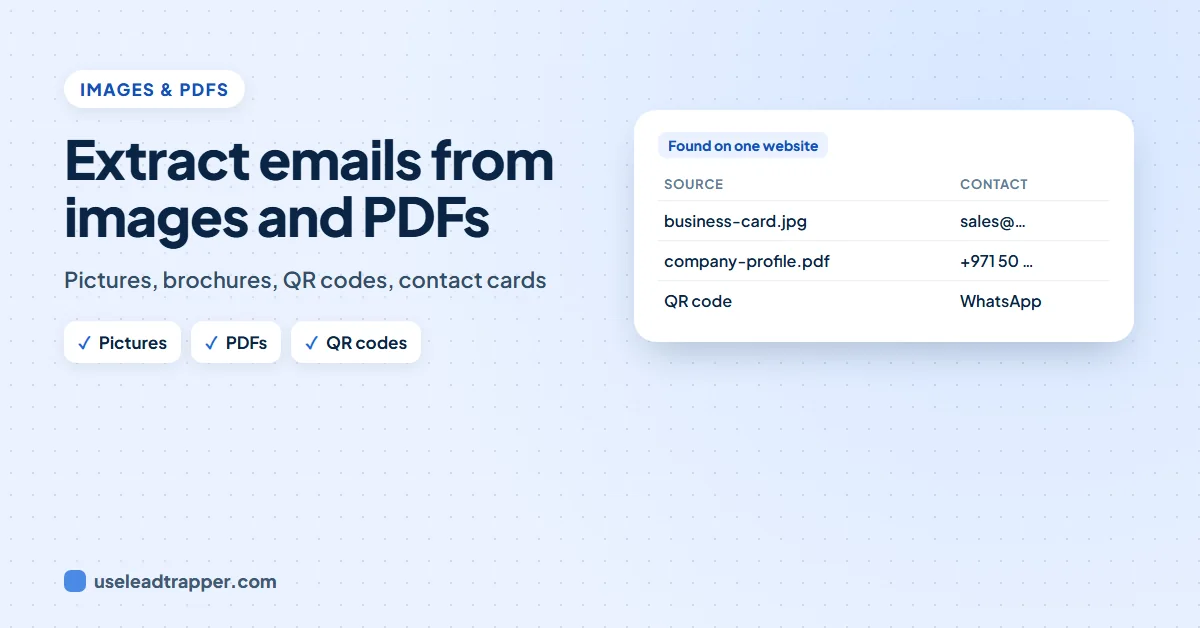
To extract an email from an image, use text recognition (OCR): Windows' Snipping Tool and Google Lens both copy text out of a picture. For a PDF, search it with Ctrl+F. The LeadTrapper app does this for whole lists of websites, reading contact pictures, company PDFs, QR codes and contact cards on your own computer.
- Businesses often put contacts where a normal page reader cannot see them: a business card picture, a banner, a company profile PDF, a QR code.
- For one picture, text recognition (OCR) does the job: Windows' Snipping Tool and Google Lens copy text out of an image for free.
- For a PDF, Ctrl+F finds an @ or a phone number in seconds; scanned PDFs need OCR too.
- The LeadTrapper app reads up to 4 contact pictures, 2 company PDFs, 4 QR codes and 4 contact cards per website, with Windows' own text recognition, so nothing is uploaded.
- Text recognition can misread a letter. Contacts read from a picture are marked Low with 'Read from a picture: check the spelling'.
A business website can show its email in plain text, or inside a picture of a business card, a banner on the contact page, a brochure you download, or a QR code at the bottom of the page. To a person they all look the same. To most email extractors, everything except the plain text is invisible.
Why Contacts Hide in Pictures and PDFs
Sometimes it is on purpose: an email written as a picture is harder for spam robots to collect. More often it is just how the website was made. A designer drops the business card into the contact page as an image, a trading company links its “company profile” PDF instead of writing an About page, a restaurant prints a QR code that opens WhatsApp.
Common places to look:
| Where | What it usually holds |
|---|---|
| Contact or team page pictures | A business card, a phone number in a banner, an email written as an image |
| Company profile, brochure or catalogue PDFs | Head office address, phone, email, sometimes branch contacts |
| QR codes | A phone number, a WhatsApp chat link or a full contact card |
| Contact cards (.vcf) | Name, job title, phone and email, ready for a phone’s address book |
One Picture or PDF by Hand
A picture. Text recognition, often called OCR, turns the letters in an image into text you can copy.
- On Windows 11, open the picture or take a screenshot with the Snipping Tool, then use Text actions to copy the text.
- On a phone, point Google Lens at the picture or the screen and copy the text.
A PDF. Open it and press Ctrl+F. Search for @ to find emails, and for the country code (such as +971) or a word like Tel to find phone numbers. If the search finds nothing in a PDF that clearly shows text, it is a scanned image, so use text recognition on its pages.
Always read the result once more: text recognition can turn an O into a 0, or an l into a 1, and one wrong character is enough for an email to bounce.
QR Codes and Contact Cards
Point a phone camera at a QR code and it shows what the code holds: a phone number, an email, a WhatsApp link (wa.me) or a contact card with name, title and number. On a computer, a screenshot opened in Google Lens works too.
A contact card (.vcf file) opens in any contacts app or in a text editor, where the lines starting with TEL, EMAIL and TITLE hold the details.
A Whole List of Websites
Doing this by hand for fifty websites takes hours. The email finder in the LeadTrapper Windows app does it while it reads each website:
- Pictures. On the home page and the contact, team and branch pages, it picks the pictures whose name or description points to contact details (contact, phone, mail, card and the same words in other languages) and the small one-line images that usually hold an email. It reads up to 4 per website with the text recognition built into Windows 10 and 11.
- PDFs. It reads up to 2 linked PDFs per website, company profiles, brochures and catalogues first, and the first 6 pages of each.
- QR codes. Up to 4 per website: phone numbers, emails, WhatsApp links and contact cards inside them.
- Contact cards. Up to 4 .vcf files per website, including the person’s job title.
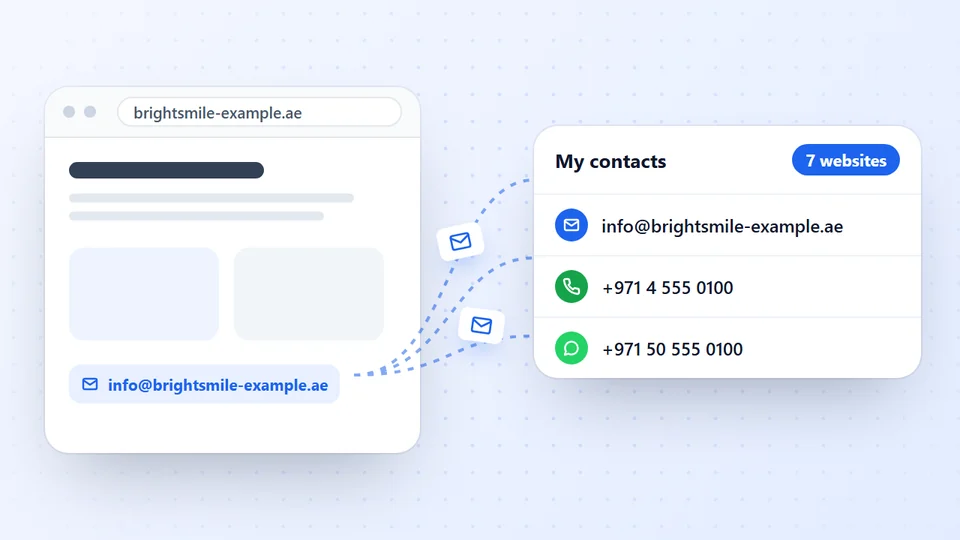
Everything is read on your computer: the pictures and PDFs are downloaded from the business’s own website, read, and never sent anywhere else. Each contact is added to My contacts with the page it came from, such as “Picture: business-card.jpg” or “PDF: company-profile.pdf”.
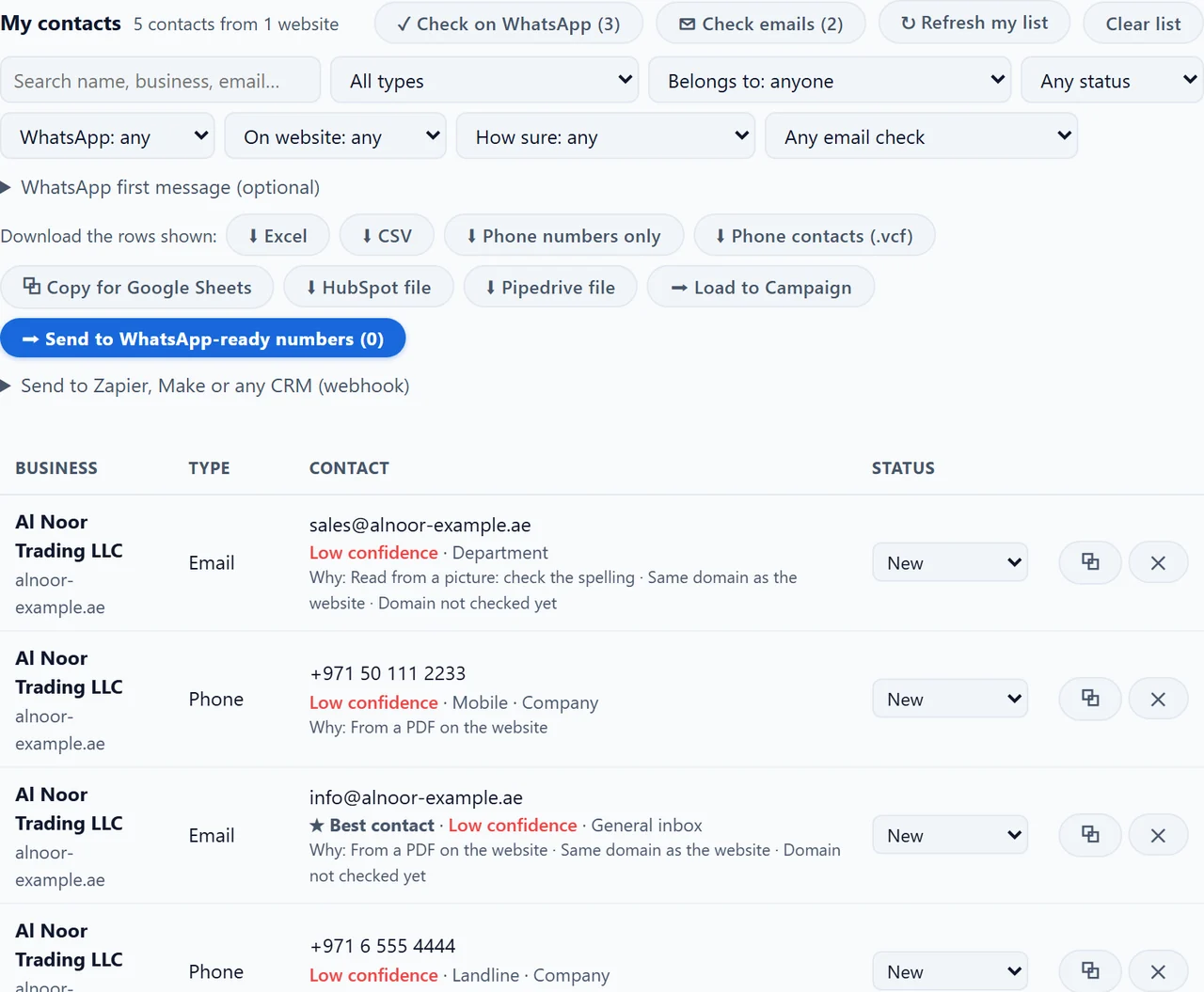
Checking What Was Read
The app tells you where each contact came from and how sure it is:
- Read from a picture: check the spelling. Shown on every email or phone read from an image, which is marked Low until another page confirms it.
- From a PDF on the website. Text in a PDF is read as it is written, but the PDF may be older than the website.
- In the business’s own contact card. Contact cards and QR codes are the business’s own data.
Run Check emails before you send: it flags typing mistakes and checks whether each email’s domain can receive mail, which catches most misread addresses. Our guide to checking if an email is valid explains each check.
When a business shows no email anywhere, not even in a picture, see how to contact a business that publishes no email. For the measured share of contacts the app finds on real websites, see our hand-checked accuracy test of 190 websites.
Frequently Asked Questions
Use text recognition. On Windows 11, open the picture or a screenshot in the Snipping Tool and use Text actions to copy the text. On a phone, Google Lens does the same. Check the address afterwards, because a 0 and an O or an l and a 1 are easy to confuse.
Open the PDF and search for a + sign, the country code or a word such as Tel or Phone with Ctrl+F. If the search finds nothing, the PDF is a scan, and you need text recognition, such as the Snipping Tool on Windows 11, on each page.
Yes. A QR code often holds a phone number, an email, a WhatsApp link or a whole contact card. Any phone camera reads it. The LeadTrapper app reads the QR codes on a business's website and adds the phone, email or WhatsApp number to its list.
For public business pictures it is usually harmless, but you are sending files to someone else's server. The LeadTrapper app uses the text recognition built into Windows 10 and 11, so the pictures are read on your computer and never uploaded.
Because text recognition can misread a character, and a wrong letter in an email means a bounce. The app shows 'Read from a picture: check the spelling' so you look before you send. Contacts from PDFs are marked 'From a PDF on the website'.
About LeadTrapper
LeadTrapper is a Windows app for finding business leads and contacting them on WhatsApp. It collects business contacts from Google Maps, Instagram, Facebook, TikTok, LinkedIn and business websites, checks which numbers are on WhatsApp with its Number Filter, and sends personalised campaigns with automatic delays from one or more WhatsApp accounts. It also has a chatbot, a shared inbox for every account, and Store Orders for online shops. It installs from the Microsoft Store, and the full app is free for 14 days, then $50 a year. Free web tools, browser extensions and a Wix app are listed on the Free Tools page.
Read Every Contact a Business Shows
LeadTrapper for Windows reads business websites, their pictures, PDFs and QR codes for emails, phones and WhatsApp numbers, on your own computer. $50/year, 14-day free trial.