In this article 7 sections
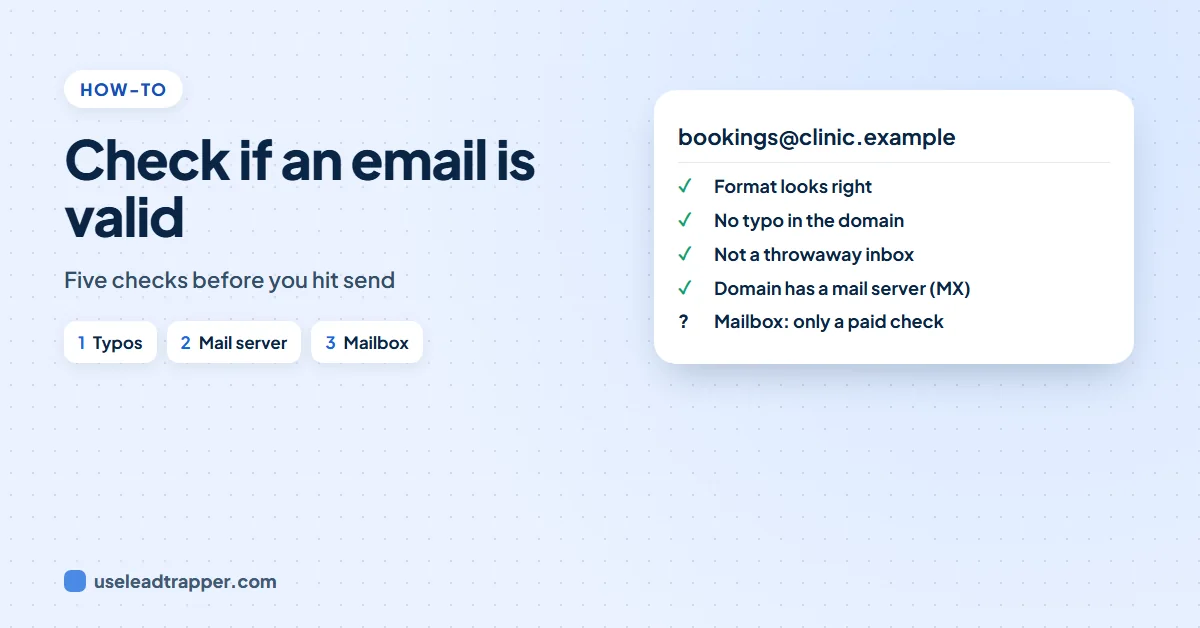
To check if an email is valid, test five things in order: the format, a typo in the domain (gmial.com), a throwaway domain, whether the domain has a mail server (an MX record), and whether the mailbox exists. The first four are free and instant; only the fifth needs a paid verification service, and even that cannot be certain.
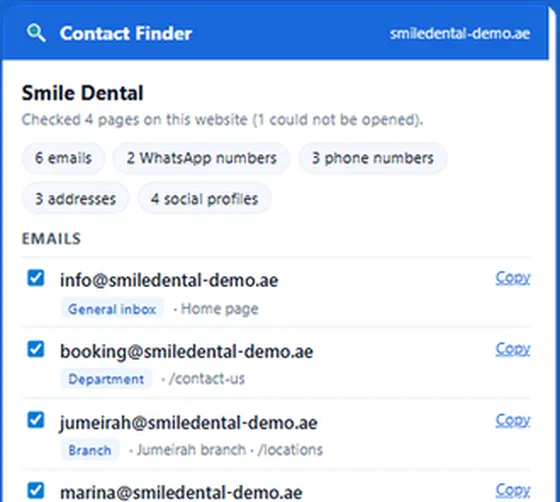

Collects the emails businesses publish, flags typing mistakes and throwaway inboxes, and checks each email's domain can receive mail, sending only the domain name.
- Flags typos like gmial.com and throwaway inboxes
- Checks each domain has a mail server (MX)
- Filter and export only the emails that work
- Every email verifier runs the same five checks: format, typo, throwaway domain, mail server, mailbox.
- The first four need no account and send nothing to the address: you can run the mail server check yourself with nslookup on Windows or dig on a Mac.
- A domain with no MX record, or a 'null MX' that refuses email, will bounce every message sent to it.
- Only a mailbox check asks the mail server about the exact address, and many servers accept every address or refuse to answer, so no tool is 100% certain.
- Bounces and spam complaints hurt your sending reputation; Gmail and Yahoo set stricter rules for bulk senders in February 2024.
- Contact Finder, a free Chrome extension, runs the first four checks on every email it collects, sending only domain names, never the addresses.
An email address can look perfect and still bounce. Every email verifier, free or paid, answers the question “is this valid?” by running the same five checks, and the first four cost nothing, take seconds and send nothing to the person. This guide goes through all five, shows how to run the mail server check yourself, and explains why even the paid fifth check cannot be certain.
What "Valid" Really Means
“Valid” covers four different questions. Is the address written correctly? Does the domain exist? Can the domain receive email? Does this particular mailbox exist? An address can pass the first three and fail the last, for example when an employee in Berlin left the company and their mailbox was closed.
Knowing which question a tool answers tells you how far to trust its “valid”.
Check 1: The Format
A valid address has one @, something before it, and a domain after it with at least one dot: bookings@clinic.example. Spaces, two @ signs, a missing domain ending or a trailing full stop copied from a sentence all make it invalid.
Addresses collected from websites often carry junk: an image file name such as logo@2x.png that looks like an email, or an address glued to the word before it. Clean these out first.
Check 2: A Typo in the Domain
The most common mistake in a hand-typed list is a misspelled provider: gmial.com, hotmial.com, yahoo.con. These domains either do not exist or belong to someone else, so the mail never arrives. Compare the domain with the big providers (Gmail, Outlook, Hotmail, Yahoo, iCloud and so on) and fix anything one or two letters away.
Check 3: A Throwaway Domain
Temporary inbox services such as Mailinator, YOPmail or 10 Minute Mail give out addresses that work for minutes or hours. They are common in sign-up forms and useless in a contact list. Any address at one of these domains can be removed.
Check 4: Does the Domain Receive Mail?
Every domain that receives email publishes an MX record in its DNS, naming its mail server. No MX record means nothing receives the mail; a “null MX” (a record pointing to a single dot, defined in RFC 7505) means the domain explicitly refuses email. Either way, every address at that domain will bounce.
You can check it yourself in a few seconds:
- Windows: open Command Prompt and type
nslookup -type=mx example.com - Mac or Linux: open Terminal and type
dig mx example.com +short
If the answer lists one or more mail servers, the domain can receive mail. If it says the domain does not exist, or lists no mail server, the address is dead. This check sends nothing to the person; it only asks the public DNS about the domain.
Check 5: Does the Mailbox Exist?
This is the only check that asks about the exact address. A verification service connects to the domain’s mail server and starts to deliver a message, then stops before sending anything, and reads whether the server accepts that mailbox.
It is the step that needs a paid service, and it has limits no service can remove. Many company mail servers accept every address at the domain and sort it out later, so the answer is always yes; verifiers label these “accept-all” or “catch-all”. Others refuse to answer, which shows up as “unknown”. A browser cannot run this check at all, because browsers cannot talk to mail servers directly.
So treat “valid” from a verifier as “very likely”, and treat “accept-all” as “we could not tell”.
Run the Free Checks on a Whole List
Checking a list matters because bounces and spam complaints count against your sending domain. Since February 2024, Gmail and Yahoo require bulk senders to authenticate their mail, offer one-click unsubscribe and keep spam complaints low, and a list full of dead addresses is a fast way to look like a spammer.
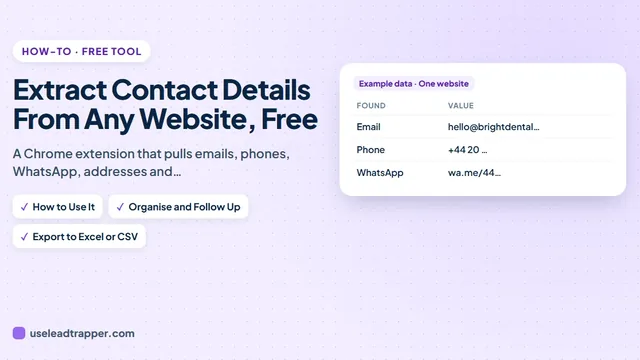
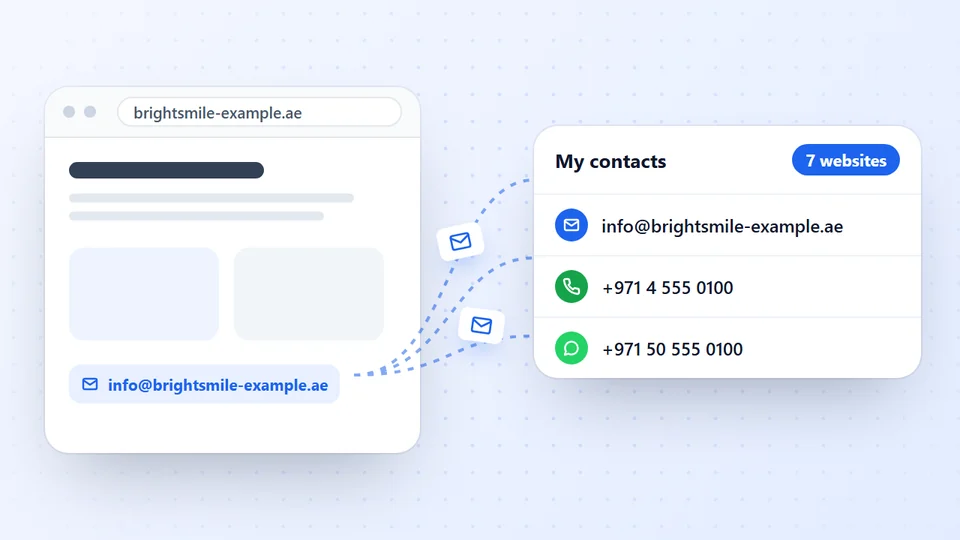
Contact Finder, our free Chrome extension, runs checks 1 to 4 on every email it collects from business websites. It leaves out junk such as image file names and no-reply addresses, flags typing mistakes in the big providers’ domains and suggests the likely address, flags throwaway inboxes, and asks a public DNS service (Cloudflare’s 1.1.1.1) whether each domain has a working mail server. Only the domain name, such as clinic.example, is sent, never the address. You can then filter the list to the emails that work and download them. The guide to extracting contact details from a website shows the email check step by step, and the comparison of email extractor Chrome extensions shows which other extensions check emails at all.
The same rules run in the email finder in the LeadTrapper Windows app, which collects and checks the emails of any number of business websites, or of the businesses it finds by type in several cities, and can also mark which of their phone numbers are on WhatsApp. Our guide on how to find business email addresses covers where those emails come from.
The app also says how sure it is about each email, with the reasons: High, Medium or Low, from where the website shows the address (the contact page, the legal notice, several pages), whether it is a clickable link, whether it is on the website’s own domain, and these checks. An email whose domain cannot receive mail drops to Low, and the best email for each business is marked Best contact. High means the website shows the address clearly; like every check on this page, it is not a test of one person’s inbox.
One more thought for small businesses: they often read WhatsApp faster than email. A phone number can be checked against WhatsApp before you write, which is more certain than any email check; the WhatsApp Number Filter does that for a whole list.
An address that passes every check today can still close next quarter, when a person leaves or a business moves. Our guide to keeping a lead list up to date shows how to re-check a list at each business’s own website.
Frequently Asked Questions
Check the format, look for a typo in the domain such as gmial.com, make sure the domain is not a throwaway service, and look up the domain's MX record with nslookup -type=mx domain on Windows or dig mx domain on a Mac. If the domain has no mail server, the address cannot receive email. Contact Finder by LeadTrapper runs these checks for free on the emails it collects.
Partly. You can prove that the domain can or cannot receive mail without sending anything. Whether the single mailbox exists can only be asked of the receiving mail server, which paid verification services do, and many servers accept every address or will not say.
An MX (mail exchange) record is the entry in a domain's DNS that names the server receiving its email. A domain with no MX record, or with a null MX that explicitly refuses email, cannot receive messages, so every address at that domain bounces.
Some mail servers say yes to every address at the domain and sort it out later (accept-all or catch-all), and some refuse to answer verification checks. In both cases the verifier cannot tell whether the specific mailbox exists.
For one address, yes. For a list, no: test emails to unknown addresses produce bounces and spam complaints that damage your sending domain's reputation. Clean the list with the free checks first.
About LeadTrapper
LeadTrapper is a Windows app for finding business leads and contacting them on WhatsApp. It collects business contacts from Google Maps, Instagram, Facebook, TikTok, LinkedIn and business websites, checks which numbers are on WhatsApp with its Number Filter, and sends personalised campaigns with automatic delays from one or more WhatsApp accounts. It also has a chatbot, a shared inbox for every account, and Store Orders for online shops. It installs from the Microsoft Store, and the full app is free for 14 days, then $50 a year. Free web tools, browser extensions and a Wix app are listed on the Free Tools page.
Reach Businesses Where They Answer
Emails bounce; WhatsApp numbers can be checked first. LeadTrapper for Windows finds businesses, checks their numbers on WhatsApp and sends with safe delays. $50/year, 14-day free trial.