In this article 8 sections
- What WhatsApp Says Before You Try Anything
- Android: Stuck on Preparing, Waiting for Wi-Fi or 100%
- iPhone: Stuck at 0%, Preparing or 99%
- Backup Fails With a Storage Message
- Lookup: What You See, Cause and Fix
- Worked Example: A Stuck Android Backup
- Tips From Other Guides, and Their Risks
- Before You Change Phones or Reinstall
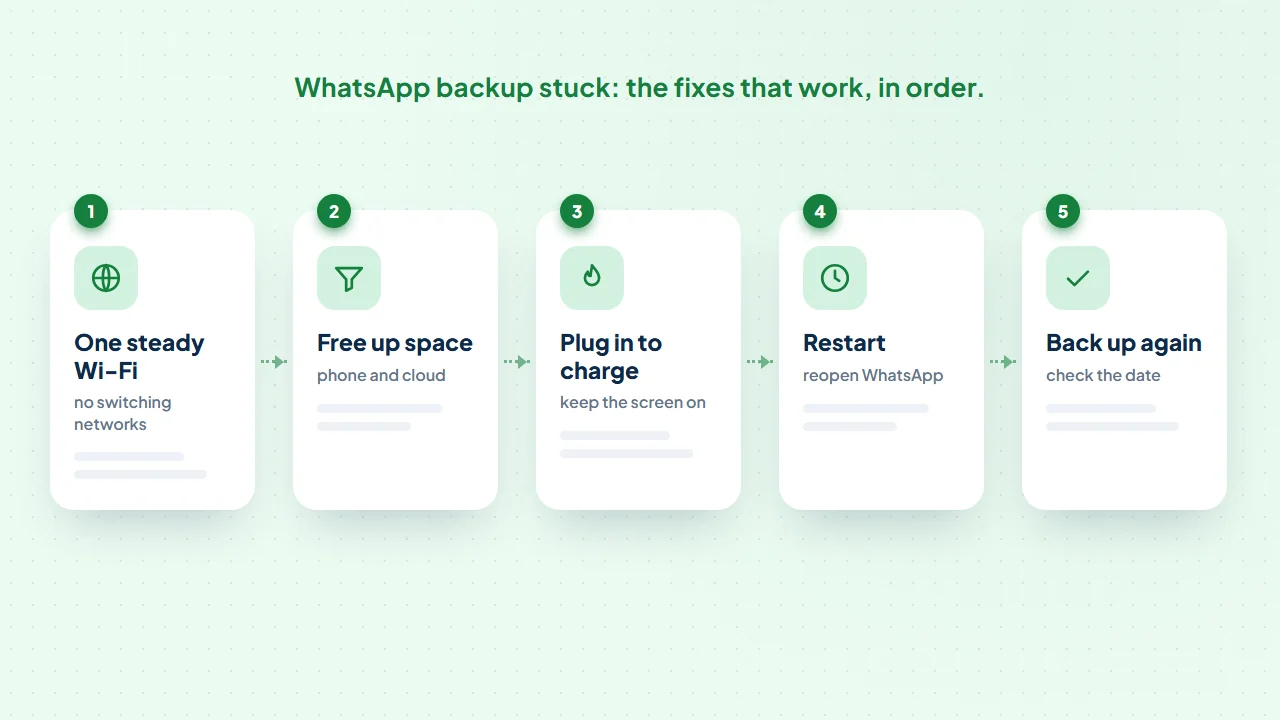
A WhatsApp backup stuck usually means weak or switching Wi-Fi, low phone or cloud storage, or an interrupted upload. Keep the phone charging on one steady Wi-Fi network, free up space, restart, then tap Back Up again. Example: stuck on 'Preparing' with 1 GB free? Free 3 GB, plug in, retry.
- WhatsApp's own help pages name the same causes for both phones: an unstable connection, low storage and an interrupted backup.
- Switching between Wi-Fi networks can make a backup time out: pick one network and stay on it with the phone charging.
- Only one backup is kept per phone number, and a new backup replaces the old one. Don't start a fresh backup while you're trying to restore an older one.
- On Android, WhatsApp says a progress bar that reads 100% with a notification that stays can simply be waited out for a few hours.
- On iPhone, WhatsApp's steps include toggling Sync this iPhone in iCloud Drive off and on, and confirming WhatsApp is enabled under Apps Syncing to iCloud Drive.
A WhatsApp backup that sits on “Preparing”, stops at 0% or hangs at 99% is stressful, because the backup is what saves your chats if the phone breaks. WhatsApp’s help pages list the same few causes for both Android and iPhone, and the fixes are quick to try. This guide starts with WhatsApp’s own steps, then goes symptom by symptom.
What WhatsApp Says Before You Try Anything
WhatsApp says backups fail or stall most often because of an unstable connection, low storage or an interrupted process. The WhatsApp Help Center page on backup and restore problems (checked 23 Nov 2026) adds these rules:
- One backup per phone number. A new backup replaces the old one, and older backups can’t be restored.
- Don’t back up while restoring. If chats are missing after a restore, don’t delete the backup, create a new one or reset the device: “Your existing backup may be the only copy of those chats and media.”
- Same account to restore. You restore with the same phone number and the same Google Account (Android) or iCloud account (iPhone) that made the backup.
- Interruptions corrupt backups. Force-closing WhatsApp or interrupting a backup can leave a corrupted file, and WhatsApp says it can’t repair or explain a corrupted backup.
- Switching networks can time out a backup. WhatsApp’s page says switching between different Wi-Fi networks can cause the backup to time out.
Do the checks in the order WhatsApp lists them. Start with the quick ones: restart the phone, use one steady Wi-Fi network (or mobile data), charge the phone, close WhatsApp and reopen it. Then follow the section for your phone.
Android: Stuck on Preparing, Waiting for Wi-Fi or 100%
On Android, a stuck Google Drive backup is fixed by the steps in WhatsApp’s page on Google Drive backups, in this order:
- Restart the phone.
- Log out of your Google Account and back in.
- Turn Wi-Fi off and on, try a different network, or use mobile data.
- Reduce the backup size if the phone is low on space.
- Keep the battery full or the phone plugged in.
- Force stop WhatsApp, then reopen it.
- On a dual-SIM phone, make sure the SIM linked to your WhatsApp number is active.
- Update Google Play Services (Settings, Apps, Google Play Services).
- If the bar reads 100% but the notification stays, wait a few hours.
- As a last resort, check you have a recent backup, uninstall WhatsApp, restart the phone and reinstall from Google Play.
If the problem is your Google Account, WhatsApp’s page adds these steps: set WhatsApp’s Photos and videos permission to Allow, open Settings, Accounts, Manage accounts, choose your Google Account, tap Sync account, Sync now and let it finish, then remove the account, reopen WhatsApp and add it again under Settings, Chats, Chat backup, Google Account.
The same page describes WhatsApp’s newer cloud storage: 2 GB free, with paid plans above that, and a warning that after 120 days without a successful backup, restoring may not be possible. WhatsApp’s separate page on Google Account backups says Google may delete backups not updated in five months. Which one applies to you depends on which backup option your app shows under Chat backup.
iPhone: Stuck at 0%, Preparing or 99%
On iPhone, WhatsApp backs up to iCloud, and its help page lists these steps for a stuck or failing backup, checked on 23 Nov 2026:
- Turn Wi-Fi off and on, switch to a different network or use mobile data.
- Confirm your iCloud account has enough free storage.
- Free up the device space WhatsApp asks for, since the backup is built on the phone first.
- Update iOS and WhatsApp.
- Close and reopen WhatsApp, and keep the phone charged or plugged in.
- In iCloud Drive, turn Sync this iPhone off, wait 5 to 10 minutes, turn it on, wait another 5 to 10 minutes, restart the iPhone and start the backup again.
- Check that WhatsApp is enabled under Apps Syncing to iCloud Drive. If it is, toggle it off and on.
- As a last resort, sign out of iCloud, restart the iPhone and sign in again. WhatsApp warns this can affect other apps.
Two more facts from the same page: adding iCloud space doesn’t reduce the space your iPhone needs for a media restore, and a restore happens in two stages, messages first and media in the background. Keep the iPhone on Wi-Fi and plugged in until it ends.
Backup Fails With a Storage Message
“Backup failed: You need more storage” means a storage limit is full, either on the phone or in the cloud account. WhatsApp’s page says to free up device storage or, if the cloud is the problem, upgrade your plan.
- On the phone: delete large videos, downloads and unused apps outside WhatsApp, and clear chats or media inside WhatsApp (Settings, Storage and data, Manage storage on Android). See WhatsApp’s page on freeing up storage.
- In the cloud: free Google or iCloud space, or buy more. If a WhatsApp cloud storage plan expires, WhatsApp’s page says backups are kept but new ones aren’t possible until you’re under the free limit or resubscribe.
- In the backup: you can reduce its size by leaving out videos for a backup, then adding them again once a text-and-photo backup works.
Lookup: What You See, Cause and Fix
Match what the screen shows to the most likely cause. The first two columns follow WhatsApp’s help pages; the last column is the quickest fix.
| What you see | Phone | Likely cause | First fix |
|---|---|---|---|
| Stuck on “Preparing” | Android, iPhone | Phone low on space, big media library, weak connection | Free space, one steady Wi-Fi network, charger on |
| “Waiting for Wi-Fi” | Android | No Wi-Fi, or backup set to Wi-Fi only | Reconnect, or switch to mobile data for the backup |
| Bar at 0% | iPhone | iCloud Drive off for WhatsApp, or iCloud full | Check Apps Syncing to iCloud Drive and iCloud space |
| Bar at 99% for hours | iPhone | Sync stalled, network switched | Sync this iPhone off and on, then retry on one network |
| Bar at 100%, notification stays | Android | Notification not yet cleared | Wait a few hours (WhatsApp’s advice), then restart |
| “Backup failed: You need more storage” | Both | Storage limit full | Free device or cloud storage |
| “Unable to back up messages” | Both | Connection, storage or interruption | Work down the symptom steps for your phone |
| Backup never starts | Android | Google Account not synced, permission off | Allow Photos and videos, sync, re-add the account |
| Backup done, chats missing after restore | Both | The backup lacked them | Don’t make a new backup; see the restore guide below |
Worked Example: A Stuck Android Backup
Layla runs a small shop and uses her Android phone for orders. Her backup has been on “Preparing” since morning; the phone has 1.1 GB free and a 9 GB WhatsApp folder, mostly customer videos (example numbers).
- She sees the symptom on the Android list and starts with WhatsApp’s own steps: she restarts the phone and connects to one Wi-Fi network, not the shop’s two.
- She plugs in the charger and force stops WhatsApp.
- She deletes 4 GB of old downloads outside WhatsApp, which gives her 5 GB free, and clears videos she no longer needs in WhatsApp’s storage manager.
- She taps Back Up again with the phone plugged in and Wi-Fi on, and leaves WhatsApp open.
- After the upload, she checks Settings, Chats, Chat backup for today’s date and size. The date is how she knows the backup worked.
If the bar had still not moved, her next steps would be updating Google Play Services, re-adding her Google Account, and finally the reinstall step, but only after confirming a recent backup exists.
Tips From Other Guides, and Their Risks
The following fixes come from third-party troubleshooting guides (Dr.Fone, a Masbear Android guide and Apple Community threads). They are users’ and vendors’ advice, not WhatsApp’s, and a couple carry risk:
- Keep 2 to 3 GB free before a retry (Masbear’s number, not WhatsApp’s).
- Set WhatsApp’s battery use to Unrestricted on Android, and turn off data saver, so the backup isn’t paused in the background.
- Clear the cache, never the data. “Clear data” can remove local chats that aren’t backed up.
- Check the media folder for one damaged or half-downloaded file; users say it can stall the scan.
- Leave out videos for one backup. This one is also in WhatsApp’s list: reduce the backup size.
- Reset network settings on iPhone (it removes saved Wi-Fi passwords, not chats).
- Delete the old half-finished backup and start again. Risky: WhatsApp says an existing backup can be the only copy of your chats. Do this only when your chats are safe on the phone and no restore is waiting.
- Check Apple’s System Status page for iCloud outages before changing anything.
Before You Change Phones or Reinstall
Never uninstall WhatsApp or switch phones until the Chat backup screen shows a recent date. A reinstall without a good backup can lose your chats. If a backup keeps failing, WhatsApp points to its chat transfer feature as another way to move chats to a new phone, and our guide to WhatsApp messages not on your new phone covers the restore side step by step.
For a business, the other thing to protect is the list of customers. Chats can vanish with a phone, and a customer list kept only in WhatsApp is hard to rebuild. Keep the list in an Excel or CSV file on a computer. LeadTrapper’s WhatsApp bulk sender imports .xlsx, .xls and .csv files and sends through your own WhatsApp number from a Windows PC. It does not back up or restore your chats, and it’s an unofficial tool: WhatsApp’s terms don’t allow unwanted bulk messages.
Try the WhatsApp bulk sender free for 14 days
If your number gets locked rather than your backup, WhatsApp account restricted explains what that restriction blocks, and WhatsApp Web not working covers the computer side.
Frequently Asked Questions
The phone is building the backup file before it uploads. Low storage, a very large media library, a weak connection or Android battery limits can stall it. Free up space, stay on one Wi-Fi network, keep the phone charging and WhatsApp open, then try again. A first backup with many videos can take a long time.
Be careful. WhatsApp keeps one backup per phone number and says an existing backup may be the only copy of your chats. Some third-party guides suggest deleting a half-finished backup, but only do that when your chats are safe on the phone and nothing is being restored.
WhatsApp doesn't give a time. It depends on the size of the chats and media and the speed of your connection. A text-only backup can take minutes, while a first backup with several gigabytes of video can take hours. If the bar doesn't move for a few hours on good Wi-Fi, treat it as stuck.
WhatsApp's help page for Android says that if the progress bar reads 100% but the notification stays, you should wait a few hours for the notification to clear. If it still shows after that, restart the phone and check that a recent backup is listed under Chat backup.
Yes. WhatsApp's help pages say 'Backup failed: You need more storage' means you've reached a storage limit. Free up device space, or add or free cloud storage. On Android, backups to a Google Account use space managed by Google.
WhatsApp's own options are cloud backups and its phone-to-phone transfer. Third-party desktop tools exist that save a local copy, but WhatsApp doesn't support them, so check what a tool does with your chats before you use it.
About LeadTrapper
LeadTrapper is a Windows app for finding business leads and contacting them on WhatsApp. It collects business contacts from Google Maps, Instagram, Facebook, TikTok, LinkedIn and business websites, checks which numbers are on WhatsApp with its Number Filter, and sends personalised campaigns with automatic delays from one or more WhatsApp accounts. It also has a chatbot, a shared inbox for every account, and Store Orders for online shops. It installs from the Microsoft Store, and the full app is free for 14 days, then $50 a year. Free web tools, browser extensions and a Wix app are listed on the Free Tools page.
Keep Your Customer List Outside WhatsApp
LeadTrapper's WhatsApp bulk sender reads your customer list from an Excel or CSV file on your PC and sends through your own number. $50/year after a 14-day free trial.