In this article 9 sections
WhatsApp not working on iPhone usually comes down to the connection, an old app or iOS, full storage, or iPhone settings that block it. Check that other apps get online, update WhatsApp, free storage, then check Notifications and Background App Refresh. Example: messages arriving late means Background App Refresh is off.
- WhatsApp's help pages put connection, an old app or iOS, full storage and notification settings at the top of the cause list on iPhone.
- Notifications are controlled by iPhone settings first: WhatsApp says the phone's settings override WhatsApp's own.
- Late messages that show up when you open the app point to Background App Refresh, Focus or Scheduled Summary, not to a delivery fault.
- Back up chats before you uninstall WhatsApp: a reinstall is the last resort, not the first.
- A restricted account can open WhatsApp but can't start new chats or use linked devices, so the iPhone is not always the cause.
When WhatsApp stops working on an iPhone, the cause is almost always one of a handful of things: the connection, the app or iOS version, storage, or a setting that quietly blocks the app. This guide goes by symptom, so you can jump to what you see. It leads with WhatsApp’s own help pages and adds the common user fixes, labelled as theirs. It is about the app on the iPhone itself. If WhatsApp works on the phone but not on your computer, see WhatsApp Web not working instead.
Start Here: Phone, WhatsApp or Account?
Spend a minute deciding which of four things is broken, because each has a different fix.
- Is it your connection? Open Safari or YouTube. If they struggle too, WhatsApp is fine and the network is the problem. WhatsApp’s help page on sending and receiving messages starts with the same check: make sure Wi-Fi or mobile data is on and working.
- Is WhatsApp itself down? Many guides suggest checking a status site such as Downdetector. If everyone is affected, you can only wait.
- Is your account restricted? A restricted account can open the app and use existing chats, but WhatsApp blocks new chats, new groups and linked devices for a time. If a pop-up appears when you start a chat with a new contact, read WhatsApp account restricted, because nothing on the iPhone will fix it.
- Is it one contact? If messages are missing from one person only, WhatsApp’s page says to check whether you’ve blocked them. For one group, check you haven’t been removed.
If the phone and the account are fine, work through the symptom you have. All WhatsApp pages below were checked on 23 Nov 2026.
Won't Connect or Messages Won't Send
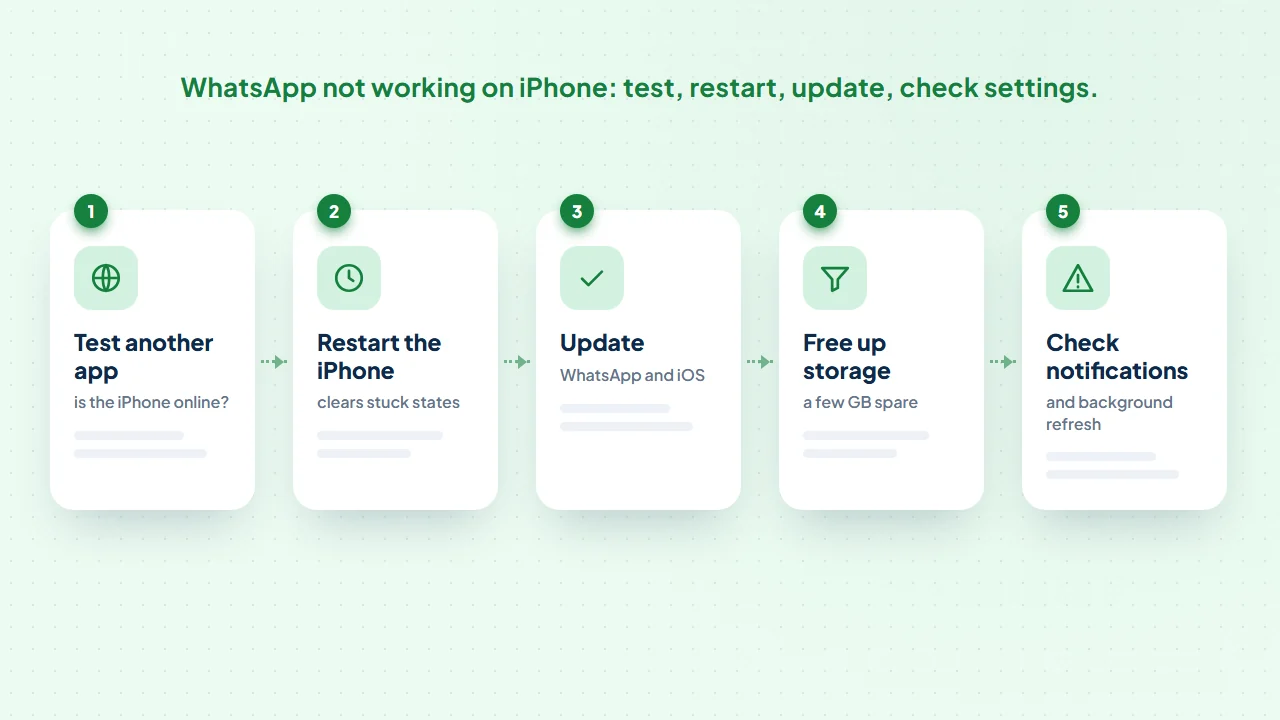
If WhatsApp says “Connecting” or messages don’t leave the phone, WhatsApp’s page lists these checks in order: confirm Wi-Fi or mobile data works, switch Airplane mode on and off, restart the iPhone, set the date and time correctly, free up storage, update WhatsApp from the App Store, and as a last step reinstall after a backup.
What each one fixes:
- Airplane mode on and off. Resets the radio connections. Users add that Wi-Fi to mobile data (or the other way) is a quick test.
- Date and time. Settings, General, Date & Time, Set Automatically. A wrong clock can break secure connections.
- Storage. WhatsApp’s page says full storage can stop new messages and media from saving. Check Settings, General, iPhone Storage.
- VPN. User guides report that a VPN can stop WhatsApp reaching its servers. Turn it off to test.
- Reset Network Settings. Another user fix (Settings, General, Transfer or Reset iPhone, Reset, Reset Network Settings). It removes saved Wi-Fi passwords, so use it after the simple steps.
If messages send but show a single grey tick, WhatsApp is working and the message hasn’t reached the other phone: why a WhatsApp message shows one tick explains it.
No Notifications or Late Notifications
WhatsApp says iPhone settings override WhatsApp’s own notification settings, so check the phone first. The help page on notifications gives this order:
- Phone notifications: Settings, Notifications, WhatsApp, turn on Allow Notifications.
- WhatsApp’s notifications: in WhatsApp, Settings, Notifications, turn on the types you want, and set Sound to something other than None. A sound set to None silences alerts even when iOS sound is on.
- Background App Refresh: Settings, General, Background App Refresh, turn on WhatsApp. Without it WhatsApp may not get messages while closed.
- Focus: Settings, Focus, pick your active Focus, then Apps, Allow Notifications From, add WhatsApp.
- Scheduled Summary: Settings, Notifications, Scheduled Summary, remove WhatsApp if it is listed. It delays alerts.
- Muted chats: unmute any muted chat or group you expect alerts from.
- Don’t force-quit WhatsApp. Swiping it closed can stop notifications.
User guides add two more checks: Low Power Mode can delay alerts, and an Apple Watch paired to the phone can take the notification away from the iPhone. If the notification says only “WhatsApp” with no name, the chat is probably locked, which hides details.
WhatsApp Crashes or Won't Open
WhatsApp’s page on crashes lists the causes as memory and storage problems, an outdated app or operating system, compatibility issues, device issues, bugs, corrupted data and network issues. Its fixes: restart the device, check the connection, update the phone and WhatsApp, close other apps, free storage, and reinstall after a backup. The page’s “clear cache” step is for Android only, so skip it on iPhone.
For an iPhone, that becomes:
- Force-quit WhatsApp and reopen it, then restart the phone.
- Update WhatsApp in the App Store, then iOS in Settings, General, Software Update.
- Free storage in Settings, General, iPhone Storage. User guides note that when only a few MB are free, WhatsApp shows a full-screen storage message on opening.
- If it crashes right after an update, wait for the next WhatsApp update and keep iOS current.
- Reinstall only after a Chat Backup shows a recent date. If the backup won’t finish, see WhatsApp backup stuck.
Photos, Videos and Voice Notes Fail
If text works but photos or videos don’t, the first suspects are WhatsApp’s Photos permission, storage and the connection. WhatsApp’s help page on media files says to open Settings, Apps, WhatsApp, Photos and choose Full Access, because Limited Access only shows the photos you picked. It also says to switch between Wi-Fi and mobile data, restart the phone and update the app, and notes that a “This file format is not supported” message means you should be on the latest WhatsApp.
After restoring a backup, WhatsApp’s page says to wait for media to finish restoring in the background before deciding files are missing. Media that wasn’t in the iCloud backup can’t be recovered from it.
Verification and Login Problems
If WhatsApp asks you to verify your number or says you were logged out, work through WhatsApp’s verification steps rather than reinstalling over and over. Its page says you need to own the number, receive an SMS or call on it, and have a working connection. Enter the full international number with the country code and no leading zero, turn off call-blocking apps, and reboot. If WhatsApp tells you to wait before another attempt, wait.
Lookup: Symptom, Cause, Fix
| Symptom | Likely cause | First fix |
|---|---|---|
| “Connecting” or messages stay on a clock | Connection, Airplane mode, VPN | Test Safari, toggle Airplane mode, turn VPN off |
| Messages arrive only when you open WhatsApp | Background App Refresh off, Focus, Scheduled Summary | Turn on Background App Refresh, allow WhatsApp in Focus |
| No sound for messages | WhatsApp sound set to None, mute switch, Focus | Choose a tone in WhatsApp’s Notifications, check the side switch |
| Notification shows only “WhatsApp” | Chat is locked | Unlock the chat or change the notification preview |
| Crashes on open | Old app or iOS, full storage, bug | Update both, free space, restart |
| Photos won’t send | Photos set to Limited or no access | Settings, Apps, WhatsApp, Photos, Full Access |
| “Backup failed” or stuck backup | Wi-Fi, iCloud space | See the backup guide |
| One contact’s messages missing | You blocked them | Check blocked contacts |
| Can’t start new chats, pop-up appears | Account restriction | Wait it out; see the restriction guide |
| Nothing works, other apps fine | WhatsApp outage or app fault | Check an outage site, update, restart |
Worked Example: Late Messages
Sam runs a repair shop and uses an iPhone. Customers say he never answers, but when he opens WhatsApp there are 14 unread messages from the last two hours (example numbers). Nothing was blocked and the connection is fine, so he works down the notification list:
- Settings, Notifications, WhatsApp: Allow Notifications is on.
- WhatsApp, Settings, Notifications: Sound is set to a tone, so that isn’t it.
- Settings, General, Background App Refresh: WhatsApp is off. He turns it on.
- His work Focus lets in only two apps. He adds WhatsApp to Allow Notifications From.
- He sends a test message from another phone with WhatsApp closed, not force-quit, and the notification arrives.
Two small changes fixed it. He now answers customers in minutes, and he doesn’t swipe WhatsApp away, because force-quitting can stop notifications.
Last Resorts, Done Safely
If nothing worked, reinstall WhatsApp, but protect your chats first. Open Settings, Chats, Chat Backup and check the date of the last backup, or back up now. Then delete and reinstall WhatsApp, verify your number with the same phone number and restore from iCloud. WhatsApp says you restore with the same number and iCloud account that made the backup. If you still can’t get help from the steps above, WhatsApp’s Settings, Help, Contact Us is the official route; include your iPhone model and iOS version.
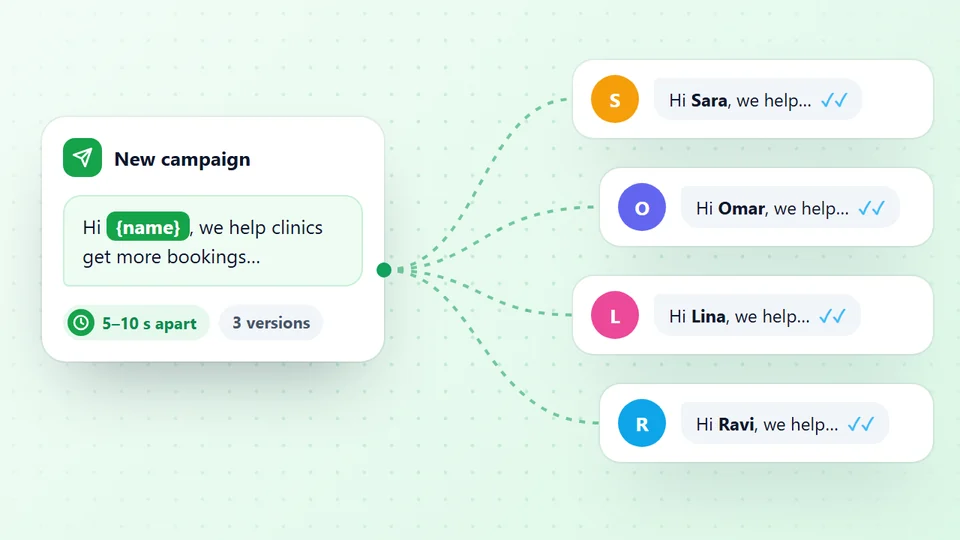
A last point for businesses that send from a PC: LeadTrapper’s WhatsApp bulk sender connects your number to a window on the PC by QR code scanned from your phone’s Linked devices screen, and shows a “Logged out” message with a new QR button when the link drops. It relies on WhatsApp working normally on the phone, so a phone with a problem will cause problems there too. It is an unofficial tool, and WhatsApp’s terms don’t allow unwanted bulk messages.
Try the WhatsApp bulk sender free for 14 days
If your phone and PC both work but messages still don’t send on the business side, WhatsApp Business not sending messages covers the Business-specific causes.
Frequently Asked Questions
The most common causes are a bad connection, an out-of-date WhatsApp or iOS, full storage, notification or Focus settings, and WhatsApp being force-quit. Test another app first: if Safari or YouTube also fail, fix the connection before touching WhatsApp.
Check Settings, Notifications, WhatsApp, then WhatsApp's own Notifications settings and sound, then Background App Refresh, Focus modes, Scheduled Summary and muted chats. WhatsApp's help page lists these as the causes, and says iPhone settings override WhatsApp's own.
Only as a last resort, and only after a backup. WhatsApp's help pages list reinstalling after the other fixes fail and tell you to back up your chats first. A reinstall with no recent backup can lose your chats.
That points to notifications or background activity, not delivery. WhatsApp's help page names Background App Refresh turned off, Focus or Do Not Disturb, Scheduled Summary and force-quitting the app as causes.
Check WhatsApp's Photos permission (Full Access), your free storage, and your connection. WhatsApp's help page says a weak connection is the most common cause, and that Limited Access only shows the photos you picked.
If a restriction pop-up appears when you start a new chat, it is the account, not the iPhone. Existing chats still work during a restriction. If nothing sends and other apps also struggle, it is the phone or network.
About LeadTrapper
LeadTrapper is a Windows app for finding business leads and contacting them on WhatsApp. It collects business contacts from Google Maps, Instagram, Facebook, TikTok, LinkedIn and business websites, checks which numbers are on WhatsApp with its Number Filter, and sends personalised campaigns with automatic delays from one or more WhatsApp accounts. It also has a chatbot, a shared inbox for every account, and Store Orders for online shops. It installs from the Microsoft Store, and the full app is free for 14 days, then $50 a year. Free web tools, browser extensions and a Wix app are listed on the Free Tools page.
WhatsApp on iPhone and PC, Working Together
LeadTrapper sends your campaigns from a Windows PC through your own number, linked by QR code from your phone. $50/year after a 14-day free trial.