In this article 6 sections
WhatsApp account restricted means you can still message existing chats, but for a set time you can't start chats with new contacts, create groups, add members or use linked devices. WhatsApp ties it to spam-like, automated or bulk messaging. It ends by itself; use the time to change how you send.
- A restricted account can still chat with existing contacts and groups, but can't start chats or calls with new contacts, create groups, add group members or use linked devices until the time runs out.
- WhatsApp says the restriction ends by itself and sends a notification; you can see the time left by starting a new chat with someone you've never messaged.
- WhatsApp links restrictions to activity that looks like spam, automated or bulk messaging. Reinstalling, a new phone or a VPN don't lift it.
- Because linked devices stop working, WhatsApp Web, the desktop app and any PC tool built on them stop too until the restriction ends.
- Treat it as the last warning before a ban: clean the list, check numbers, slow down and message only people who expect you.
You try to message a new customer and WhatsApp says your account is restricted. Old chats still work, but new ones don’t, and WhatsApp Web has stopped. This guide explains what the restriction blocks, how long it lasts, what usually causes it, and how to change your sending so the next message from WhatsApp isn’t a ban.
What a Restriction Blocks, and What Still Works
According to WhatsApp’s help page on restricted accounts, a restricted account keeps working with the people and groups you already chat with. For a set time it can’t:
- start chats or calls with new contacts
- create new groups or add new members to groups
- use linked devices, which means WhatsApp Web and the desktop app
WhatsApp says you don’t need to do anything to lift it. The restriction ends automatically once the time passes, and you get a notification in WhatsApp when it does.
To see the time left, tap New chat and pick a contact you have never messaged. If the account is still restricted, the pop-up shows how long remains. It is the only countdown WhatsApp gives, so screenshot it and plan your week around it.
Restricted, Banned or Under Review?
People mix these up, and they need different responses:
| What you see | What it is | What to do |
|---|---|---|
| A pop-up saying the account is restricted when you start a new chat | A time-limited restriction | Wait it out and change how you send |
| “This phone number can’t use WhatsApp” | A ban on the number | Tap Request review; see WhatsApp banned my number |
| A review screen after you tapped Request review | Your ban appeal being checked | Wait for the WhatsApp notification; don’t send more requests |
| “Temporarily banned” | Usually an unofficial app such as GB WhatsApp | Switch to the official app; see the GB WhatsApp banned problem solution |
| “Your account may be restricted soon” (wording reported by users) | An early warning | Slow down new chats, groups and campaigns now |
| Marketing messages paused in the WhatsApp Business app | A limit on the Business app’s marketing message feature | Check WhatsApp’s page on “Can’t send marketing messages” |
A restriction is the gentlest of these. Several WhatsApp tool vendors describe it as a warning before a ban, and users report that repeat restrictions tend to last longer. WhatsApp doesn’t publish those rules, but the safe reading is simple: the account is on notice.
What Triggers a Restriction
WhatsApp’s page ties restrictions to activity that looks like spam, automated messaging or bulk messaging, which its Terms of Service don’t allow. In practice, guides from WhatsApp tool vendors and business users point to the same patterns:
- Many new chats in a short time. Fifty first messages in an afternoon from a number that usually sends five looks nothing like a person.
- Blocks and reports. People who don’t know you, or didn’t expect the message, tap Block or Report. That is the strongest signal of all.
- The same text to everyone. Identical messages, especially with a link, look automated.
- Numbers that aren’t on WhatsApp. A list full of old or wrong numbers produces failed sends; the guide to invalid numbers and ban risk explains why that matters.
- A new or quiet number that suddenly sends a lot. A number with no history has no credit with anyone.
- Adding many people to groups who never joined themselves.
- Unofficial apps, scripts and bulk tools. Modified apps, browser scripts and desktop senders, including LeadTrapper, are unofficial. How a tool sends matters, but no tool makes unwanted messages acceptable.
What to Do While You're Restricted
You can’t speed the restriction up, but you can use the time well.
- Keep serving the customers you already talk to. Existing chats still work, so answer them as normal; real two-way conversations are exactly what a healthy number looks like.
- Stop the campaign that caused it. Pause any scheduled sends, extension or desktop campaign on that number. Sending more is the fastest route to a ban.
- Clean the list. Remove numbers that never replied, never bought and never asked to hear from you, and anyone who wrote STOP.
- Check the rest on WhatsApp. A WhatsApp number filter shows which numbers have WhatsApp before you send anything, so the next campaign has no failed sends.
- Rewrite the first message. Use the person’s name, a reason they’ll recognise, an easy question and a “Reply STOP” line. The banned number guide’s sending tricks show how.
- Reach new customers another way for now. Email, a phone call or a link they can tap to message you first: when they start the chat, you aren’t starting a new one.
If you manage customer chats from a computer, plan for WhatsApp Web being unavailable until the restriction ends, and answer from the phone in the meantime. If it still won’t load after the restriction lifts, see WhatsApp Web not working.
Can you appeal a restriction?
Some guides tell you to tap Request review for a restriction. WhatsApp’s page describes no appeal for restrictions; it says the restriction ends by itself. Request review is for a ban, the screen that says the number can’t use WhatsApp. Accounts on the WhatsApp Business Platform (the API, used through a provider) work differently: their limits and appeals run through Meta Business Support Home, so ask your provider.
What Doesn't Help
Competitor guides and forum threads are full of quick fixes. These are the ones that waste time or make things worse:
- Reinstalling WhatsApp or moving to a new phone. The restriction is on the account, not the phone.
- A VPN or a different Wi-Fi network. It doesn’t change the account’s history.
- Switching to WhatsApp Business, or back. It is the same number with the same history.
- Paid “unrestrict” services. Only WhatsApp can lift a restriction, and it does so by itself.
- Carrying on from a second number. Moving the same campaign to a fresh number usually just restricts that one too, faster.
How to Avoid the Next Restriction
When the restriction lifts, the number is back, but its record isn’t clean. The first two weeks matter most.
First, reconnect. When the restriction ends, linked devices may need linking again: open Linked devices on the phone and check WhatsApp Web, the desktop app and any PC tool are connected before you plan anything.
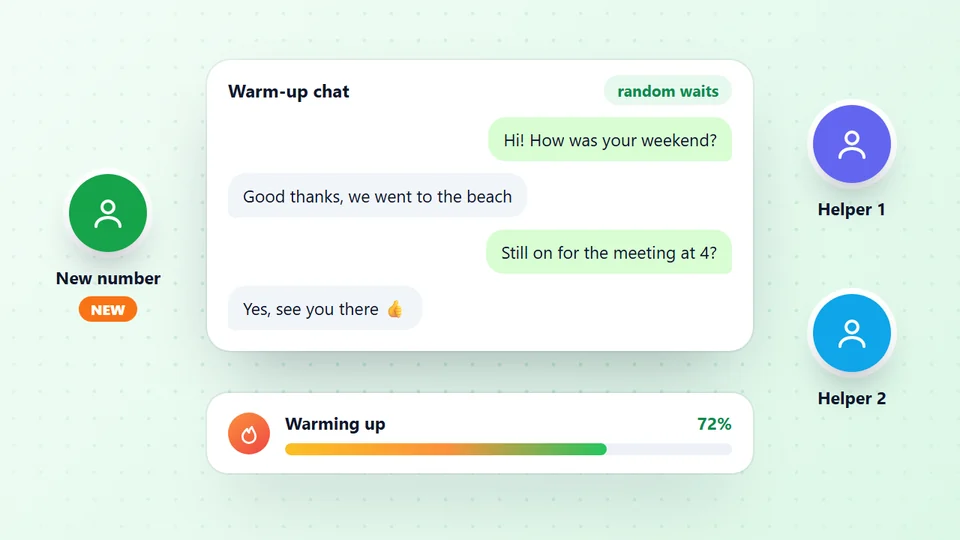
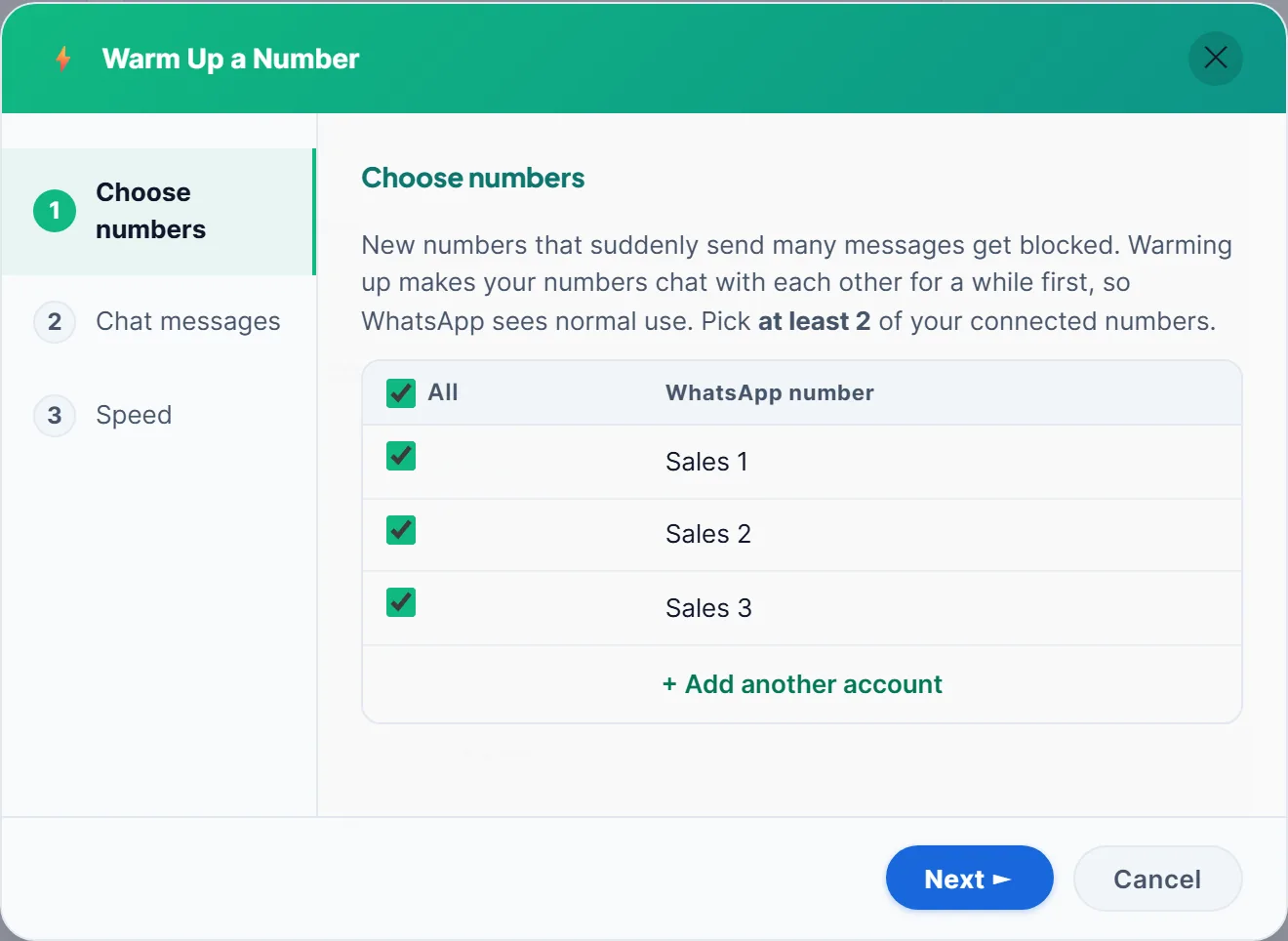
Warm the number up again. A number that has just been restricted, or a brand-new one, should build normal back-and-forth first. The WhatsApp warmer has two or more of your own numbers chat with each other for a few days, with random gaps and your own wording, and the WhatsApp warm-up schedule gives a day-by-day plan.
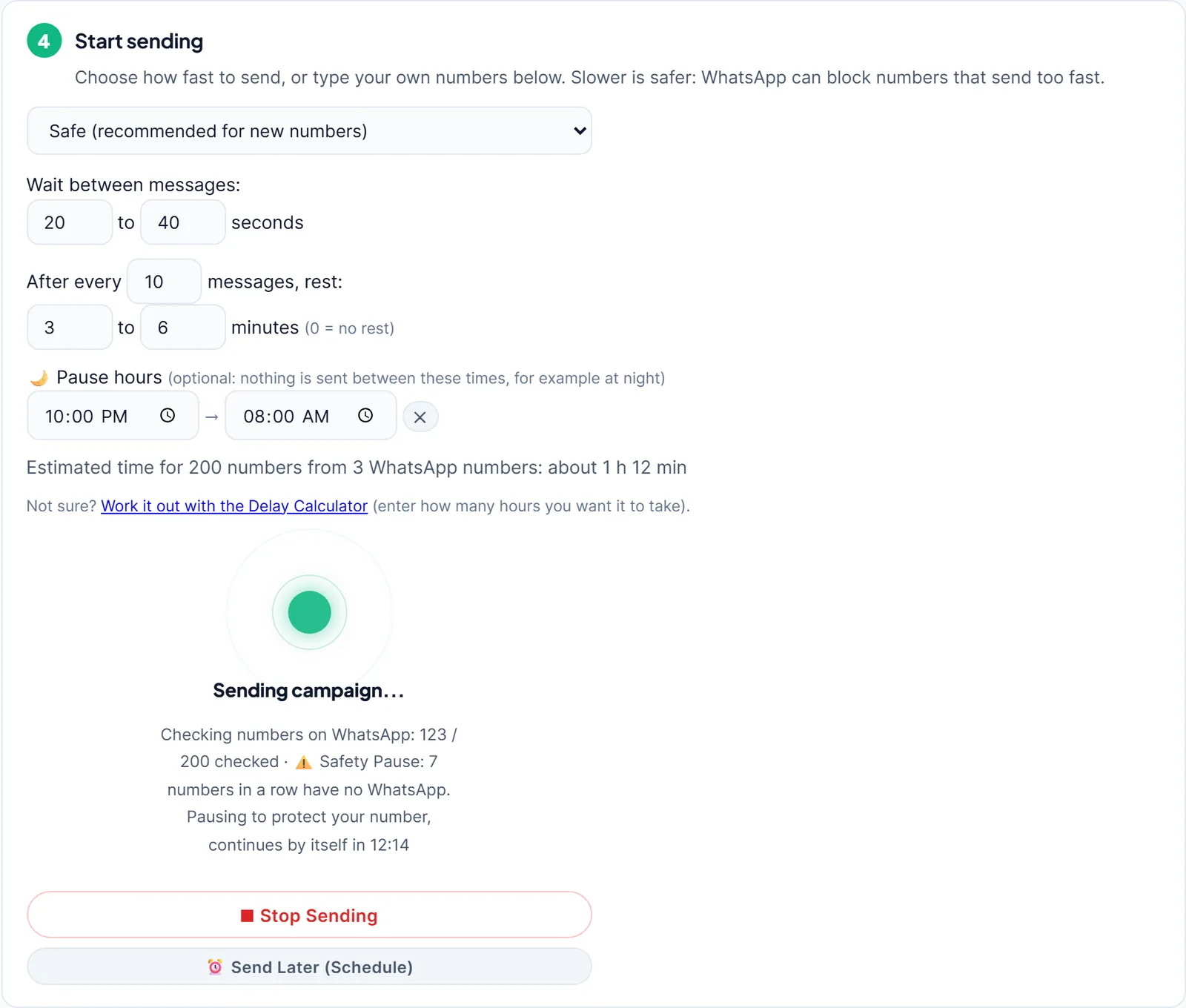
Slow down and vary. The WhatsApp bulk sender checks every number on WhatsApp before sending, waits a random 20 to 40 seconds between messages on its Safe setting, rests 3 to 6 minutes after every 10, and pauses the campaign by itself when seven numbers in a row aren’t on WhatsApp. Name fields and several message versions keep messages from looking identical.
Make messages expected. A QR code or link that customers tap to message you first, a clear reason in the first line, and an easy way to say stop do more for your number than any setting.
Spread the load only across healthy numbers. One campaign can be shared between several warmed-up numbers, each with its own waits; see running multiple WhatsApp numbers. Never use a second number to keep messaging people who blocked the first.
A 14-day plan after the restriction lifts
| Days | What to do |
|---|---|
| 1 to 3 | Answer existing customers only; warm up with your own numbers |
| 4 to 7 | First 20 messages to your best customers; read every reply |
| 8 to 14 | Grow slowly if replies are good; stop and rewrite if STOP or blocks rise |
These numbers are a cautious starting point, not a WhatsApp rule: WhatsApp publishes no safe sending number.
No tool can promise a number won’t be restricted or banned. These habits lower the risk; who you message and why still matter most. If a campaign stops by itself before WhatsApp steps in, the guide to why a WhatsApp campaign stopped explains each stop.
Frequently Asked Questions
WhatsApp doesn't publish a fixed length. Its help page says the restriction ends automatically once the allocated time passes and that you get a notification when it ends. To see the time left, tap New chat and pick a contact you've never messaged; the pop-up shows the remaining time.
You can keep messaging and calling people and groups you already chat with. Until the restriction ends you can't start chats or calls with new contacts, create new groups, add new members to groups or use linked devices such as WhatsApp Web.
WhatsApp says you don't need to take any action: the restriction lifts by itself. What you should do is stop whatever looked like spam, such as messaging many new numbers quickly, sending the same text to everyone or using unofficial apps, so the next step isn't a ban.
No. A restricted account still works with existing chats and the limit ends on its own. A banned account shows 'This phone number can't use WhatsApp' and can't be used at all unless a review succeeds.
No. The restriction is on the account and number, not the phone or the app install. Guides from WhatsApp tool vendors agree that reinstalling, changing phones or using a VPN doesn't lift it, and repeated attempts can look even more suspicious.
WhatsApp's help page lists linked devices among the things a restricted account can't use, so WhatsApp Web, the desktop app and tools that run on them stop working until the restriction ends.
About LeadTrapper
LeadTrapper is a Windows app for finding business leads and contacting them on WhatsApp. It collects business contacts from Google Maps, Instagram, Facebook, TikTok, LinkedIn and business websites, checks which numbers are on WhatsApp with its Number Filter, and sends personalised campaigns with automatic delays from one or more WhatsApp accounts. It also has a chatbot, a shared inbox for every account, and Store Orders for online shops. It installs from the Microsoft Store, and the full app is free for 14 days, then $50 a year. Free web tools, browser extensions and a Wix app are listed on the Free Tools page.
Send So Your Number Stays Unrestricted
LeadTrapper warms up new numbers, checks every number on WhatsApp before sending and paces each message. $50/year after a 14-day free trial.