In this article 7 sections
The best WhatsApp Business tricks use free features most owners skip: quick replies typed with a slash, labels as a simple sales pipeline, a greeting and an away message, a short link and QR code with a pre-filled message, the catalog, and a complete business profile. Together they answer faster and turn more chats into sales.
- Quick replies turn your most common answers into shortcuts you insert by typing a slash in any chat.
- Labels give you a free sales pipeline inside WhatsApp: new lead, quote sent, paid, delivered.
- The greeting message also goes to customers who come back after 14 days, and the away message can run only outside your business hours.
- The short link and QR code can carry a pre-filled message, so every chat starts by telling you where the customer came from.
- For whole lists, the app's broadcast lists and broadcasts have limits; a desktop bulk sender adds number checks, names and pacing.
Most businesses install WhatsApp Business, add a logo and stop there. The app has a set of free tools that save hours a week, and the businesses that use them well combine them in clever ways. These twelve tricks come from WhatsApp’s help pages and from what shop owners, agencies and WhatsApp marketing blogs report works in practice.
Answer Faster
1. Type a slash for your top answers
Quick replies save your common answers as shortcuts. Create them under Tools, Quick replies, then type a slash in any chat to pick one. WhatsApp also suggests default replies from your business profile, such as your opening hours and address. Write one for prices, one for delivery, one for directions and one for payment details, and the four questions you answer twenty times a day take one tap each. Marketing blogs that tested the app report a cap of about 50 quick replies, which is more than most businesses need.
2. Make the greeting message do real work
The greeting message goes automatically when someone messages you for the first time, and again when a customer returns after 14 days of silence. Most owners write “Thanks for your message!”. Use it instead to answer the first question before it’s asked: your hours, a link to your catalog, and one line on how to order.
3. Run the away message only when you're closed
Away messages can run always, on a custom schedule or only outside business hours. The last option appears only after you set business hours in your profile, which is why many owners never see it. Set the hours, then say when you’ll reply and where to find answers meanwhile.
4. Keep a "message yourself" chat for snippets
Open a chat with your own number and keep the things you paste often: bank details, a delivery map, your price list photo. Forwarding from there is faster than digging through the gallery, and nobody else sees it.
Bonus: a quick reply starter set
Shop owners who share their setups often start with seven shortcuts: /price, /pay, /deliver, /hours, /location, /order and /thanks. One limit from WhatsApp’s help page: quick replies with photos or files don’t work on WhatsApp Web or the desktop app, so keep media replies for the phone.
Organise Chats Like a Sales Team
5. Use labels as a pipeline
Labels are coloured tags for chats. Instead of “VIP”, label each chat by stage: New lead, Quote sent, Waiting payment, Paid, Delivered. Every morning, open “Quote sent” and follow up. Blogs that cover the app note that newer versions may show labels as lists, and that labels aren’t applied automatically, so tag chats as you answer them.
6. Pin the chats that pay
Pin your three most important chats, such as a supplier, a big client or your team group, so they stay at the top however busy the day gets. Star the messages you need again, such as an address or an agreed price, and find them under Starred messages instead of scrolling.
7a. Answer from the computer too
WhatsApp Business works on a phone plus up to four linked devices, such as WhatsApp Web on the shop computer. Linked devices log out if the phone isn’t used for about two weeks, so open the app on the phone regularly. If the computer won’t connect, see WhatsApp Web not working.
Get More People to Message You
7. Put a pre-filled message in your short link
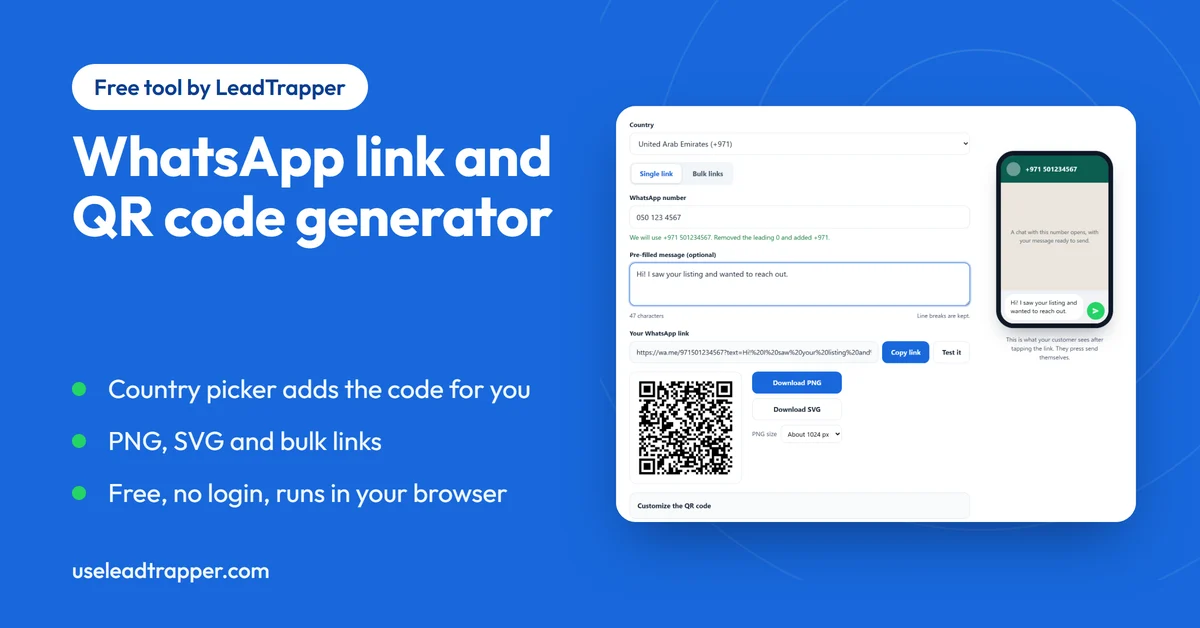
Under Tools, Short link, WhatsApp gives your business a link and a QR code, and you can add a default message of up to 140 characters that the customer sees ready to send. The trick is to write a different message for each place you share it: “Hi, I saw your Instagram post” in your bio, “Hi, I’m at your shop counter” on the counter QR code. Every new chat then tells you which channel brought it. To make links for other numbers or campaigns, the free WhatsApp link generator does the same.
8. Give people a reason to scan
A QR code on its own gets ignored. “Scan for 10% off your next order” or “Scan to get your receipt on WhatsApp” gets scanned. When the customer starts the chat, your later messages are ones they asked for, which also keeps your number safe. The guide to WhatsApp QR codes for restaurants and business cards has placement ideas.
9. Fill in the whole business profile
Hours, address, website, email and a clear description make you look real, and real businesses get fewer blocks and reports. Add your WhatsApp link to your Google Business Profile too, so people searching for you can message you in one tap.
Sell Inside the Chat
10. Share one catalog item, not the whole catalog
The catalog shows products with photos and prices inside WhatsApp. When someone asks about one product, send the link to that item, not the whole catalog: one tap from question to product is the shortest route to a sale. Your greeting message can include a link to the full catalog for first-time visitors.
11. Answer "how much?" with a picture
A price list sent as one clear image or PDF answers more questions than a long text. Save it in your “message yourself” chat and in a quick reply note, so you can send it in two taps.
Let customers send their cart
With a catalog, customers can add items to a cart and send it to you as a WhatsApp message. It’s an order request, not a payment, so reply with the total and how to pay; a quick reply for payment details makes this a ten-second job.
Check what your messages do
Blogs that cover the app point to its statistics for messages sent, delivered, read and received. Glance at them after a broadcast: many sent but few read means the message or the timing needs work.
Reach Your Whole Customer List
12. Know the limits of broadcasts
Broadcast lists send one message to many contacts, each as a private chat, but they have limits: up to 256 contacts per list, and people only receive them if they have saved your number. The guide to the WhatsApp broadcast list limit explains both rules. The Business app also has newer business broadcasts and marketing messages, which WhatsApp describes on its help pages along with their own limits.
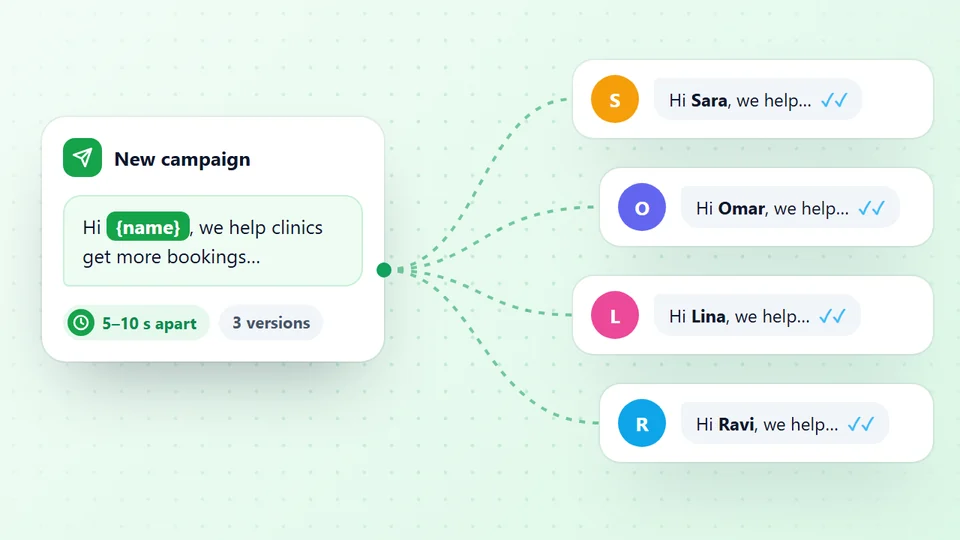
For a list of hundreds of customers in Excel, a desktop tool does what the app can’t: LeadTrapper’s WhatsApp bulk sender sends each message one by one from your own number, adds each customer’s name, checks every number on WhatsApp first and waits a random time between messages. Like every desktop sender it is an unofficial tool, and WhatsApp’s terms don’t allow unwanted bulk messages, so use it for customers who expect to hear from you. If you want keyword answers, the free app’s automatic messages don’t read what customers write; the guide to WhatsApp auto reply messages shows the options.
Cheat Sheet: Where Each Feature Lives
| Feature | Where in the app | Good to know |
|---|---|---|
| Quick replies | Tools, Quick replies | Type / in a chat; media replies only on the phone |
| Greeting message | Tools, Greeting message | Also sent after 14 days of silence |
| Away message | Tools, Away message | “Outside business hours” needs hours in your profile |
| Short link and QR | Tools, Short link | Pre-filled message up to 140 characters |
| Labels / lists | Chat list | Applied by hand |
| Catalog | Tools, Catalog | Share one item, or let customers send a cart |
| Linked devices | Settings, Linked devices | Phone plus up to four devices |
Menu names move between app versions; if you can’t find one, search the app’s settings.
Mistakes That Get Business Numbers Restricted
Business numbers get restricted for the same reasons as personal ones, only faster, because they message more people. Messaging lists you bought, sending the same text with a link to hundreds of strangers, and adding customers to groups they didn’t ask to join all lead to blocks and reports. When that happens WhatsApp limits new chats first; see WhatsApp account restricted for what it blocks and how to recover.
Frequently Asked Questions
Slash quick replies for common answers, labels as a sales pipeline, a greeting message and an away message limited to outside business hours, a short link and QR code with a pre-filled message, the catalog, and a complete business profile. All are free in the WhatsApp Business app.
Create them under Tools, Quick replies, with a short shortcut. In any chat, type a slash and the shortcut, then pick the reply. WhatsApp's help page says the app also offers default quick replies from your business profile, such as your hours and address.
WhatsApp's help page says the greeting message goes automatically when a customer first messages you, and again when a customer messages after 14 days without any messages.
Yes. Under Tools, Short link, you can set a default message of up to 140 characters that customers see pre-filled when they open your link or scan your QR code. They can edit it before sending.
The free app's automatic messages are the greeting and away message; quick replies still need a person to send them. Keyword replies need another tool, such as a desktop auto-reply bot or an API platform.
About LeadTrapper
LeadTrapper is a Windows app for finding business leads and contacting them on WhatsApp. It collects business contacts from Google Maps, Instagram, Facebook, TikTok, LinkedIn and business websites, checks which numbers are on WhatsApp with its Number Filter, and sends personalised campaigns with automatic delays from one or more WhatsApp accounts. It also has a chatbot, a shared inbox for every account, and Store Orders for online shops. It installs from the Microsoft Store, and the full app is free for 14 days, then $50 a year. Free web tools, browser extensions and a Wix app are listed on the Free Tools page.
Message Your Whole Customer List from Your PC
LeadTrapper sends personalised WhatsApp messages to an Excel or CSV list, checks every number first and paces each send. $50/year after a 14-day free trial.