In this article 10 sections
- Start With the Symbol on the Message
- Clock: The Message Never Left Your Phone
- One Tick or Two Grey Ticks
- Blocked, Not on WhatsApp or Wrong Number
- Restricted Account
- Broadcasts and Marketing Messages
- Business API Errors
- Lookup: What You See, Cause, Fix
- Worked Example: A Promo to 80 Customers
- Prevent It Next Time
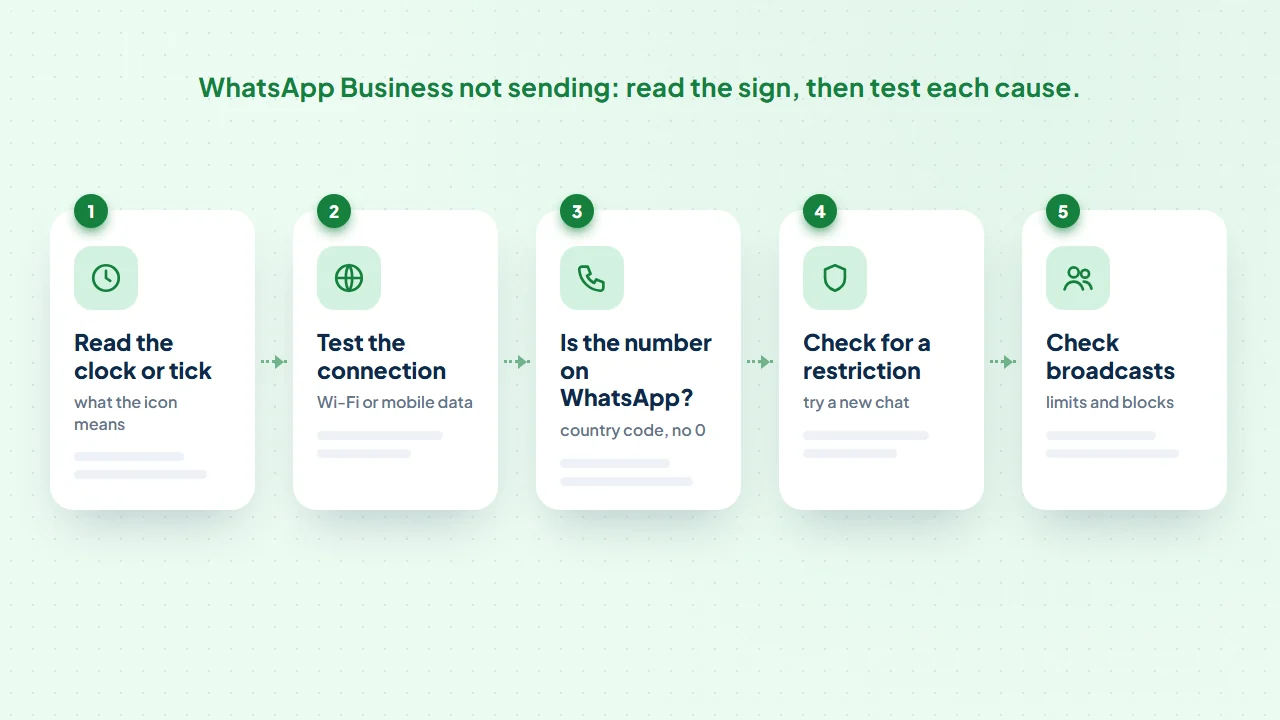
WhatsApp Business not sending messages comes from the phone's connection, a blocked or non-WhatsApp number, a restricted account, a suspended broadcast, or on the API a closed 24-hour window. A clock means it hasn't left your phone. Example: one tick to one customer means they're offline or blocked you.
- A clock means the message hasn't left your phone yet; WhatsApp's help page points to connectivity. One grey tick means it left your phone but hasn't reached theirs.
- A restricted account can still message existing chats but can't start new ones: sending to one new number and failing points to the account, not the phone.
- Business broadcasts can be suspended for three days after continued spam, with longer suspensions for repeated restrictions, and the suspension can't be appealed.
- Broadcasts and marketing messages are not the same as normal chats: they reach only people who saved your number or opted in.
- On the WhatsApp Business Platform (API), error 131047 means more than 24 hours have passed since the customer last replied, so you need a template message.
When WhatsApp Business won’t send, the cause depends on what the message shows. A clock, one tick, nothing at all to a new number, and a failed broadcast each point somewhere different. This guide goes by what you see and sends you to the right fix. Where another guide already covers a case in depth, we link to it instead of repeating it: why a message shows one tick, what a restricted account means and why a broadcast isn’t received.
Start With the Symbol on the Message
What sits next to the message tells you where it got stuck. A clock means it is still on your phone, one grey tick means WhatsApp has it but the recipient’s phone hasn’t, and two grey ticks mean it reached their phone. WhatsApp’s own help pages describe the clock as “not sent yet”, which “could be due to connectivity issues”.
Checked on 23 Nov 2026:
- Clock: a connection problem on your side. Fix it first.
- One grey tick: sent. The other phone is off, offline, or the person blocked you. WhatsApp says a missing tick is not proof of a block.
- Two grey ticks: delivered. If they don’t answer, that isn’t a sending fault.
- No message at all, or a pop-up: usually a restriction or a feature limit.
Clock: The Message Never Left Your Phone
If the message shows a clock, the problem is your connection or your phone, not the customer. WhatsApp’s help page on sending and receiving messages gives this order: confirm Wi-Fi or mobile data works, open a website to check, turn Airplane mode on and off, restart the phone, set the date and time correctly, free up storage, update the app from the App Store or Google Play, and last reinstall after a backup.
User and vendor guides add a few Android checks, which are their advice rather than WhatsApp’s: allow background data for WhatsApp, turn off battery optimization for the app, and turn off Data Saver. A WhatsApp outage can also leave many messages on a clock at once, so check an outage tracker. Nothing on your phone fixes that.
If the clock appears only on the WhatsApp Business app and the normal WhatsApp on the same phone works, check that the Business app is updated too. If the problem is the phone itself, WhatsApp not working on iPhone walks through the iPhone settings in detail.
One Tick or Two Grey Ticks
One grey tick means the message left your phone and reached WhatsApp, but hasn’t reached the recipient. WhatsApp’s help page gives the causes as the recipient’s phone being off or without internet, a connection problem, or a block. A deleted account or an uninstalled app looks the same.
Don’t resend ten times. Wait, then try again later; the message delivers when their phone comes online. Our guide to why a WhatsApp message shows one tick has the full lookup table, including how to tell one tick from a block and what many single ticks in a campaign mean.
Blocked, Not on WhatsApp or Wrong Number
A message to a number that isn’t on WhatsApp, or to someone who blocked you, never delivers, and the sender gets little feedback. Three checks narrow it down:
- Is the number on WhatsApp? Search for it in a new chat. If WhatsApp offers to invite them to WhatsApp, the number isn’t registered.
- Is the format right? Use the full international number with the country code and no leading zero. A local number like 050 123 4567 isn’t the same as 971501234567.
- Does it fail for one person only, while others deliver? Then it is that number: offline, blocked, or not on WhatsApp.
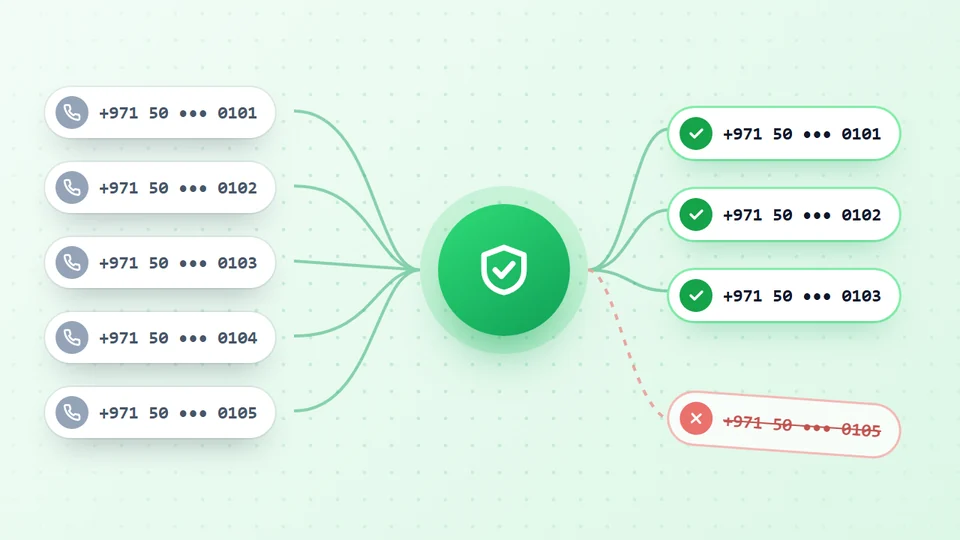
For a list of numbers, checking each by hand is slow. LeadTrapper’s WhatsApp Number Filter checks each number on WhatsApp through your own connected account, one number at a time 1 to 3 seconds apart, and pauses for 15 minutes after seven “not on WhatsApp” answers in a row. It tells you which numbers can’t receive a message. It cannot tell you whether someone blocked you.
Restricted Account
If messages to existing chats go through but new chats fail, the account is likely restricted. WhatsApp’s help page on restricted accounts says a restricted account keeps working with the people it already messages but can’t start new chats, create groups, add members or use linked devices for a time. The quick test: tap New Chat, choose a contact you’ve never messaged, and look for the pop-up.
Restrictions end by themselves. Don’t mass-forward or send bulk messages while restricted. Our guide to WhatsApp account restricted covers triggers, what doesn’t help, and how to avoid the next one. WhatsApp’s page on using WhatsApp responsibly says plainly: “Don’t bulk message, auto-message, or auto-dial using WhatsApp,” and that reported accounts may be banned.
Broadcasts and Marketing Messages
If a business broadcast won’t send, WhatsApp lists three causes: the feature isn’t available to you yet, your account was flagged for breaking Meta’s terms for business broadcasts, or many recipients reported or blocked you. WhatsApp’s help page on business broadcasts adds:
- Three days. Continued spam suspends business broadcasts on the account for three days. The suspension ends automatically at the date and time shown in the app and can’t be appealed.
- Longer for repeats. Repeated restrictions can bring longer suspensions; no exact length is given.
- Scheduled sends are dropped. Broadcasts scheduled before the block aren’t sent and aren’t charged.
- The fixes WhatsApp lists: get opt-in for each type of message, give clear opt-out instructions and honour them, remove contacts who haven’t engaged recently, send only what people signed up for, and don’t message the same contacts again straight after reinstatement.
- Support route: WhatsApp Business, More, Settings, Help and feedback, Help center, Contact us.
Ordinary broadcast lists work differently: WhatsApp says they reach only people who saved your number. If your broadcast went out but people didn’t get it, see WhatsApp broadcast not received.
Business API Errors
If you send through the WhatsApp Business Platform (the API), failed messages come back with an error code instead of a clock. Meta’s Cloud API error code list (checked 23 Nov 2026) explains the common ones:
| Code | Meaning in Meta’s words | What to do |
|---|---|---|
| 131047 | More than 24 hours have passed since the recipient last replied | Send an approved template message |
| 131026 | Can’t deliver: not on WhatsApp, hasn’t accepted the latest terms, or old app | Contact them another way and ask them to update |
| 131049 | Not delivered to maintain healthy ecosystem engagement | Send the marketing message later; check per-user limits |
| 131056 | Too many messages from your number to the same recipient in a short time | Wait before messaging that recipient again |
| 130429 | Cloud API throughput reached | Slow down and retry |
These are different from the Business app: no clock, no broadcast list, and templates are required outside the 24-hour window. For limits and costs see our guides to WhatsApp Business API messaging tiers and the API’s cold outreach policy.
Lookup: What You See, Cause, Fix
| What you see | Likely cause | Fix |
|---|---|---|
| Clock on every chat | Your connection or phone | Test other apps, toggle Airplane mode, restart, update |
| Clock only in the Business app | App out of date or restricted from background data | Update; allow background data |
| One grey tick to one person | Their phone off or offline, or a block | Wait; contact them another way |
| One grey tick to many numbers on a list | Numbers not on WhatsApp, or wrong format | Check the format; filter the list |
| Messages go out, but new chats fail | Account restricted | Wait it out; stop bulk sending |
| Broadcast won’t send | Feature not available, flagged, or three-day suspension | Check the date in the app; fix opt-ins |
| Everything fails, other apps work too | WhatsApp outage | Check an outage tracker and wait |
| API error 131047 | 24-hour window closed | Send a template |
| Group message won’t send | You were removed, or only admins can post | Check the notice at the bottom of the chat |
Worked Example: A Promo to 80 Customers
Dana runs a bakery. On Friday she sends a promo to 80 customers from the Business app (example numbers). Eleven stay on one tick, and a new customer she tries to message gets a pop-up.
- Clock or tick? No clocks, so her connection is fine. Eleven messages sit on one tick.
- Check the eleven. Four are numbers she typed as local numbers without the country code, so they never reached anyone. She fixes them to full international numbers. Three phones are off, and those deliver later. Four never deliver; they are likely not on WhatsApp or have blocked her.
- The pop-up. New chats fail, existing ones work: her account is restricted. She stops sending new messages and doesn’t forward promos.
- After the restriction ends, she sends a smaller, personal message to people who ordered before, and asks new customers to message her first.
The lesson is that most failures came from the list, not the phone. A check of the numbers before sending would have found the four bad ones.
Prevent It Next Time
Most sending failures can be prevented before you press send:
- Keep the list clean. Remove numbers that aren’t on WhatsApp and duplicates. The WhatsApp Number Filter does this from a file; our guide to formatting a phone list for WhatsApp covers the format.
- Message people who expect it. WhatsApp’s pages stress opt-in for each type of message and quick respect for opt-outs.
- Avoid sending the same text to many new people at once. That is what WhatsApp’s pages say leads to reports, blocks and restrictions.
- Know what your tool does. LeadTrapper’s WhatsApp bulk sender sends from a Windows PC through your own number with pacing, and stops a campaign itself after repeated failures (see why a WhatsApp campaign stopped itself). It is an unofficial tool, and WhatsApp’s terms don’t allow unwanted bulk messages, so the risk of a restriction or ban stays with you.
Frequently Asked Questions
A message with a clock hasn't left your phone, so check the connection, restart the phone and update the app. If the message sent but shows one tick, the other person's phone is off or offline, or they blocked you. If only new contacts fail, your account may be restricted.
WhatsApp's help page lists three causes: business broadcasts aren't available to you yet, your account was flagged for breaking Meta's broadcast terms, or many recipients reported or blocked you. Continued spam suspends business broadcasts for three days.
Tap New Chat and pick a number you've never messaged. If WhatsApp shows a restriction pop-up, the account is restricted. Existing chats still work, but new chats, new groups and linked devices are blocked for a time.
Meta's Cloud API error 131047 means more than 24 hours passed since the recipient last replied to your number. Outside that window you can only send an approved template message, not a free-form one.
WhatsApp's help pages don't publish a daily send limit for the Business app. Limits show up as restrictions, broadcast suspensions or, on the API, messaging tiers and throughput limits. Sending the same text to many new people is the usual trigger.
No. If the number isn't registered on WhatsApp, the message cannot be delivered. Check the country code and format first. LeadTrapper's Number Filter checks a list on WhatsApp before you send, so you remove such numbers in advance.
About LeadTrapper
LeadTrapper is a Windows app for finding business leads and contacting them on WhatsApp. It collects business contacts from Google Maps, Instagram, Facebook, TikTok, LinkedIn and business websites, checks which numbers are on WhatsApp with its Number Filter, and sends personalised campaigns with automatic delays from one or more WhatsApp accounts. It also has a chatbot, a shared inbox for every account, and Store Orders for online shops. It installs from the Microsoft Store, and the full app is free for 14 days, then $50 a year. Free web tools, browser extensions and a Wix app are listed on the Free Tools page.
Check Your List Before You Send
LeadTrapper's Number Filter checks each number on WhatsApp through your own account, at a safe pace, so you remove numbers that can't receive a message. $50/year after a 14-day free trial.