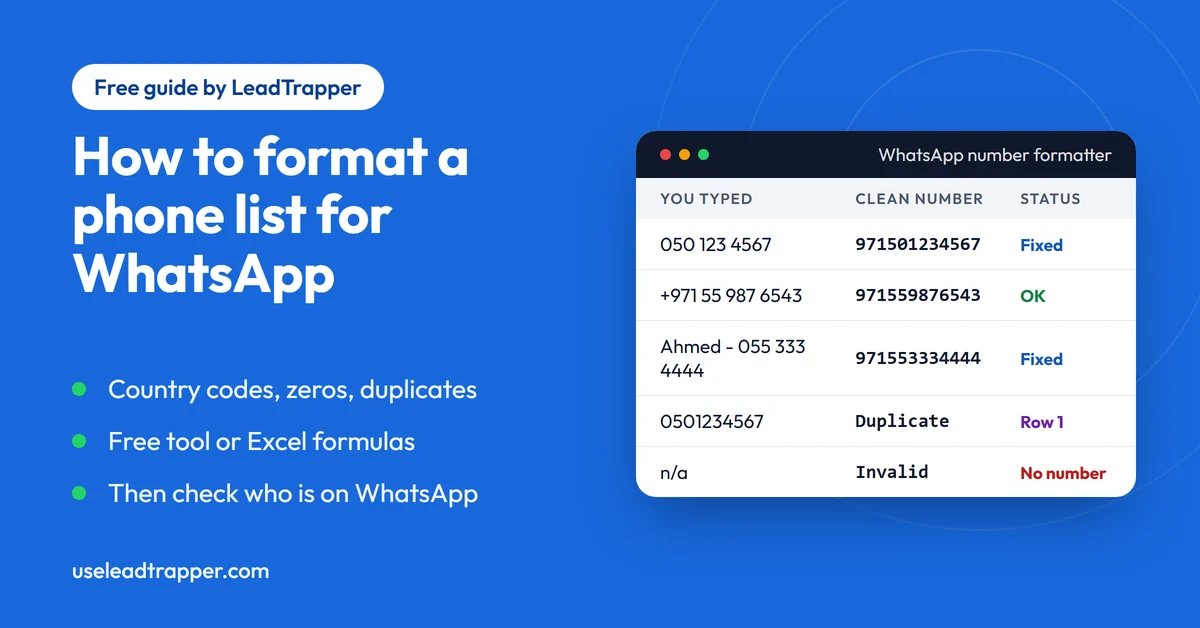
- A WhatsApp-ready list has one number per row, in full international format, with the country code, no leading 0 and no duplicates. Most lists break on the leading 0, a missing country code, text around the number and the same person written two ways.
- The free WhatsApp number formatter cleans a pasted list or a CSV of up to 50,000 rows in your browser, shows what it changed in every row, and downloads a clean CSV.
- In Excel you can add a country code with a formula, but it only works when every number is written the same way. It cannot pull a number out of text or spot the same number written two ways.
- Excel damages phone numbers by dropping leading zeros and showing long numbers as 9.71501E+11. Format the column as Text first, or use the formatter's Excel text option.
- Formatting fixes the shape of a number. It does not show whether the number is on WhatsApp, which is the job of a check against WhatsApp before you send.
A phone list is rarely ready for WhatsApp when you get it. It comes out of a spreadsheet, a scrape, a CRM or a business card pile, and every source writes numbers differently. This guide shows how to turn that list into clean, WhatsApp-ready numbers, using a free tool or Excel, and what to do once the format is right.
What a WhatsApp-Ready List Looks Like
A ready list is simple. There is one phone number on each row. Each number is in full international format, which means the country code comes first and the leading 0 is gone: 971501234567, not 050 123 4567. There are no spaces, dashes, brackets or notes in the number column, and each real number appears once.
If you would like the reason behind each rule, the guide to the WhatsApp number format explains the country code, the leading 0 and the plus sign, with examples for 17 countries.
Why Lists Break
Almost every problem comes from one of five causes.
The leading 0 is the most common. People write local numbers the way they dial them at home, and that 0 has to go when the country code goes on.
A missing country code is next. A local number with no code means nothing to WhatsApp or to a bulk tool, unless someone tells the tool which country the whole list belongs to.
Text around the number catches lists that came from a CRM or a scrape. Cells such as “Ahmed - 055 333 4444” or “call after 5” hold a number, but no tool can send to them as they are.
The same person written two ways creates hidden duplicates. 050 123 4567 and +971 50 123 4567 look nothing alike, and both point at one phone. They only match after both are cleaned.
The spreadsheet itself is the fifth. Excel and similar programs treat a column of digits as numbers and change them, which the later sections cover.
Format the List with the Free Tool
The free WhatsApp number formatter handles all five in one pass. It runs in your browser, so the list is never uploaded, and it works on up to 50,000 rows at a time.
- Paste the numbers into the box, one per line, or copy a whole column from Excel. You can also open a CSV or text file. If the list has several columns, the tool finds the one with the numbers and asks whether the first row holds column names.
- Choose the country for numbers that are written the local way. Numbers that start with + or 00 already say where they are from.
- Look at the result. Each row shows what you typed, the clean number, a status and what changed.
- Download the clean list, or the full report, or copy the numbers.
Here is a small list run through the tool with the UAE chosen as the country. The numbers are made-up examples, and the last column is the tool’s own wording.
| You typed | Clean number | Status | What the tool said |
|---|---|---|---|
| 050 123 4567 | 971501234567 | Fixed | Removed the leading 0 and added +971. |
| +971 55 987 6543 | 971559876543 | OK | |
| 971-56-1112222 | 971561112222 | OK | |
| 0501234567 | 971501234567 | Duplicate | Same number as row 1. |
| 00971 54 222 3333 | 971542223333 | Fixed | Removed the leading 00. |
| Ahmed - 055 333 4444 | 971553334444 | Fixed | Took the number out of the text. Removed the leading 0 and added +971. |
| +44 7700 900123 | 447700900123 | OK | |
| 054 222 3333 ext 12 | 971542223333 | Duplicate | Same number as row 5. |
| n/a | Invalid | No phone number found in this text. |
Row 4 is the same phone as row 1, and row 8 is the same phone as row 5, even though none of them look alike. Row 7 keeps its own country because it starts with a plus. The list you download contains the six numbers that are left, and the report keeps every row with its reason. Your other columns, such as names and cities, stay next to the clean number, and you can add a wa.me link for each one.
The tool has limits worth knowing. A number with no country code can only be read with one country per list, so a list that mixes local numbers from two countries has to be split first. And it cannot tell whether a number is on WhatsApp.
Format the List in Excel or Google Sheets
If you prefer a spreadsheet, you can do a simple version by hand. This works when every number in the list is a UAE number, written locally with a leading 0.
Suppose the raw numbers are in column A. In column B, remove the spaces, dashes and brackets:
=SUBSTITUTE(SUBSTITUTE(SUBSTITUTE(SUBSTITUTE(A2," ",""),"-",""),"(",""),")","")
In column C, turn the result into an international number. This formula drops a plus sign or a leading 00, and for a leading 0 it drops the 0 and adds 971, the UAE code. Use your own country’s code in place of 971:
=IF(LEFT(B2,1)="+",MID(B2,2,20),IF(LEFT(B2,2)="00",MID(B2,3,20),IF(LEFT(B2,1)="0","971"&MID(B2,2,20),B2)))
Copy both formulas down, and then select column C, copy it, and paste it as values. To remove duplicates, select the column and choose Data, then Remove Duplicates. The same formulas work in Google Sheets.
This is a good answer for a tidy list, and a bad one for a messy list. It leaves “Ahmed - 055 333 4444” as it is, because the formula cannot pull a number out of text, and it keeps “ext 12” stuck to the end of a number. It does not know that a number already has its code. It will not fix a list where Excel has already removed the leading 0, because a 9-digit number does not start with 0 any more. And it cannot handle a list with several countries. If your list has any of these, the formatter is the quicker way.
Keep Excel from Damaging the Numbers
Excel can undo the work you have just done. It treats a column of digits as numbers, and that causes two problems. It drops leading zeros, so 0501234567 is stored as 501234567. And it shows long numbers in scientific notation, so 971501234567 appears as 9.71501E+11.
The fix is to tell Excel that the column is text. Format the column as Text before you paste or type the numbers. If you are opening a CSV that the formatter produced, tick Keep long numbers as text in Excel before you download. That writes each number so that Excel keeps it as text. The download is a UTF-8 CSV with a byte order mark, so names in Arabic or other scripts open correctly.
Formatted Is Not the Same as on WhatsApp
A clean list has the right shape. It does not mean that every number is on WhatsApp. WhatsApp’s help page says the app is designed for mobile phones, so a list from a directory or a map will include landlines that have no account, along with mobiles that never installed WhatsApp.
The Number Filter in the LeadTrapper Windows app cleans a messy list and checks each number against WhatsApp itself, as the guide to the WhatsApp Number Filter explains. It uses one country for every number in an upload that has no country code, in the same way the free tool does. Our guide to cleaning a contact list explains why the order matters: remove duplicates first, then check the numbers, and only then send.
Before You Send
A clean, checked list is the start of a campaign and not the end. Sending to numbers that are not on WhatsApp is a risk of its own, which the article on invalid numbers and ban risk covers. Pace the messages too. The LeadTrapper WhatsApp bulk sender personalises each message and works out the delays, and it costs $50 a year with a 14-day free trial.
WhatsApp’s rules on who you may message apply to every tool. Message people who expect to hear from you, and read the cold outreach policy guide before you send to a list.
Frequently Asked Questions
Put one number on each row, in full international format: country code first, no leading 0, no spaces, dashes or brackets. Remove duplicates after cleaning, since one number can be written two ways. The free WhatsApp number formatter does this for a pasted list or a CSV and shows every change. Then check which numbers are on WhatsApp before you send.
If every number is a local number that starts with 0, remove the spaces and dashes in one column, then use a formula in the next column that drops the 0 and puts the country code in front. The formula in this guide does that for UAE numbers. It fails on numbers that already have a code, on text around a number, and on numbers where Excel has already removed the leading 0.
Excel treats a column of digits as numbers. It drops leading zeros, so 0501234567 becomes 501234567, and it shows long numbers in scientific notation such as 9.71501E+11. Format the column as Text before you paste or open the list, or tick Keep long numbers as text in Excel in the formatter before you download.
Clean the numbers first, then remove the duplicates. The same person can appear as 050 123 4567 and +971 50 123 4567, and only after both are in international format do they match. The formatter does this in one step and marks the later copy as a duplicate. In Excel, run Data, Remove Duplicates on the cleaned column.
Not by itself. Formatting fixes the shape of a number, and a number can be perfectly formatted and still not be on WhatsApp. Our guide on invalid numbers explains why messaging numbers that do not exist is a risk. Check the list, pace the sending, and message only people who expect to hear from you.
Check the List, Then Message It
LeadTrapper for Windows: Number Filter, Google Maps scraper and WhatsApp bulk sender in one app. $50/year, 14-day free trial.
Related Articles
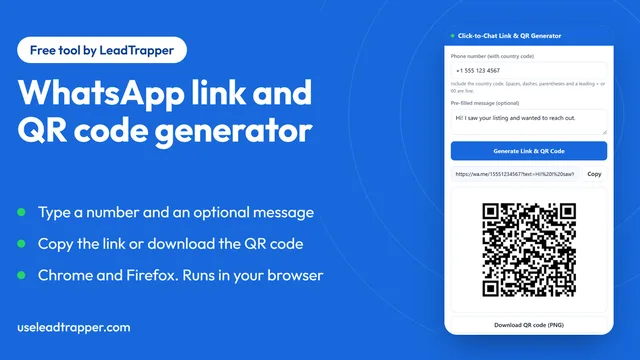
WhatsApp Link & QR Generator Extension: Chrome, Firefox
Make a WhatsApp click-to-chat link and QR code from any number with the free Chrome or Firefox exten…
Read article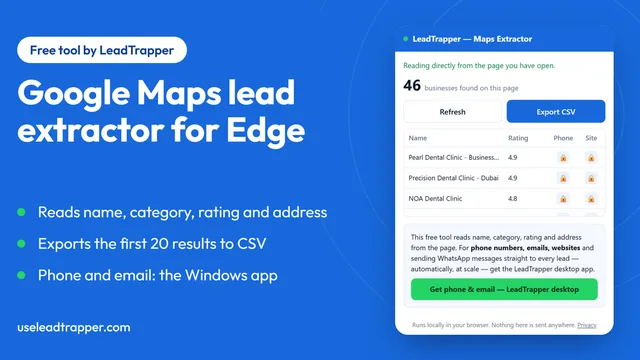
Google Maps Lead Extractor Extension for Edge (Free)
The free Maps Lead Extractor for Microsoft Edge reads names, ratings and addresses from Google Maps…
Read article