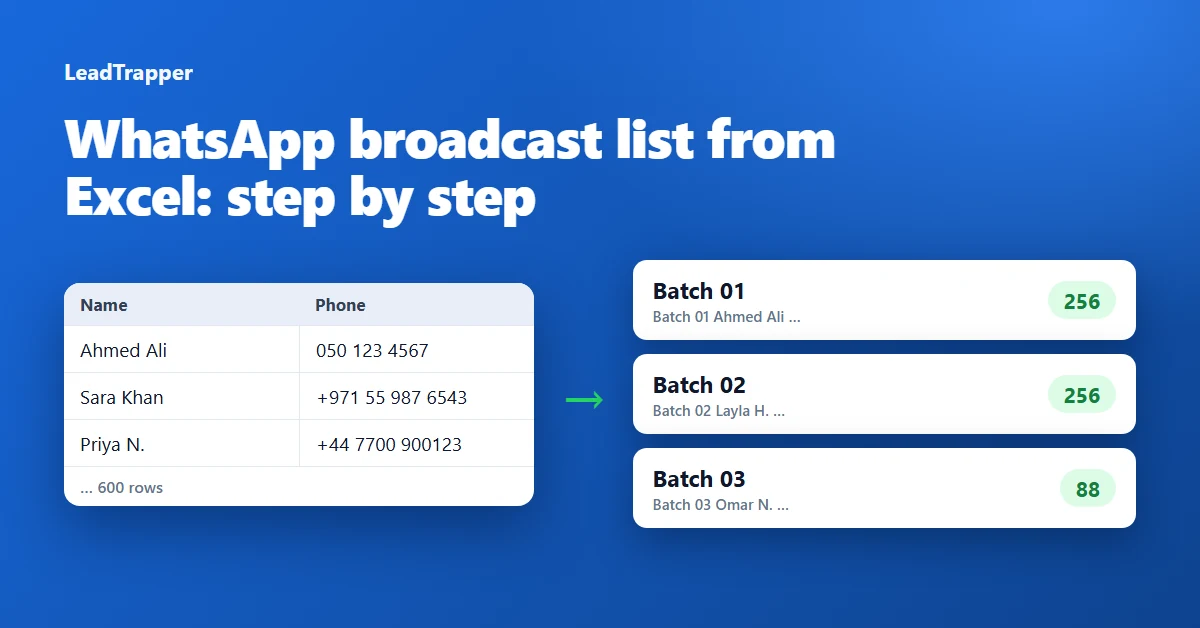
- WhatsApp has no way to import a spreadsheet. The route is Excel to a contact file, then to your phone, then into a broadcast list, and only the last step happens inside WhatsApp.
- A broadcast list holds up to 256 contacts, so a list of 600 people needs three lists. WhatsApp's help page says you can create as many lists as you like.
- Broadcast lists exist only on the phone. WhatsApp says they are not supported on Windows, Mac or the web.
- A broadcast reaches only people who have saved your number. Putting them in your phone lets you choose them for the list, but it does not make them save you.
- The free WhatsApp broadcast list maker cleans the numbers, removes duplicates and cuts the list into named batches in your browser, so nothing is uploaded.
WhatsApp cannot import a spreadsheet. There is no upload button for Excel, and broadcast lists only exist in the phone app, built from contacts that are already saved on the phone. So a sheet of 600 customers has to make a short trip: Excel, a contact file, your phone, and only then a broadcast list. This guide walks through that trip, including the parts that trip people up, and shows how the free WhatsApp broadcast list maker handles the tedious middle part.
What a WhatsApp Broadcast List Can and Cannot Do
WhatsApp’s help page, How to use broadcast lists, sets the rules, and they shape everything else.
- A list holds up to 256 contacts, and you can create as many lists as you like.
- Everyone on the list must have saved your number in their address book. The page says only people who have added you to their phone's contacts will receive the message.
- Broadcast lists are not supported on Windows, Mac or the web.
- People in some countries might see a monthly broadcast limit, and the feature is rolling out gradually.
Each recipient gets your message as an ordinary chat from you, and their reply comes back to you alone, not to the rest of the list. The help page explains how to create, edit and delete a list. It does not describe a way to export one, so treat your spreadsheet as the master copy and never rely on WhatsApp to hold your only record.
Prepare the Spreadsheet
You need one row per person, a column for the name and a column for the phone number. A name is optional, but it makes the list far easier to use on a phone, because you will be choosing people by name.
| Name | Phone |
|---|---|
| Ahmed Ali | 050 123 4567 |
| Sara Khan | +971 55 987 6543 |
| Priya N. | +44 7700 900123 |
The numbers can be written any way you like, as long as each one is either international (it starts with a plus or 00) or local to one country that you pick in the next step. Watch for Excel damaging the column: it drops leading zeros and can show long numbers as 9.71501E+11. The guide to formatting a phone list for WhatsApp covers both problems and the Excel formulas that fix them.
Clean the Numbers and Split the List
Open the maker, copy the two columns from Excel and paste them into the box, or open the sheet saved as a CSV file. Choose the country for numbers that have no country code, and leave the batch size at 256.
The tool removes duplicates, fixes the numbers into the international format WhatsApp uses, and names every contact after its batch, such as Batch 01 Ahmed Ali. That naming trick is the whole point. On your phone you will search “Batch 01” and get exactly the people who belong in the first list. A list of 600 people becomes three batches of 256, 256 and 88, each downloadable as a contact file, or all together as a ZIP.
It runs in your browser, so the list is not uploaded anywhere, and Arabic and other scripts in names come through intact. The free version prepares up to 1,000 numbers at a time. If your list is bigger, the Windows app includes the same tool without that limit.
Put the Contacts on Your Phone
The contact files are in the vCard format, which every phone understands.
On an iPhone
Apple’s guide, Import contacts on iPhone, says to tap a .vcf attachment in an email or message. Email each batch file to yourself, open the message on the phone, tap the file and let it add the contacts.
On an Android phone
Open the file from your downloads and choose Contacts, or use the Import option inside the Contacts app. Menu names differ between phone brands. A route that works on any computer is Google’s: at contacts.google.com choose Import, then Select file. Google’s import help accepts .csv and .vcf files, allows up to 3,000 contacts in one import and 25,000 in total.
Let WhatsApp see them
WhatsApp only shows the contacts it is allowed to read. On Android that is Settings, Apps, WhatsApp, Permissions, Contacts. On an iPhone, WhatsApp’s help page on contacts permissions says that without access, new contacts you add will not be shown, and that with partial access you have to select the contacts WhatsApp may see. If you choose partial access, select the imported batches.
Create the Broadcast Lists
On Android, tap Chats, then the menu, then Broadcast lists, then start a new list. On an iPhone, tap Settings or your profile picture, then Broadcast messages, then New List. Search for “Batch 01”, select everyone who appears, and create the list. Do the same for Batch 02 and Batch 03. Name each list after its batch so you know which is which next month.
Why Some People Will Not Get the Message
The saved-contact rule is the usual reason a broadcast seems to vanish. Importing people into your phone lets you pick them, and nothing in this process makes them save your number. WhatsApp’s help page tells you to make sure every contact in the list has saved your number, so if someone says they never received it, that is the first thing to check.
For a shop or clinic, that is a reasonable filter: customers who saved you tend to be customers who want to hear from you. For a list you built some other way, expect a share of it to receive nothing. The full checklist of causes is in WhatsApp broadcast not received: 7 causes and fixes.
Who Should Be on the List
A broadcast list suits people who already know you: customers, members, event guests, students. Sending promotions to people who never asked for them is a different matter, and WhatsApp’s terms of service name “bulk messaging, auto-messaging, auto-dialing” as examples of illegal or impermissible communications. This is not legal advice, and the rules differ between countries, so check the ones where you and your contacts live. The cold outreach policy guide explains where the lines are.
When a Broadcast List Is Not Enough
Broadcast lists work well for a few hundred customers who saved your number. The guide to sending a broadcast without saving contacts compares the other routes. They stop working when the list is long, when the people have not saved you, or when you want to work from a computer.
LeadTrapper for Windows is built for that case. It includes this same Broadcast List Maker with no limit on list size. Its Number Filter checks which numbers on a list are on WhatsApp, and its Campaign Builder sends to the numbers in your list directly from your own computer, with calculated delays, so nobody has to be saved first. It is a WhatsApp bulk sender that costs $50 a year with a 14-day free trial. WhatsApp’s rules apply to any tool that sends messages, and LeadTrapper is not affiliated with or endorsed by WhatsApp.
Frequently Asked Questions
Put one person per row with a name and a phone number, and paste the columns into the free broadcast list maker. It cleans the numbers and cuts the list into batches of up to 256, and you download a contact file for each batch. Add the files to your phone, then open Broadcast lists in WhatsApp, search for the batch name and select the people. WhatsApp cannot import the spreadsheet itself.
WhatsApp's help page describes creating, editing and deleting a broadcast list, and it does not describe exporting one. Keep your spreadsheet as the master copy. If you built the list from contacts you saved on your phone, you can export those contacts from the phone's own contacts app or from Google Contacts.
Convert it to contact cards first. The broadcast list maker turns the rows into VCF files that open on iPhone and Android. You can also save the sheet as CSV and import it at contacts.google.com, which accepts .csv and .vcf files, up to 3,000 contacts per import. WhatsApp then shows the people who have WhatsApp, once it has permission to read your contacts.
No. WhatsApp's help page says broadcast lists are not supported on Windows, Mac or the web. You create and use them in the phone app, which is why the files have to end up on your phone.
Up to 256 contacts in each list, and you can create as many lists as you like. WhatsApp adds that people in some countries might see a monthly broadcast limit and that the feature is rolling out gradually, so it may not be available everywhere.
Need to Reach More Than a Broadcast List Can?
LeadTrapper for Windows includes the Broadcast List Maker with no limit, checks numbers and sends to a list directly. $50/year, 14-day free trial.
Related Articles
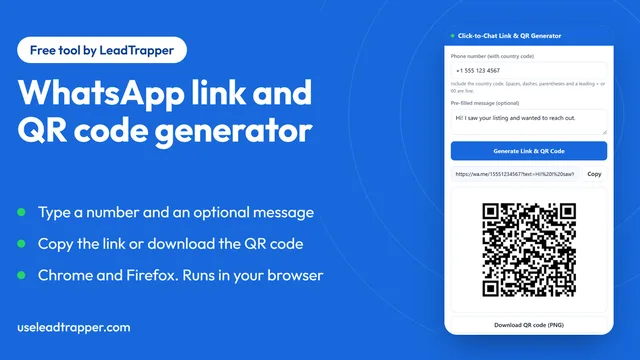
WhatsApp Link & QR Generator Extension: Chrome, Firefox
Make a WhatsApp click-to-chat link and QR code from any number with the free Chrome or Firefox exten…
Read article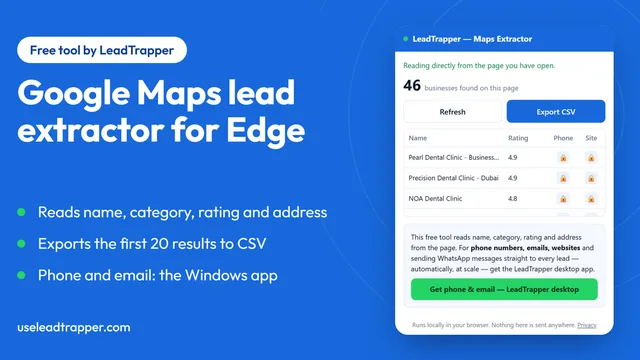
Google Maps Lead Extractor Extension for Edge (Free)
The free Maps Lead Extractor for Microsoft Edge reads names, ratings and addresses from Google Maps…
Read article