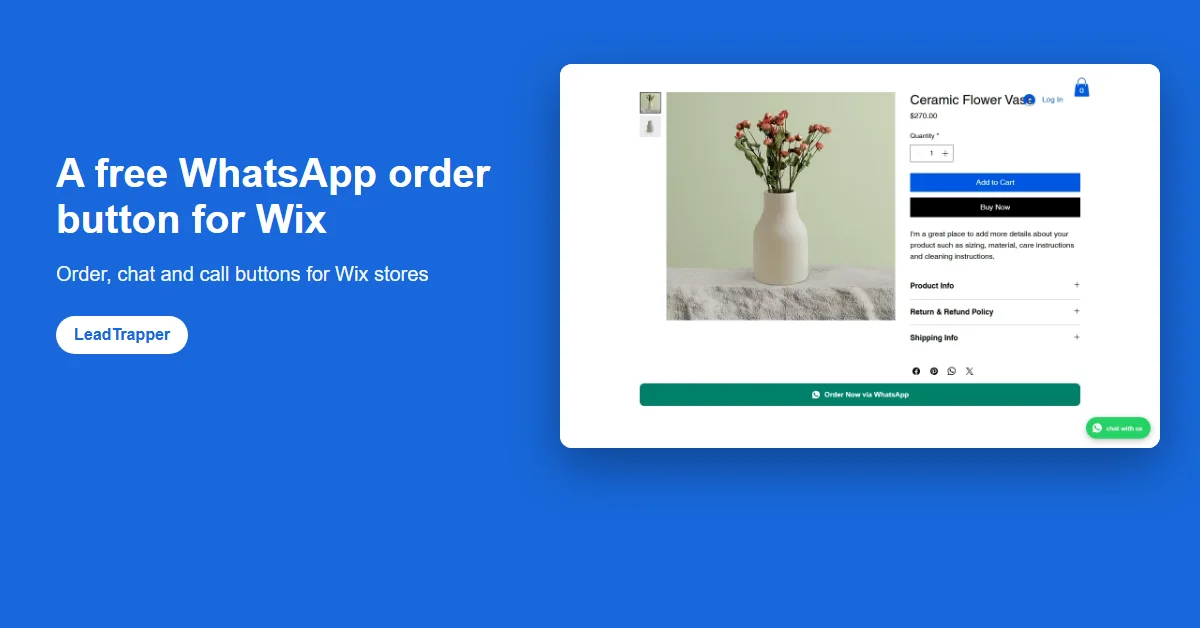
- Wix's own way to add WhatsApp is a button linked to a wa.me address or the WhatsApp channel in Wix Chat. Neither tells you which product the shopper wants.
- The free LeadTrapper WhatsApp Suite adds an Order via WhatsApp button to Wix Stores product pages. One tap opens WhatsApp with the product name, price and page link already written.
- It also adds a floating button on every page that opens a chat, calls you, or offers both, styled to fit your site, and a dashboard of orders and button clicks.
- Connected to the free LeadTrapper app for Windows, it sends order confirmations and cash-on-delivery checks from your own WhatsApp number, with no Business API.
- The button is a small script with no extra fonts or files, sized so the page does not jump when it appears.
To add a WhatsApp order button to your Wix store, install the free LeadTrapper WhatsApp Suite from the Wix App Market, enter your WhatsApp number once in its Settings, and add the “Order via WhatsApp” plugin to your Product Page in the Editor. Shoppers then tap one button and WhatsApp opens with the product name, price and link already written. The same app adds a floating chat or call button to every page.
Three Ways to Add WhatsApp to Wix
Wix gives you two built-in routes. You can drag a normal button onto the page and link it to https://wa.me/ followed by your full number, as Wix’s own help page describes. Or, if you use Wix Chat, you can switch on WhatsApp as a channel in its settings. Both work for “contact us”. Neither knows which product the shopper is looking at, so the conversation starts with “Hi, I want the one in the picture” and a round of questions.
The third route is an app. The Wix App Market lists dozens of WhatsApp apps, most of them chat buttons. The LeadTrapper WhatsApp Suite is built for ordering: a button on each product page that sends the product details with the message, plus a chat button, plus order tracking. The comparison of WhatsApp apps for Wix sets it side by side with the others.
The Order Button on Product Pages
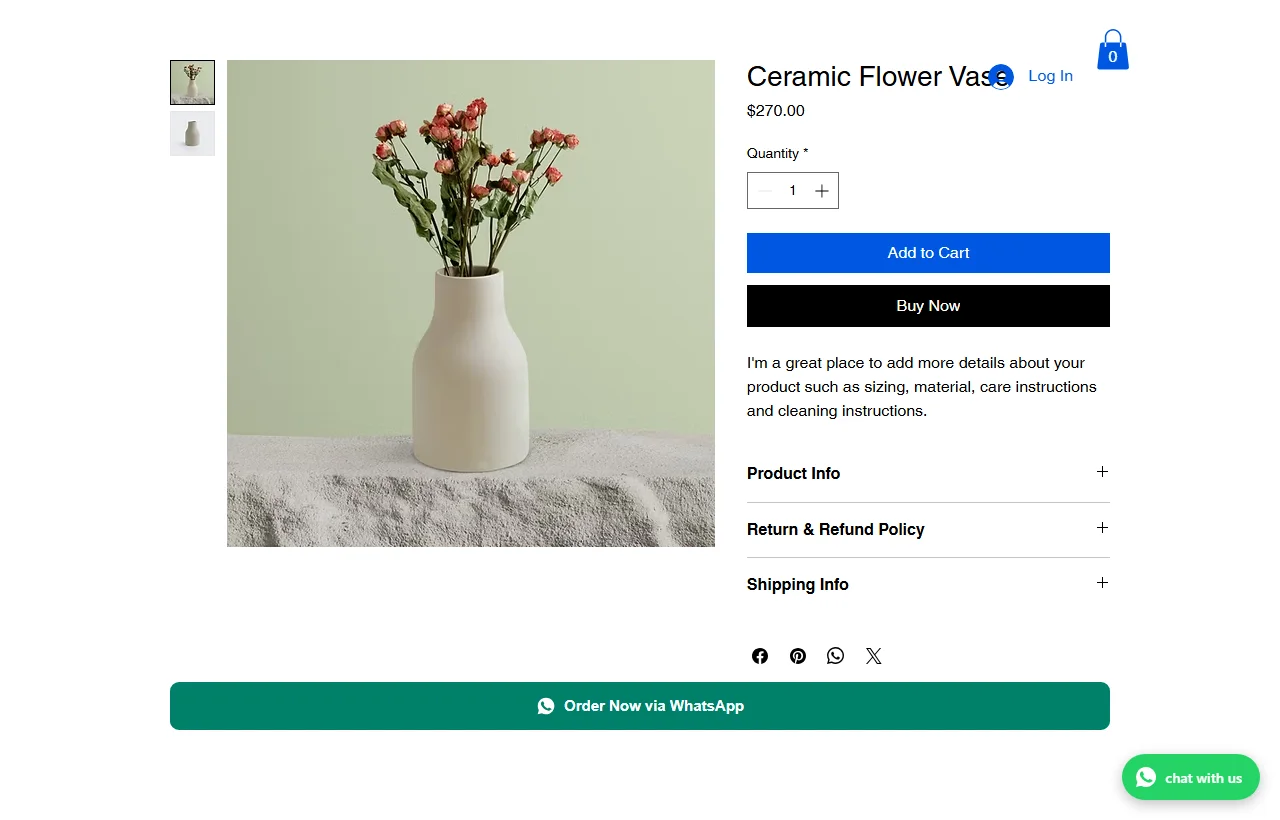
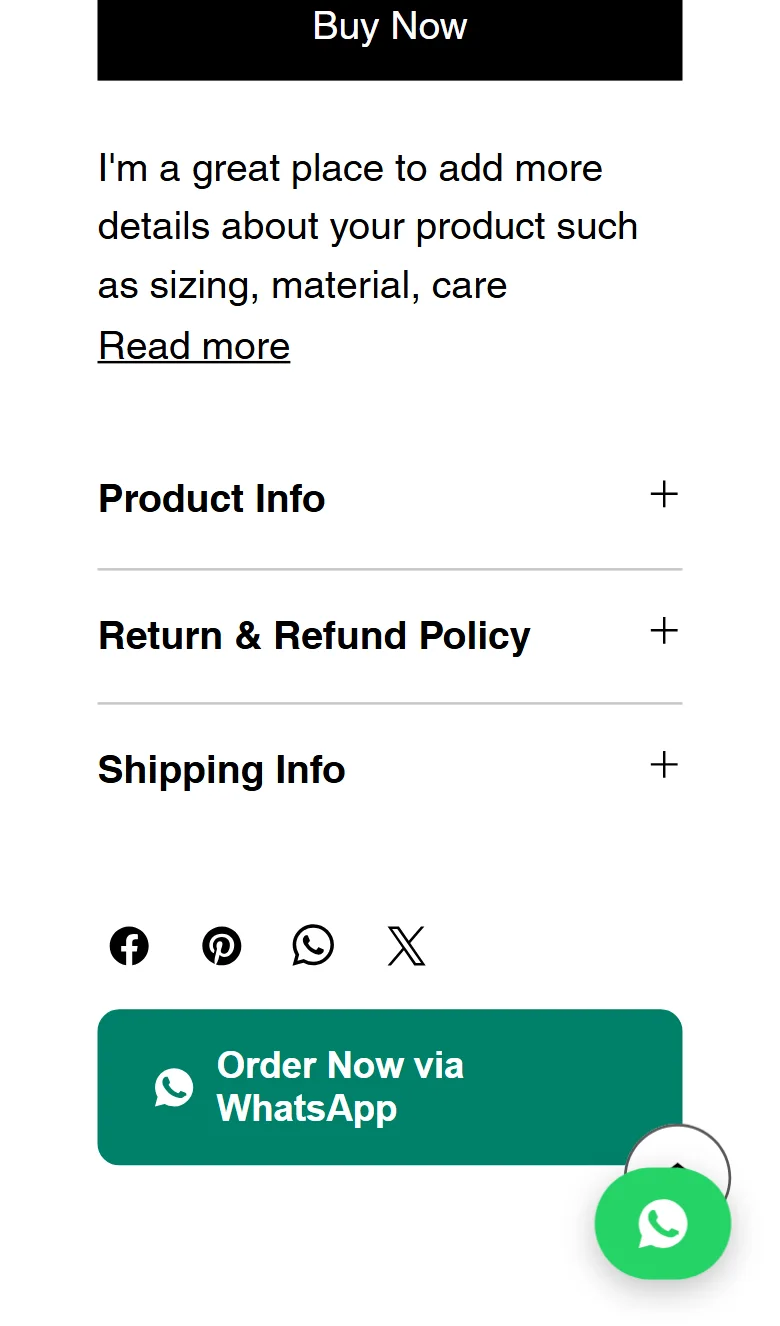
The “Order Now via WhatsApp” button sits under the product details. When a shopper taps it, WhatsApp opens on their phone or computer with a message such as “Hi! I would like to order: Ceramic Flower Vase ($270.00)” followed by the page link. The name and price are read from the page itself, so a sale price is the one sent, and if the shopper picks another size that changes the price, the message uses the new price.
Choose where it appears
Show the button on every product, only on products you choose, or on all products except a few. A search box handles big catalogues, and the choice is checked per product page, so a store with thousands of products does not slow down.
Make it fit your theme
Click the button in the Editor to change its style: filled, outline or soft, three sizes, square, rounded or pill corners, full or automatic width, left, centre or right, with or without the WhatsApp icon, and your site’s own font. In Settings you can change the button text and the first words of the message, in any language, for example “مرحباً، أود أن أطلب:”.
The Floating Chat and Call Button
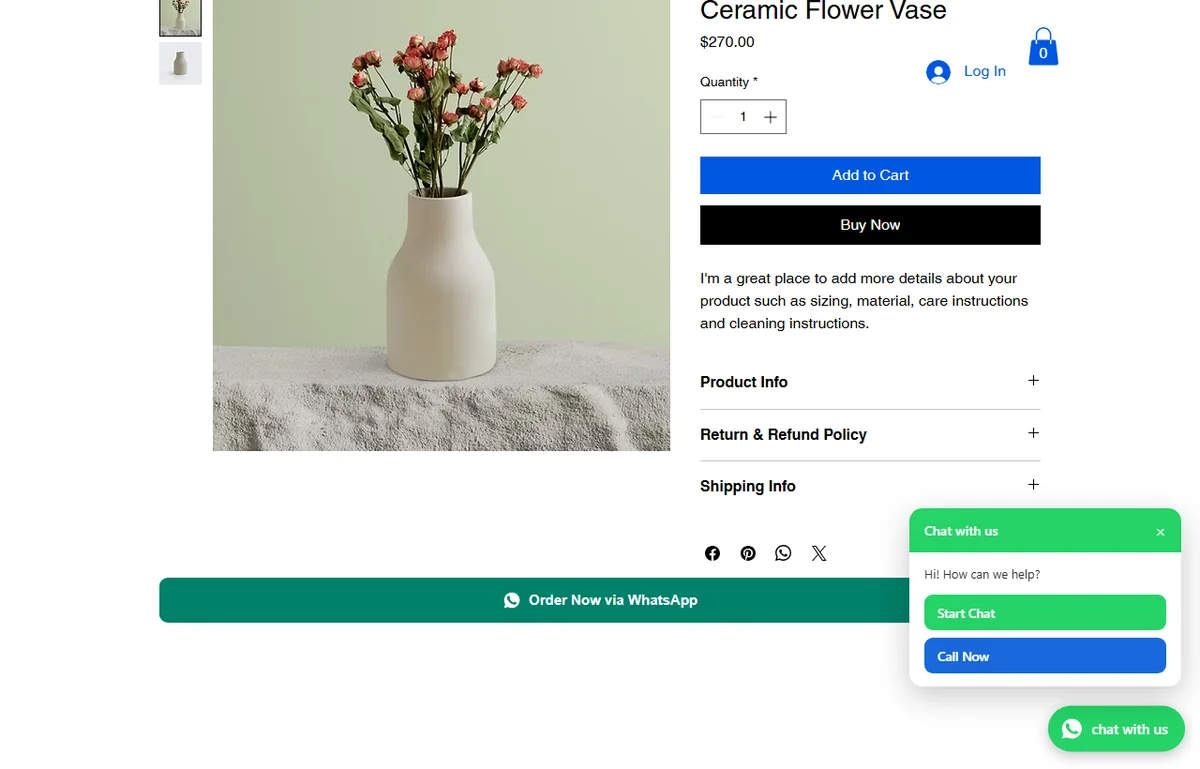
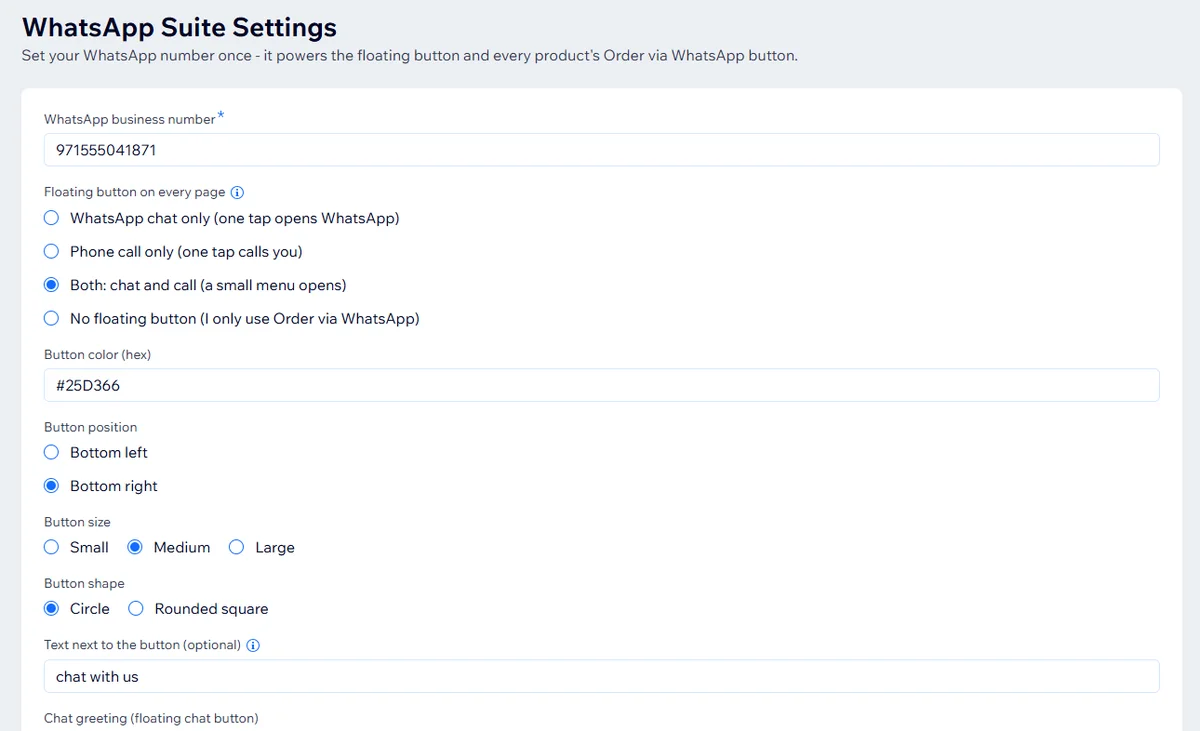
The second part is a round button that stays in the corner of every page. It can do one of four things: open a WhatsApp chat in one tap, start a phone call in one tap, show a small menu with Start Chat and Call Now, or nothing at all if you only want the order button. You set its colour, size, shape, which corner it sits in, the greeting that pre-fills the chat, and an optional label such as “chat with us” next to it.
Calls matter more than many stores expect. A shopper in Toronto or London who does not use WhatsApp can still reach you, and in markets where buyers like to hear a voice before a large order, “Call Now” closes sales that a chat would not.
Install and Set It Up
The app needs a Wix site with Wix Stores. Setup takes about five minutes.
1. Add the app
Open the LeadTrapper WhatsApp Suite on the Wix App Market and click Add to Site.
2. Enter your number and choose the button
In the app’s Settings, type your WhatsApp business number with its country code, pick chat, call, both or none for the floating button, and click Save & activate.
3. Add the order button
In the Editor, open a Product Page, open Plugins and add “Order via WhatsApp”. Click it to pick a style.
4. Publish and test
Publish, then open your live site on your phone. Wix does not run app buttons in Editor Preview, so test on the published address, not in Preview.
See Orders and Clicks
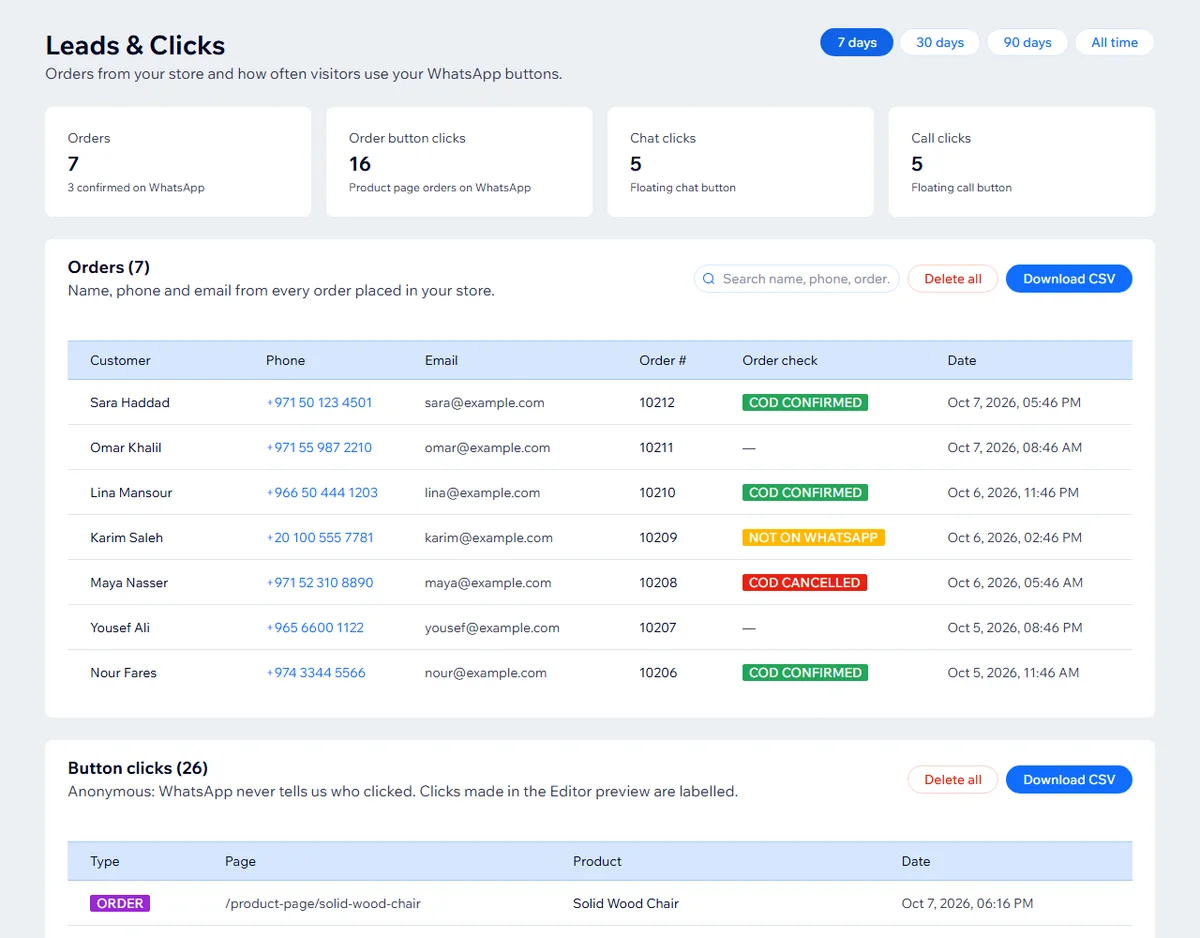
The app’s Leads & Clicks page lists the orders placed in your store with the customer’s name, phone number and email, and counts every tap on the chat, call and order buttons, with totals for the last 7, 30 or 90 days. Phone numbers open a WhatsApp chat with that customer in one click. Search, a CSV download and a Delete all button are there too, so you can hand the list to a courier or remove a customer’s data on request. Clicks are counted without knowing who clicked; WhatsApp never tells a website that.
Free Order Messages and COD Checks
The buttons work on their own. Connect the app to LeadTrapper, a free download for Windows, and your store also sends WhatsApp messages from your own number when orders arrive: an order confirmation, a payment receipt, a shipping update with the tracking link, and for cash-on-delivery orders, a question the customer answers with 1 or 2. The answer appears next to the order on the Leads & Clicks page. Before sending, LeadTrapper checks the customer’s number is on WhatsApp and flags the order if not, a common sign of a fake order.
All of that is free and needs no WhatsApp Business API. The WhatsApp COD order confirmation guide shows a real order going through it, and the order confirmation message templates give you wording to start from. It does need a Windows computer that is on with LeadTrapper open; orders wait for it for up to seven days.
Speed and SEO
A WhatsApp button should not cost you rankings. The order button draws itself from plain styles, with no extra fonts or image files, and keeps a fixed size so the page does not jump when it appears. In Google Lighthouse tests on our demo store on 6 October 2026, the pages scored about the same with the app on as with it switched off, on phone and desktop, with no layout shift. Links in the buttons are marked nofollow, so they do not send your site’s link value to WhatsApp.
Wix loads every app’s add-ons after its own page parts, so on a first visit the buttons appear shortly after the page. On later visits the order button appears almost at once, because the visitor’s browser remembers your settings.
Frequently Asked Questions
Install a WhatsApp app from the Wix App Market, or add a button in the Editor and link it to https://wa.me/ followed by your full number. For a store, the free LeadTrapper WhatsApp Suite adds an order button to product pages and a floating chat or call button to every page; you enter your number once in its Settings and click Save & activate.
Yes. The LeadTrapper WhatsApp Suite is free on the Wix App Market. It adds an Order via WhatsApp button to Wix Stores product pages that opens WhatsApp with the product name, price and link filled in.
Yes. Wix Chat can add WhatsApp as a channel, and the Wix App Market has many WhatsApp button apps. For ordering on WhatsApp from product pages, you need an app such as the LeadTrapper WhatsApp Suite.
Yes. The floating button can open a WhatsApp chat, start a phone call, or show a small menu with both. You can also turn it off and use only the order button.
Wix does not run app buttons in Editor Preview. Publish the site and open the live address to see and test the floating and order buttons.
Add the Free WhatsApp Order Button to Wix
Order, chat and call buttons for your Wix store, an orders dashboard, and free order messages with LeadTrapper. Install it from the Wix App Market.
Related Articles
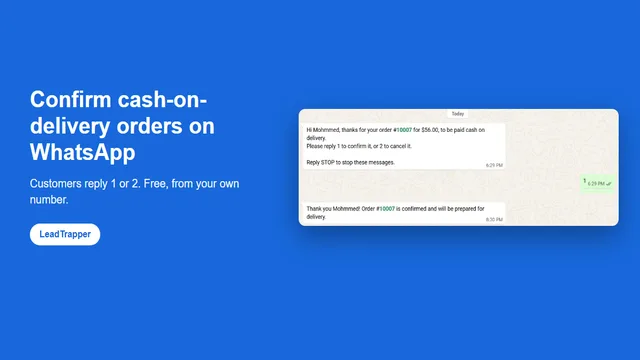
WhatsApp COD Order Confirmation: Cut Fake Orders
Confirm cash-on-delivery orders on WhatsApp: customers reply 1 to confirm or 2 to cancel, before you…
Read article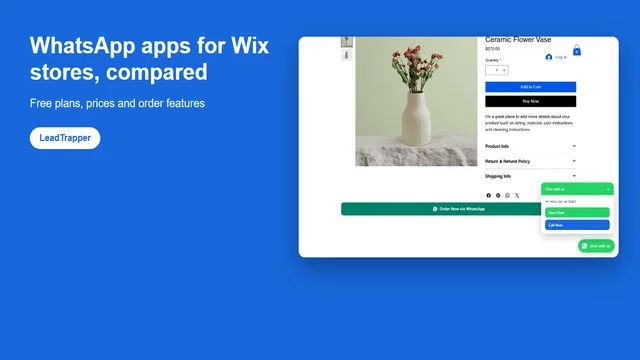
Best WhatsApp Apps for Wix Stores, Compared (2026)
WhatsApp apps for Wix compared: free plans, prices, order buttons, order notifications and COD confi…
Read article