In this article 5 sections
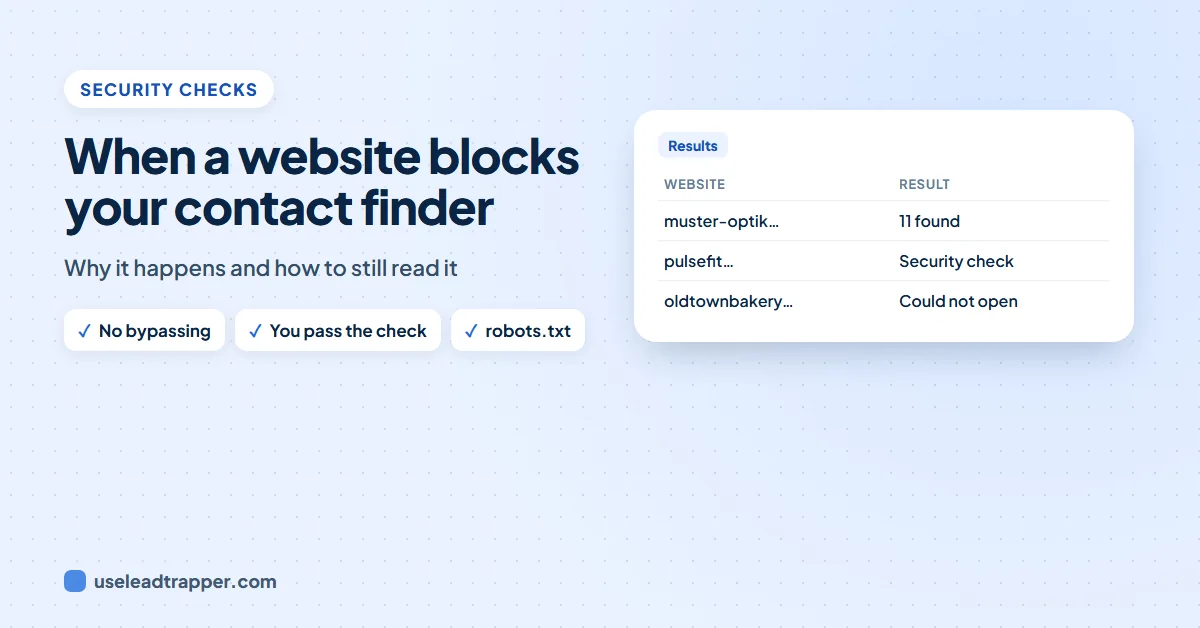
Some websites show a 'Verify you are human' check, or refuse automatic visitors, to stop spam robots. A respectful contact finder does not try to get past it. Open the website yourself, pass the check, and read it from your own browser: LeadTrapper's Read them with me and the free extension's Scan my open tabs do exactly that.
- A few business websites show a security check ('Verify you are human') or refuse automatic visitors, usually to keep out spam robots.
- A contact finder should not try to get past such a check. LeadTrapper never solves or hides from one.
- The fix is simple: open the website yourself, pass the check like any visitor, and read it from your own browser.
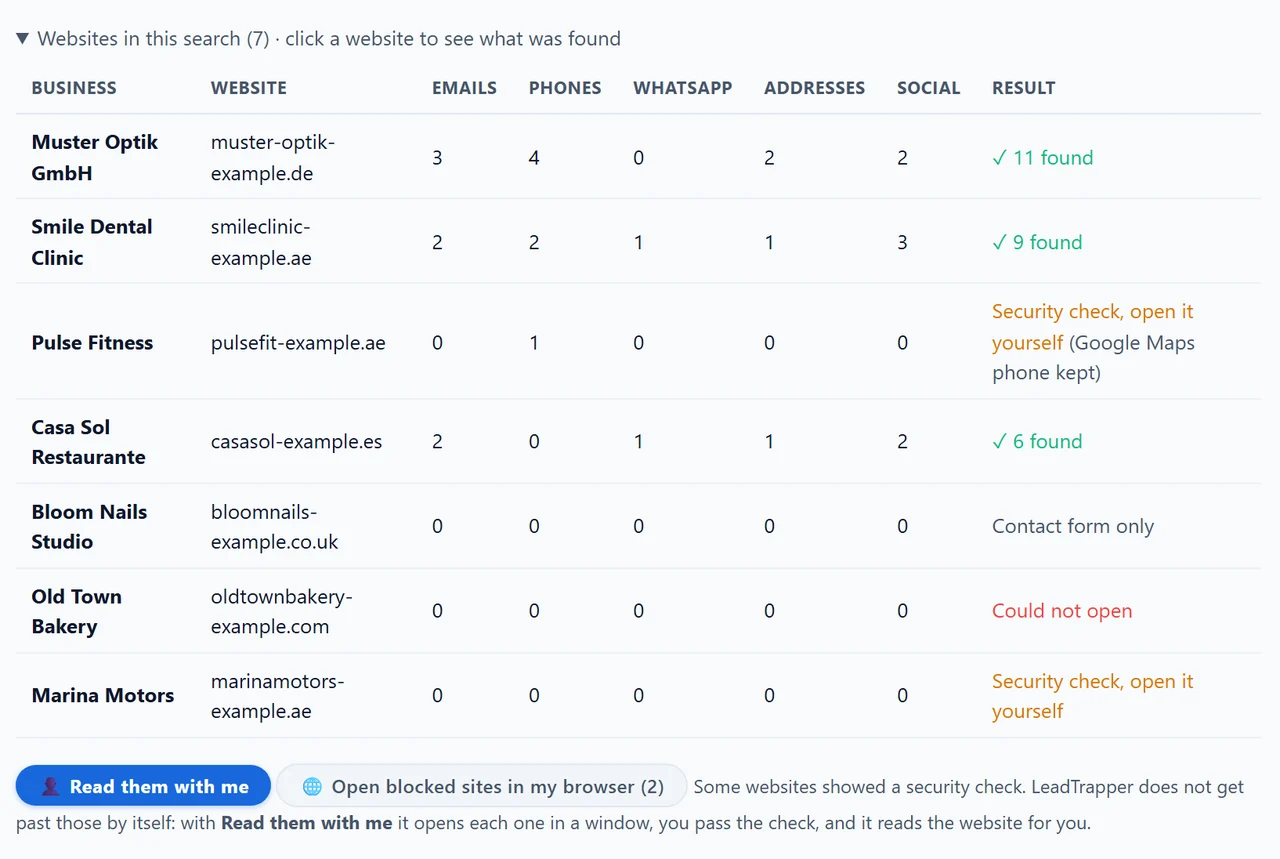
- In the LeadTrapper app, such websites are marked 'Security check, open it yourself'. Read them with me opens each one in a window where you pass the check, then reads it for you; Open blocked sites in my browser opens them in your own browser.
- In the free Contact Finder extension, open the websites in tabs and press Scan my open tabs.
- Pages a website asks robots not to read in its robots.txt are left alone, and the pause it asks for between pages is kept.
Run any contact finder over a few hundred business websites and a handful will refuse: a “Verify you are human” page, a blank page, or an error instead of the contact page. This guide explains why that happens, what a well-behaved tool should do about it, and how to still get those businesses’ contacts.
Why Websites Block Automatic Visitors
Most blocks come from security services that sit in front of a website and filter its visitors. They look for signs of a robot: many pages loaded very fast, a program instead of a normal browser, or visits from addresses known for abuse. A visitor that looks suspicious gets a check, such as ticking a box or waiting a few seconds, and one that fails is refused.
Websites do this to keep out spam robots, content copiers and attacks. A contact finder is not any of those, but to the security service it can look similar. In our test of 190 business websites, only a few showed a check, but you will meet them on any large list.
Websites also publish rules for robots in a file called robots.txt: pages they would rather robots skip, and sometimes a pause to keep between pages.
What a Respectful Contact Finder Does
A tool that reads other people’s websites should behave like a careful visitor:
- Never get past a security check. No solving CAPTCHAs, no disguising that it is a program. The check is the website’s decision.
- Read one website at a time, with a pause between websites and between pages.
- Follow robots.txt. Leave the pages robots are asked to skip, and keep the requested pause.
- Say what happened. A website it could not read should be shown as blocked, not silently dropped or reported as “no contacts”.
The email finder in the LeadTrapper Windows app works this way. It reads one website at a time with a 2-second pause, follows each site’s robots.txt and its requested pause (up to 10 seconds), and marks a website that showed a check as Security check, open it yourself. A website that refuses automatic visitors and shows nothing in the hidden browser either is marked the same way, rather than “Nothing published”. When the website came from a Google Maps search, the phone number from its Maps listing is kept, so you can still reach the business.
Three Ways to Still Read the Contacts
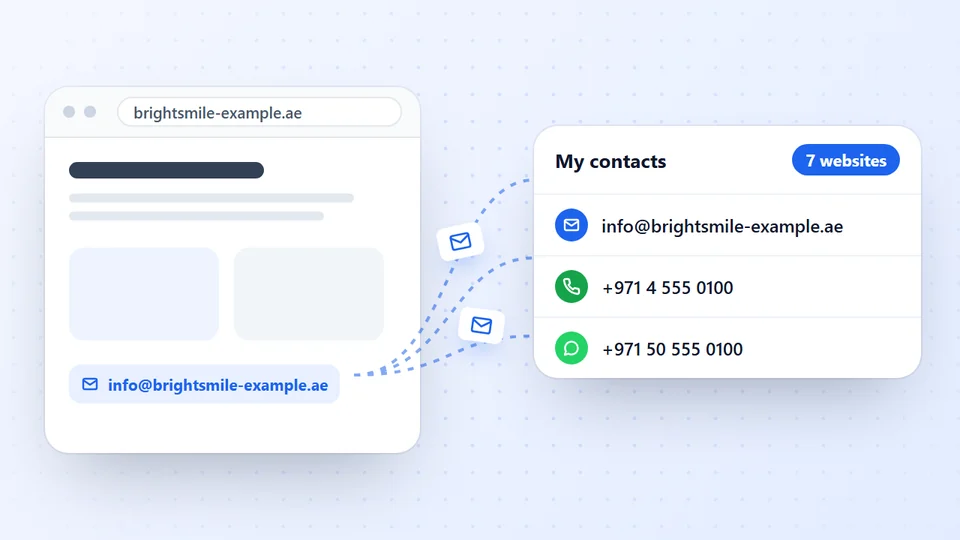
1. Read them with me. When a run ends with blocked websites, the app shows a Read them with me button. It opens each website in a visible browser window on your computer, up to 20 at a time. You pass the check yourself, as any visitor would, and as soon as the real page shows, LeadTrapper reads it and its contact, team and branch pages, one page at a time with a pause, and adds the contacts to My contacts. If you do not pass a check within 3 minutes, it moves on to the next website.
2. Open blocked sites in my browser. This opens every blocked website in your own normal browser, so you can look through them yourself.
3. Open the website by hand. Any website can be opened in a browser, checked, and its contact page copied. For a handful of businesses that is quickest.
In the Free Extension
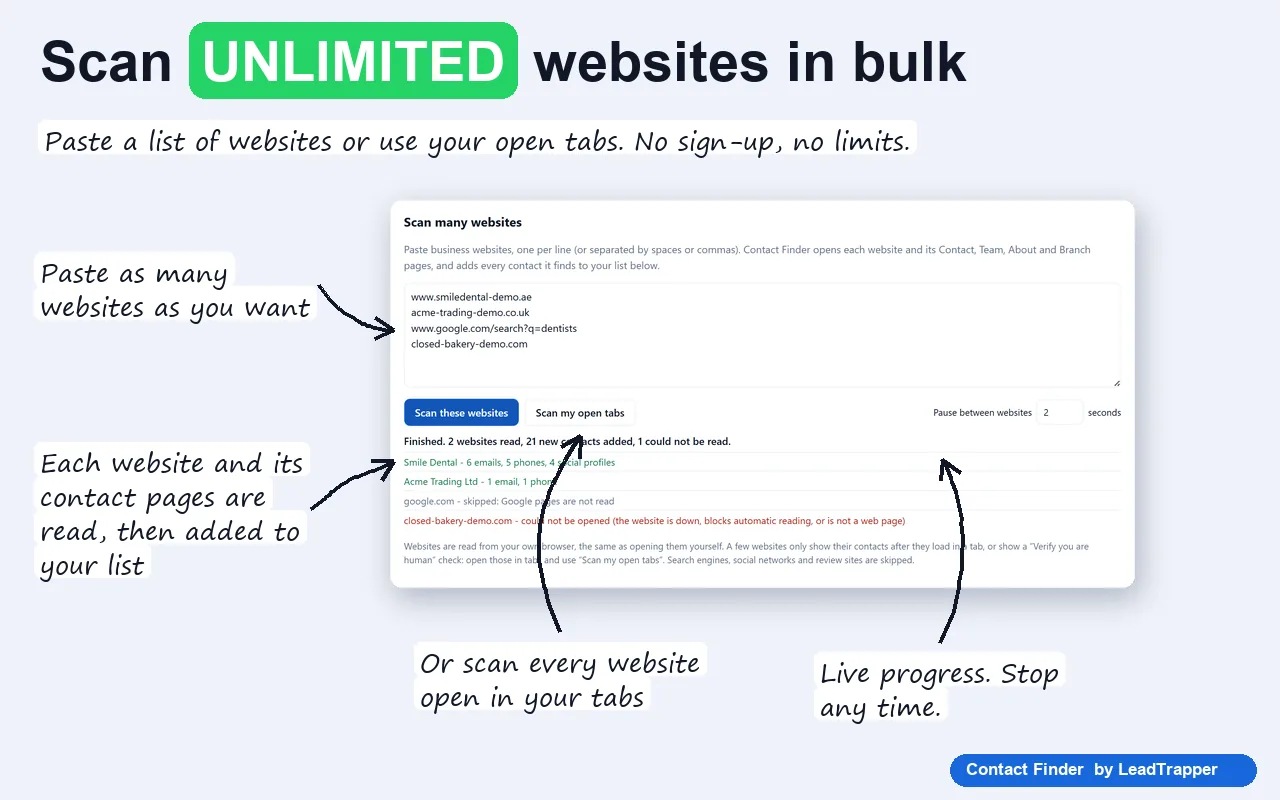
Contact Finder, our free Chrome extension, reads websites from your own browser. When a website in a pasted list shows a check or cannot be read, open it in a tab yourself, pass the check, then press Scan my open tabs: the extension reads every website you have open. The guide to extracting contact details from a website shows both buttons.
Could Not Open Is Different
A website marked Could not open did not refuse you: it did not answer. It may be down for the day, gone for good, or your internet provider could not look up its address. Try it again later in your browser. A business whose website has gone may still be on Google Maps with a phone number; our guide to contacting a business that publishes no email covers the other ways in.
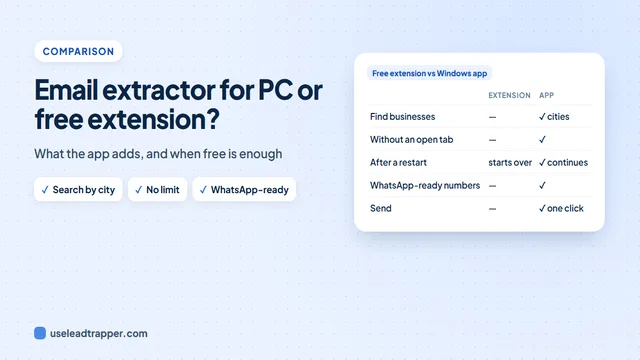
For a desktop app and the free extension side by side, see the email extractor software for PC comparison.
Frequently Asked Questions
Security services such as Cloudflare watch for visitors that load many pages quickly or do not behave like a person using a browser, and ask them to prove they are human. It protects the website from spam robots and attacks. A contact finder reading many websites can look like one.
No, and it does not try. It never solves a CAPTCHA, hides that it is automated or works around a website's protection. When a website shows a check, it marks it 'Security check, open it yourself' and lets you pass the check yourself in a window, after which it reads the website for you.
It opens each blocked website in a visible browser window on your computer. You pass the website's check as any visitor would, and once the real page shows, LeadTrapper reads it and its contact pages, one page at a time with a pause, and adds what it finds to My contacts. It handles up to 20 websites in one go.
robots.txt is a file in which a website asks automatic visitors not to read certain pages and sometimes to pause between pages. LeadTrapper reads it first, leaves the pages every robot is asked to skip, and keeps the pause the site asks for, up to 10 seconds.
The website did not answer, or its address could not be found from your computer: it may be down, gone, or your internet provider could not look it up. Try it again later in your browser.
About LeadTrapper
LeadTrapper is a Windows app for finding business leads and contacting them on WhatsApp. It collects business contacts from Google Maps, Instagram, Facebook, TikTok, LinkedIn and business websites, checks which numbers are on WhatsApp with its Number Filter, and sends personalised campaigns with automatic delays from one or more WhatsApp accounts. It also has a chatbot, a shared inbox for every account, and Store Orders for online shops. It installs from the Microsoft Store, and the full app is free for 14 days, then $50 a year. Free web tools, browser extensions and a Wix app are listed on the Free Tools page.
Read Business Websites the Right Way
LeadTrapper for Windows reads business websites one at a time, respects their rules, and lets you pass security checks yourself. $50/year, 14-day free trial.