In this article 8 sections
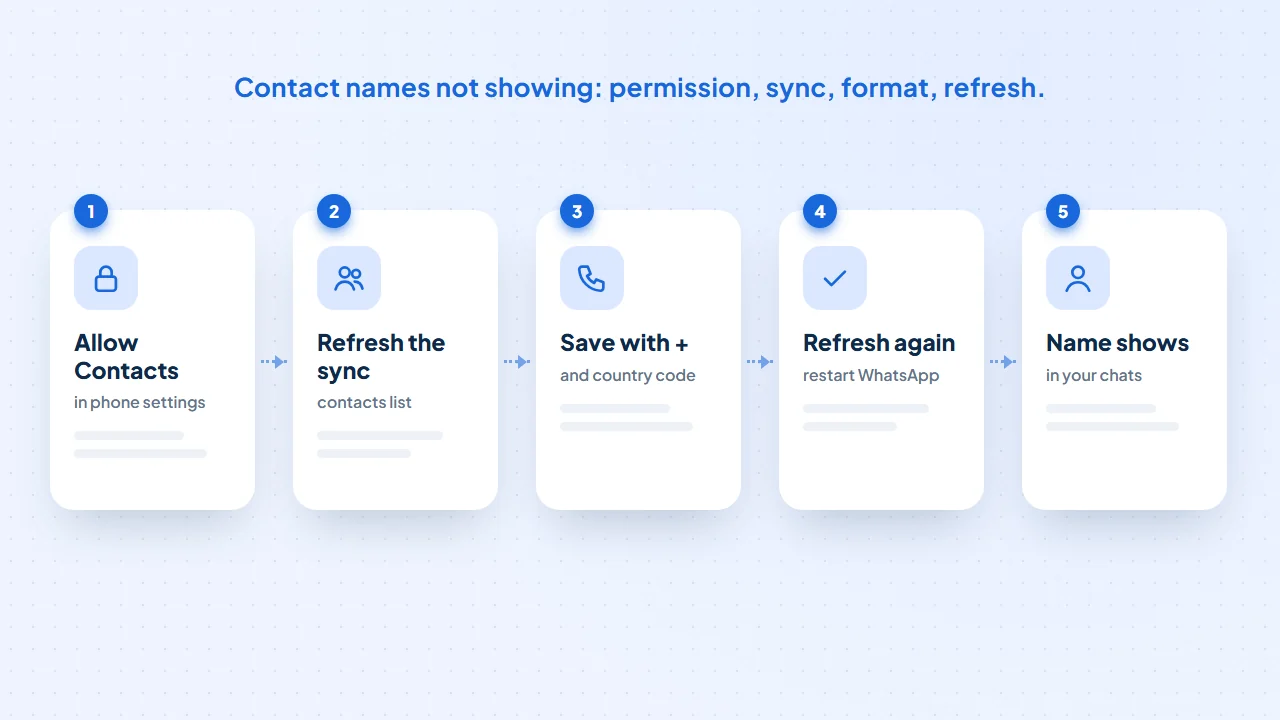
WhatsApp shows a number instead of a name when it cannot read your phone's contact for that person. Allow Contacts for WhatsApp in your phone's settings, refresh or reset the sync, and save the number in full international format, for example +44 7400 123456, not 07400 123456.
- WhatsApp shows names from your phone's address book, so a number instead of a name means the number is not saved, is saved differently, or WhatsApp cannot read your contacts.
- Allowing the Contacts permission for WhatsApp fixes most cases, on Android and on iPhone. If you chose limited access on iPhone, only the contacts you picked show names.
- On Android, refresh from the new-chat screen, and if that fails, reset the sync by removing the WhatsApp account from the phone's accounts and reopening WhatsApp. WhatsApp says this does not delete your messages.
- Save numbers with a plus sign and the country code. A number saved in local format can fail to match when the person writes from another country.
- Some people will always show as a number: anyone you never saved, such as a customer who writes first or a business you message from a list.
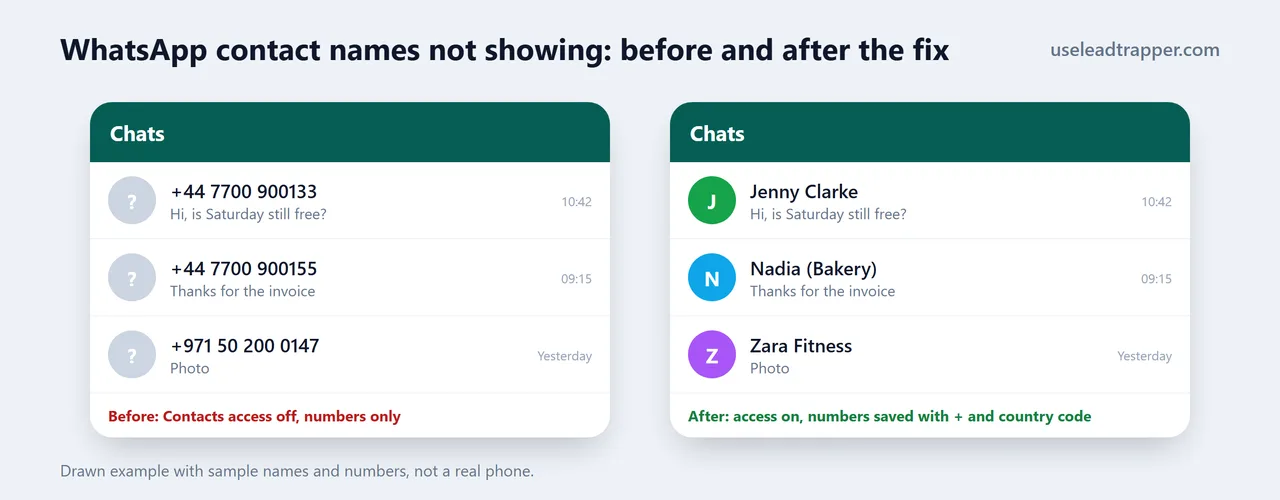
WhatsApp shows a name only when your phone’s address book has that person under a number WhatsApp can match. When a chat shows +44 7400 123456 instead of Maria, one of three things is wrong: WhatsApp cannot read your contacts, the sync is stuck, or the number is saved in a way that does not match. This guide goes through them in order, for Android and iPhone.
Why WhatsApp Shows a Number, Not a Name
WhatsApp does not keep its own address book. It reads the contacts on your phone and matches their numbers to WhatsApp accounts, and the name you see is the name you saved. WhatsApp’s help page Contact names missing covers the fixes, and its page About contacts permissions explains that without access to your contacts, names do not appear.
The causes the guides list, besides WhatsApp’s own steps, are that the contact is not saved, the person changed their number and your address book still has the old one, the contact was deleted, or a bug stopped the sync.
If you use WhatsApp for customers and send to numbers you never saved, you will see numbers by design. LeadTrapper’s WhatsApp bulk sender sends to a list from your PC, and the guide to sending a broadcast without saving contacts explains why that works. For everyone you do want to see by name, use the fixes below.
Find Your Symptom
Match what you see to the likely cause, then jump to the fix.
| What you see | Likely cause | Try first |
|---|---|---|
| No names at all, only numbers | WhatsApp has no Contacts permission | Fix 1: allow Contacts |
| Names vanished after a phone update or new phone | Permission or sync reset | Fix 1, then Fix 2 |
| One or two contacts show a number | Number saved differently or not saved | Fix 3: save the number in international format |
| Names missing only for work contacts | Contacts live in an Exchange or work account that blocks apps | Ask your administrator, or save them to the phone |
| iPhone: only some contacts show names | Limited contact access | Fix 1: choose Full Access |
| Android: new contacts never appear | Sync is off or stuck | Fix 2: refresh or reset the sync |
| Name shows on the phone but not in WhatsApp Web | Web reads the linked phone | Relink; see WhatsApp Web not working |
| The person wrote first and you never saved them | There is no name to show | Save the contact from the chat |
Fix 1: Allow Contacts
Giving WhatsApp the Contacts permission is the fix for most “numbers instead of names” cases. Without it, WhatsApp cannot read your address book, and WhatsApp’s help page says new contacts you add will not show either.
- Android: open Settings, Apps, WhatsApp, Permissions, and allow Contacts (the wording is “Contacts and accounts” on some phones, and you can search settings for it).
- iPhone: open Settings, tap WhatsApp, and turn Contacts on. WhatsApp’s permissions page describes a partial-access option, where only the contacts you selected sync, so if names are missing for some people, pick Full Access or add them to the selection.
After changing a permission, close WhatsApp completely and open it again. Names can take a minute or two to appear.
Fix 2: Refresh or Reset the Sync
On Android, a refresh pulls the current address book into WhatsApp, and a reset rebuilds the link if refresh fails. Both guides and WhatsApp itself recommend them.
- Refresh. In WhatsApp, tap New chat, tap the three dots at the top right and choose Refresh. Several guides show the same path.
- Check account sync. In your phone’s settings, open Accounts (or Passwords and accounts), choose WhatsApp and make sure Contacts sync is on.
- Reset. WhatsApp’s help page says to remove the WhatsApp account from your phone’s account settings, then reopen WhatsApp and refresh again. It says removing the account does not delete your WhatsApp messages or data, even if a prompt suggests it will, and it warns that contacts you already deleted from your phone are removed from WhatsApp as well. On some phones the menu is under “Accounts and backup”.
There is no refresh button on iPhone. Turning the permission off and on, then restarting the app, does the same job.
Fix 3: Save the Number the Right Way
Save every number with a plus sign, the country code and the full number, and a name will match. WhatsApp’s page on adding an international phone number tells you to start with the plus sign and the country code, and WhatsApp’s contact-names page says international numbers need the full international format.
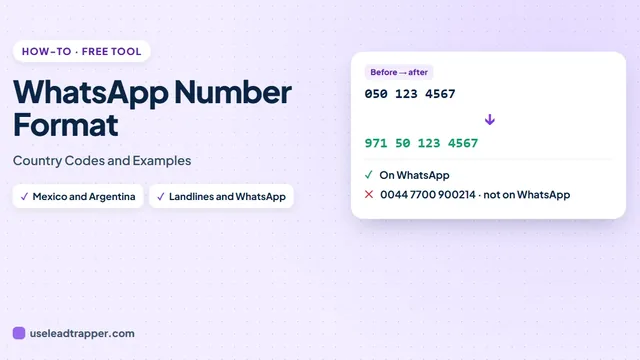
A number saved as 07400 123456 can work for someone in the same country and still fail when the person writes from another country, or when the phone’s region setting changes. The same person saved as +44 7400 123456 matches every time. The WhatsApp number format guide explains the parts of a number, and the list of WhatsApp country codes gives the code and an example for 75 countries.
Also check for the usual mix-ups:
- The person changed their number, so the old contact no longer matches. Edit the contact and add the new one.
- You saved a landline, which has no WhatsApp account.
- The contact has the number twice, once in each format, and WhatsApp showed the other one.
Worked Example: One Supplier, One Number
Sam runs a small restaurant in London. Every chat with the supplier Maria shows “+44 7400 123456” and not her name, while the other suppliers show names.
- Sam checks Contacts permission: it is on, so that is not it.
- He opens Maria’s contact on the phone. It is saved as “Maria Fresh Produce, 7400 123456”, with no 0 and no country code.
- He edits it to +44 7400 123456, the full international form.
- In WhatsApp he opens New chat, taps the three dots and chooses Refresh.
- Maria’s name appears. Two minutes of work, and the fix was the number, not the app.
This is the case behind most “only some names are missing” reports, and it is why a refresh alone does not always help.
When a Name Will Never Show
A name will never show for someone you have not saved, whatever you change in settings. The name in your chat list comes from your address book, not from the other person’s profile. If a customer writes first, tap their number in the chat and choose Add to contacts, which WhatsApp’s page on adding, editing or deleting a contact describes.
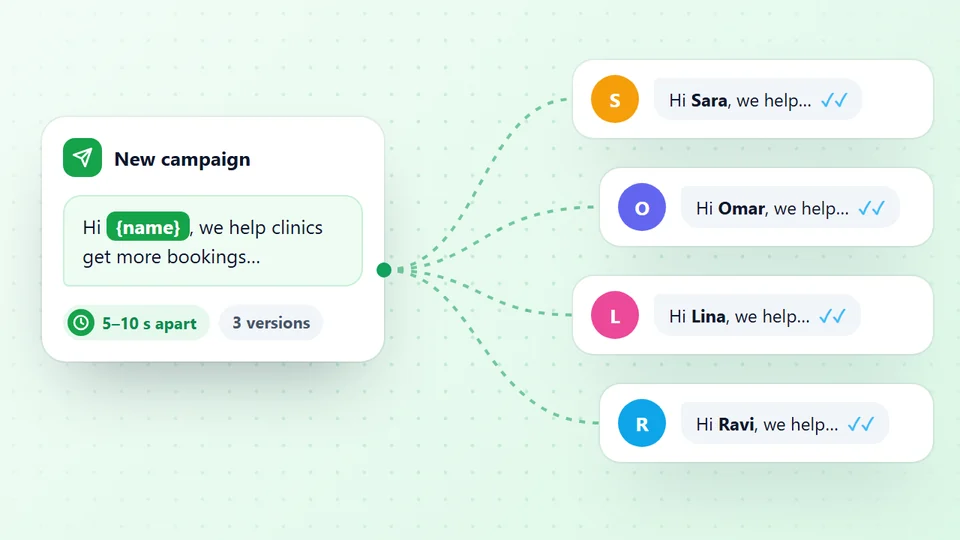
It works the other way too. A person you message from a number they have not saved sees your number in their chat list, so say who you are in the first line. If you send messages to a list, our guide on WhatsApp messages with the customer’s name shows how to put each person’s name in the text, since the app cannot make their phone show yours.
LeadTrapper cannot fix this problem on your phone: contact names are a setting of the phone and of WhatsApp, not of any PC tool.
Last Resorts
If the permission, the sync and the number are right and names are still missing, three more steps are worth trying, in this order.
- Update WhatsApp and your phone’s system. An old version is a common reason names do not load.
- Clear the cache or force stop (Android): Settings, Apps, WhatsApp, Force stop, then Storage, Clear cache. It does not delete your chats.
- Reinstall WhatsApp. Back up your chats first, since a reinstall without a backup loses them. The guide to WhatsApp messages not transferring to a new phone shows how backups and restores work.
If names come back after you restore and then vanish again, the sync is being reset by something on the phone, such as a battery saver that stops WhatsApp in the background or a second contacts app. Turn the saver off for WhatsApp and check again.
If your real aim is to message a list of people from your PC without saving each number, LeadTrapper for Windows does that for $50 a year after a 14-day free trial, with each number checked on WhatsApp first. It is an unofficial tool, like every PC sender, and WhatsApp’s terms do not allow unwanted bulk messages, so message only people who expect to hear from you.
Message your list without saving numbers: try it free for 14 days
No card needed. Windows 10 and 11.
Before you send: warm up new or quiet numbers first with the WhatsApp warmer (LeadTrapper's Account Warmer), which runs in the same app.
Frequently Asked Questions
WhatsApp takes names from the contacts saved on your phone. It shows a number when the person is not saved, saved with a different number, or when WhatsApp has no permission to read your contacts or the sync is stuck. Check the permission first, then refresh, then the saved number.
Open your phone's settings, allow Contacts for WhatsApp, then in WhatsApp open a new chat, tap the three dots and choose Refresh. If names are still missing, WhatsApp's help page says to remove the WhatsApp account from your phone's accounts and reopen WhatsApp; this does not delete your messages.
Open Settings, tap WhatsApp, and turn Contacts on. If you picked limited access, only the contacts you chose will show names, so choose Full Access or add the missing ones. Then close WhatsApp fully and open it again.
The numbers that show names are saved in your address book in a format WhatsApp can match. The others are not saved, are saved without the country code, belong to someone who changed number, or sit in an account WhatsApp cannot read, such as a work Exchange account.
If a person has not saved you, they do not see an address-book name for you, and the chat list may show only your number. If you message customers from a number they have not saved, they will see the number, so say who you are in your first message.
Sometimes, but it is not the first step. Guides list clearing the cache or reinstalling as a last resort, and reinstalling risks losing chats that have no backup. Fix the permission, the sync and the saved number first.
About LeadTrapper
LeadTrapper is a Windows app for finding business leads and contacting them on WhatsApp. It collects business contacts from Google Maps, Instagram, Facebook, TikTok, LinkedIn and business websites, checks which numbers are on WhatsApp with its Number Filter, and sends personalised campaigns with automatic delays from one or more WhatsApp accounts. It also has a chatbot, a shared inbox for every account, and Store Orders for online shops. It installs from the Microsoft Store, and the full app is free for 14 days, then $50 a year. Free web tools, browser extensions and a Wix app are listed on the Free Tools page.
Message a List Without Saving a Number
LeadTrapper for Windows sends personalised WhatsApp messages from your PC to a list, checking each number on WhatsApp first. $50/year, 14-day free trial.