In this article 6 sections
To find a business's WhatsApp number, look for a WhatsApp chat button on its website or social profiles: the number is inside the wa.me link. To check whether a phone number is on WhatsApp, open wa.me followed by the number in international format. For many businesses, an extension like Contact Finder reads the links for you.
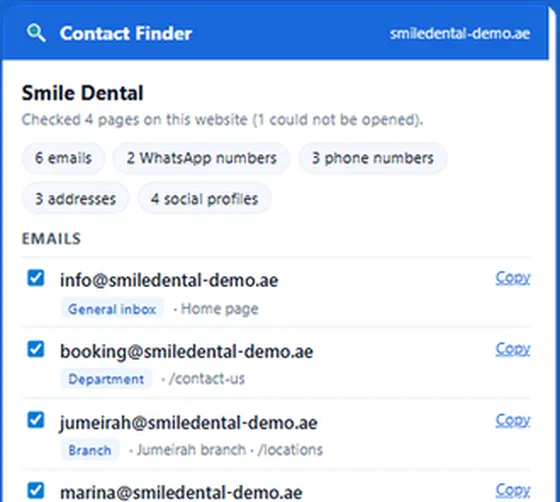

Reads business websites and lists the WhatsApp numbers behind their chat buttons, plus phones, emails and social profiles, ready to download to Excel.
- WhatsApp numbers from chat buttons and wa.me links
- Phones in international format, with the country detected
- Scan a pasted list of websites or your open tabs
- Businesses publish their WhatsApp number mostly as a chat button on their website, Instagram or Facebook page. The number is written inside the link, after wa.me/.
- To check whether any phone number is on WhatsApp, open wa.me/ followed by the number in international format, with no plus sign or spaces.
- In our Google Maps scans of 24 September 2026, 12% to 32% of businesses had a WhatsApp link on their listing or website, while 93% to 99% had a phone number.
- Most of the remaining numbers can still be checked: many business mobiles are on WhatsApp without a chat button.
- Contact Finder, a free Chrome extension, collects WhatsApp numbers from chat buttons on a list of websites, separately from ordinary phone numbers.
- The LeadTrapper Windows app checks a whole phone list against WhatsApp with its Number Filter before you send.
A business’s WhatsApp number is often hiding in plain sight: inside the green chat button on its website. The number is written in the button’s link, so you can read it without opening a chat. And when a business publishes only an ordinary phone number, you can check in seconds whether that number is on WhatsApp. This guide covers both, then shows how to do it for a whole list.
Where Businesses Publish WhatsApp
Look in four places, roughly in this order:
- The website. A floating green button in the corner, a “Chat with us” link on the Contact page, or a WhatsApp icon in the footer.
- Instagram. Business profiles can add a WhatsApp contact button under their bio.
- Facebook. Pages can show a WhatsApp button next to Message or Call.
- The Google Maps listing. The listing’s website and social links often lead to one of the above.
Some businesses simply print “WhatsApp” next to a mobile number in their footer. That counts too, but read it carefully: it may be the same number as the landline listed beside it, or a different mobile.
Read the Number From a Chat Button
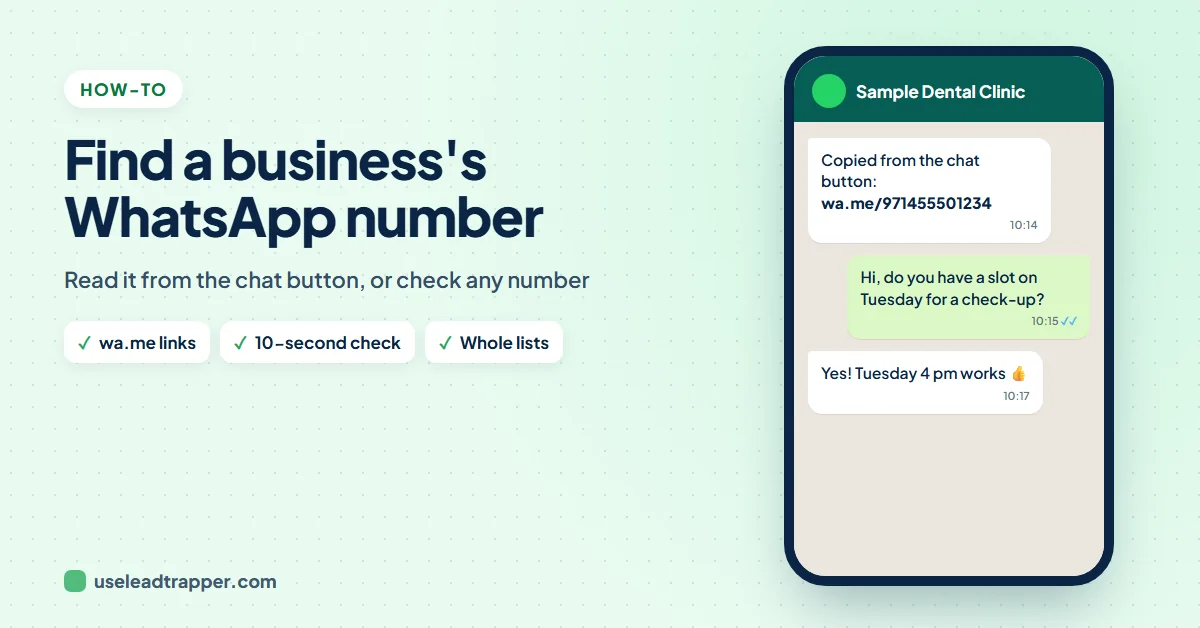
Every WhatsApp chat button is a link, and the link contains the number. On a computer:
- Right-click the WhatsApp button and choose Copy link address.
- Paste it into a note. It looks like one of these:
https://wa.me/971455501234orhttps://api.whatsapp.com/send?phone=971455501234. - The digits after
wa.me/, or afterphone=, are the number in international format: 971 is the country code for the UAE, followed by the local number without its leading zero.
Anything after a question mark, such as ?text=Hi, is the first message the business wants you to send, not part of the number.
Check Any Number in 10 Seconds
When a business lists only a phone number, check whether it is on WhatsApp before you write it down as a WhatsApp contact.
- Write the number in international format: country code first, no plus sign, no spaces, no leading zero. A Mumbai mobile written 098765 43210 becomes 919876543210; a London mobile 07700 900123 becomes 447700900123.
- Open
wa.me/followed by those digits in your browser. - If WhatsApp offers to open a chat, the number is on WhatsApp. If it says the phone number shared via the link is invalid, either the number is not on WhatsApp or a digit is wrong.
Getting the format right is most of the work; our WhatsApp number format guide covers the country rules. Opening a link sends nothing, so the business does not know you checked.
If you already chat with a business, tap its name at the top of the chat. The business info page shows its profile and, for most accounts, the number.
A mobile is the most likely to be on WhatsApp, but not always; our guide to telling a mobile from a landline explains why the type is only a hint.
What Our Scans Found
In three Google Maps scans we ran on 24 September 2026, for dentists in Amman and Cairo and estate agencies in Dubai, almost every business had a phone number, but far fewer published a WhatsApp link.
| Search | Phone number | WhatsApp link |
|---|---|---|
| Dentists, Amman (160 businesses) | 99% | 12% |
| Real estate agencies, Dubai (60) | 98% | 32% |
| Dentists, Cairo (60) | 93% | 13% |
So a chat button finds you a minority of businesses. The larger group publishes a mobile without saying it is on WhatsApp, and many of those numbers are. That is why checking the phone list matters more than hunting for buttons. The full figures are in our Google Maps scan results.
Collect Numbers From Many Websites
Right-clicking buttons works for five businesses, not for fifty.
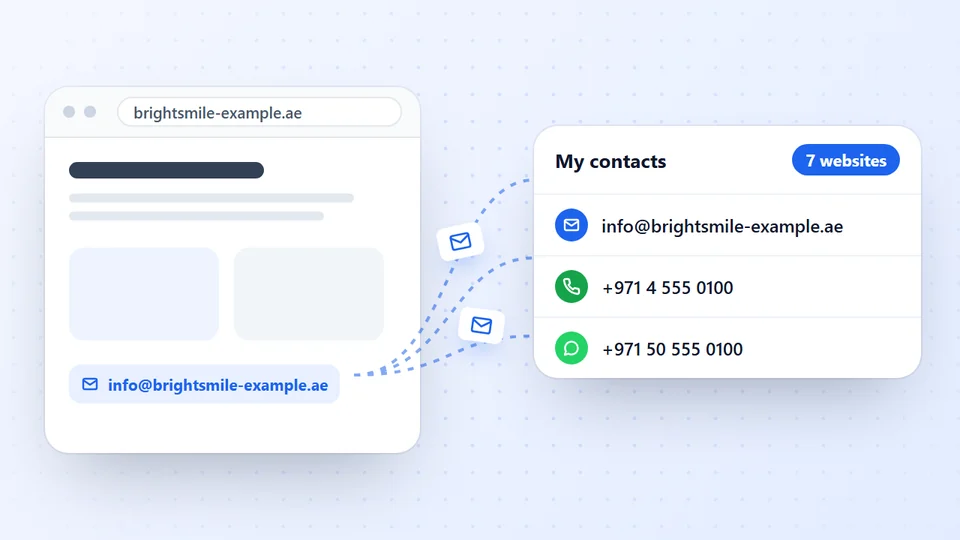
Contact Finder, our free Chrome extension, reads the website you are on and its Contact, Team and Branches pages, and lists the WhatsApp numbers it finds in chat buttons and wa.me or api.whatsapp.com links, separately from ordinary phone numbers. Each number comes out in international format, labelled with the branch or person it belongs to when the page says so. Paste a list of websites, or scan your open tabs, and download everything to Excel or as a send-ready list of numbers. The guide to extracting contact details from a website shows the steps.
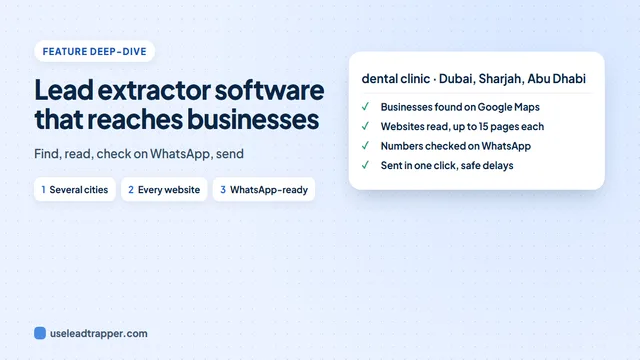
For the ordinary phone numbers, the next step is a check against WhatsApp. The WhatsApp Number Filter in the LeadTrapper Windows app takes the whole list, fixes the format, skips duplicates and tells you which numbers are registered on WhatsApp, marking landlines as not on WhatsApp. If you have no list yet, the app’s email finder starts from a business type in one or several cities, collects the phones, WhatsApp numbers and emails each business publishes on its website, and then marks which numbers are on WhatsApp for you. Our guide to building a business WhatsApp number list shows the whole run.
Before You Send the First Message
A WhatsApp button invites customers to ask about the business’s services. A sales message is a different thing, and WhatsApp’s systems react to how people respond: if many recipients block or report you, the account is limited or banned.
Keep the first message short, personal and about their business, name yourself, and give an easy way to say no. Our guide to WhatsApp’s cold outreach policy explains the rules, and WhatsApp B2B outreach in six steps shows a safer process for messaging businesses you found this way.
WhatsApp is a trademark of WhatsApp LLC; LeadTrapper is not affiliated with or endorsed by WhatsApp or Meta.
Frequently Asked Questions
Look for a WhatsApp button on the business's website, Instagram profile or Facebook page. Right-click it, copy the link, and read the digits after wa.me/ or after phone= in the address: that is the number in international format.
Write the number in international format with no plus sign, spaces or leading zero, and open wa.me/ followed by it in your browser, for example wa.me/97145550123. If the number is on WhatsApp, a chat opens. If WhatsApp says the phone number shared via the link is invalid, it is not on WhatsApp or the format is wrong.
Usually yes. Open the chat and tap the business's name at the top: the business info page shows its profile, and for most accounts the phone number. Some business accounts now display a name or username first.
A business that publishes a WhatsApp button invites messages about its products and services. Sending unsolicited marketing is different: WhatsApp's policies and anti-spam laws expect a relevant, personal message and an easy way to stop. Accounts that send many unwanted messages get reported and banned.
Contact Finder by LeadTrapper scans a pasted list of websites or your open tabs for free and lists the numbers behind their WhatsApp buttons. To check a list of ordinary phone numbers, the LeadTrapper Windows app's WhatsApp Number Filter tells you which ones are registered on WhatsApp.
About LeadTrapper
LeadTrapper is a Windows app for finding business leads and contacting them on WhatsApp. It collects business contacts from Google Maps, Instagram, Facebook, TikTok, LinkedIn and business websites, checks which numbers are on WhatsApp with its Number Filter, and sends personalised campaigns with automatic delays from one or more WhatsApp accounts. It also has a chatbot, a shared inbox for every account, and Store Orders for online shops. It installs from the Microsoft Store, and the full app is free for 14 days, then $50 a year. Free web tools, browser extensions and a Wix app are listed on the Free Tools page.
Find Businesses That Are on WhatsApp
LeadTrapper for Windows finds businesses on Google Maps, checks which numbers are on WhatsApp and sends personal messages with safe delays. $50/year, 14-day free trial.